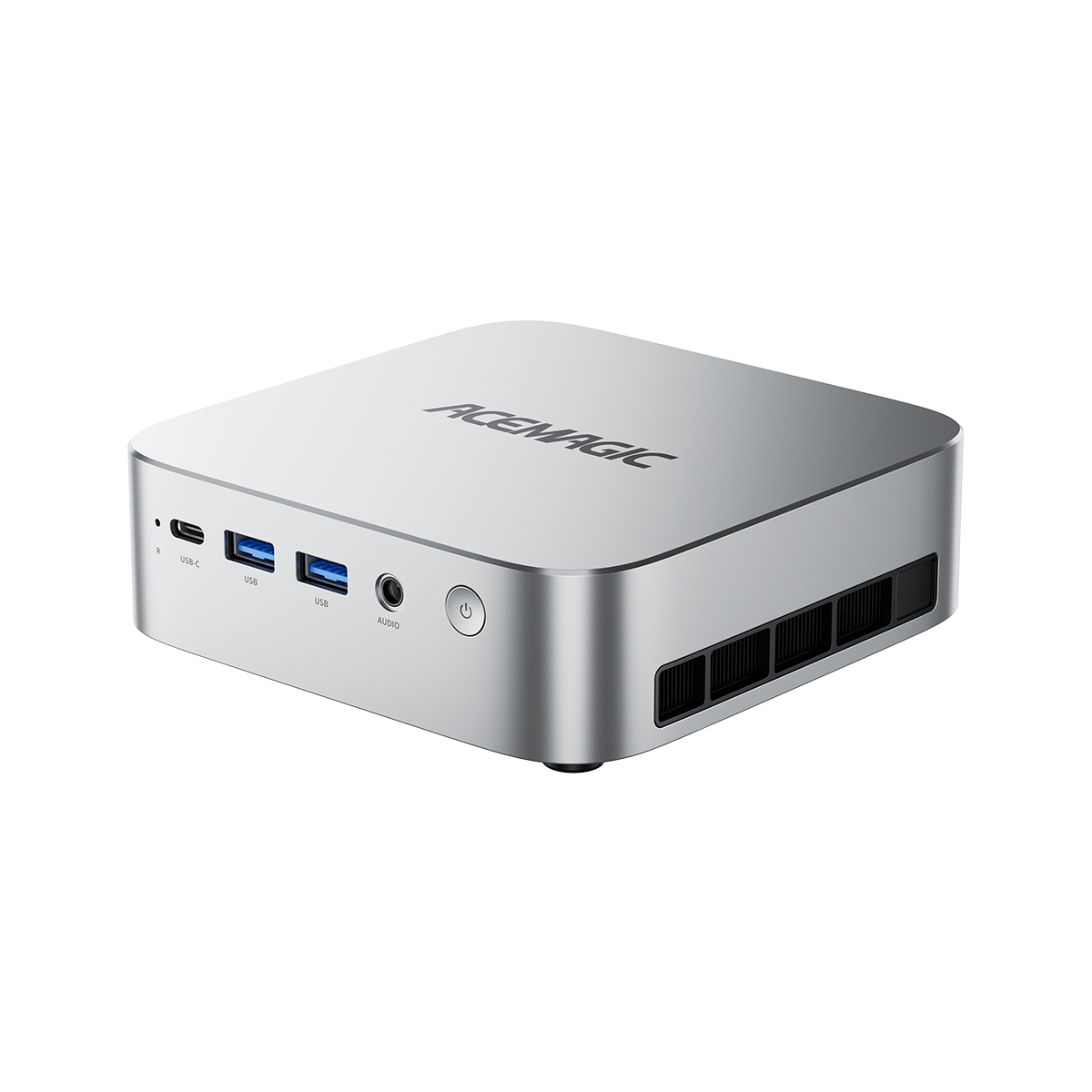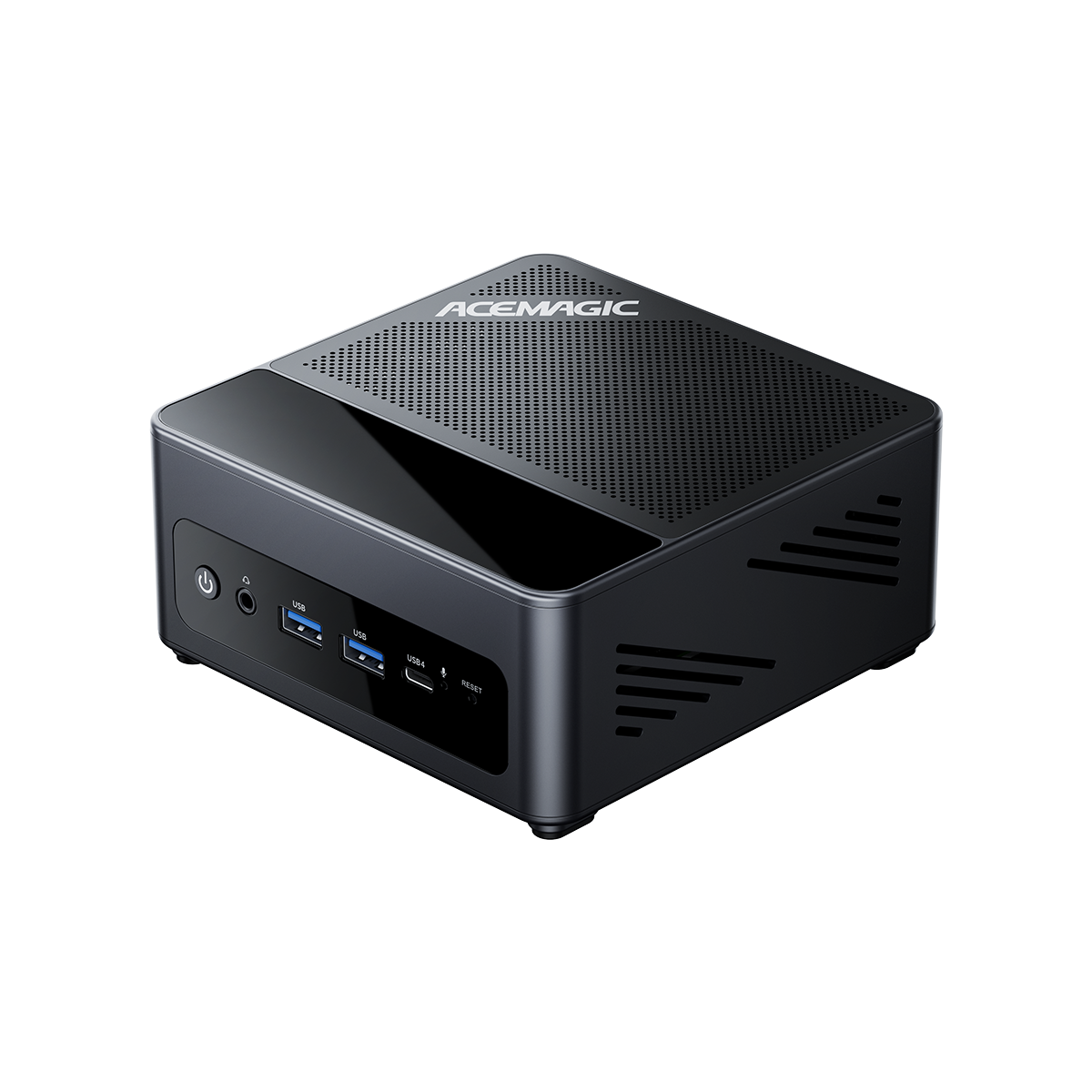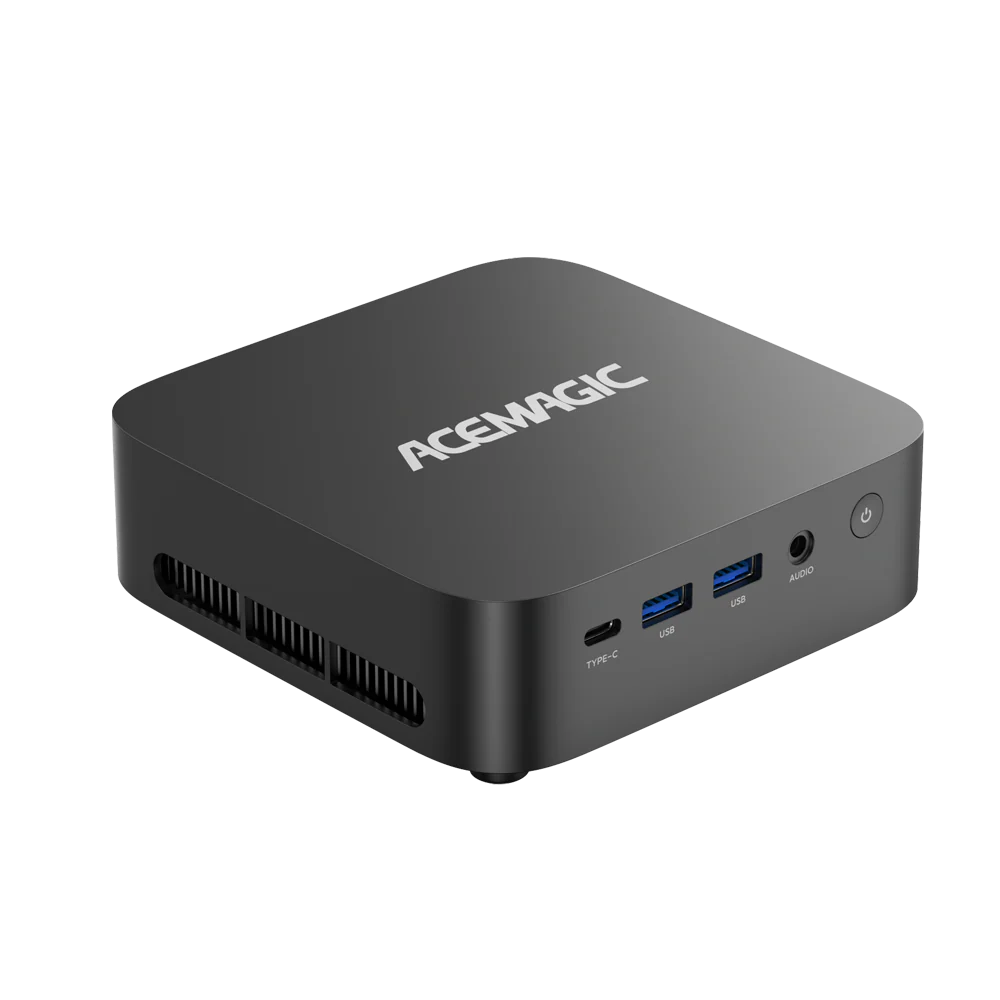

How to Install a Solid State Hard Drive (SSD) in Your PC?
You finally bought a solid state hard drive to speed up your PC, but opening the case and dealing with cables still feels risky. Should you install it next to your existing drive, replace the old one, or even move Windows onto the SSD? This guide walks you through the process step by step so you can safely install an SSD in a desktop PC, laptop, or Mini PC, and get it ready inside Windows without needing advanced technical skills.
We’ll start with a quick overview of what an SSD actually does for real-world performance, then help you check compatibility, gather the right tools, and complete the physical installation. After that, you’ll learn how to make sure your PC recognizes the new drive, initialize and format it in Windows, and optionally clone your existing system so the SSD becomes your main boot drive.

What Is a Solid-State Drive (SSD)?
A solid-state drive is a storage device that uses flash memory chips instead of spinning platters. In practice, that means much faster access times, no moving parts, and better resistance to shocks and drops than a traditional hard disk drive (HDD).
In everyday use, upgrading to an SSD usually brings:
- Shorter boot times
- Faster load times
- Quieter operation
- Lower power use
Next, let’s quickly make sure the SSD you bought will actually fit and work in your PC before you open anything up.
Quick Pre-Install Checklist
Before you start installing a solid state hard drive, take one short pass through this checklist. It keeps the process simple and helps you avoid the most common mistakes.
| Step | What to check | Quick notes |
| 1 | Drive type | Confirm if your PC supports a 2.5" SATA SSD (cable + bay) or an M.2 SATA/NVMe SSD (slim stick on the motherboard). Check your PC or motherboard spec sheet if you are unsure. |
| 2 | Free slot / bay | Make sure there is an empty 2.5" bay + spare SATA port or an unused M.2 slot. If you are replacing an old drive, confirm which one will be removed. |
| 3 | Backup files | Copy important documents, photos, and work projects to an external drive or cloud storage. This is especially important if you plan to clone your existing system. |
| 4 | Basic tools | Prepare a small Phillips screwdriver, any needed mounting bracket (for 2.5" in older desktop bays), and a SATA data cable if you are adding a new SATA SSD in a desktop. |
| 5 | Power off safely | Shut down Windows, switch off the power supply on a desktop, unplug the power cable, and hold the power button for a few seconds to discharge remaining power. |
| 6 | Static precautions | Work on a hard surface instead of carpet and touch bare metal on the case before handling the SSD or internal parts to reduce static. |
Once you can tick off these points, you are ready to move on to the actual installation steps for your desktop, laptop, or Mini PC.

How to Install a 2.5" SATA SSD in a Desktop PC
If your new solid state hard drive is a 2.5" SATA SSD, these are the steps you will follow to install it in a desktop PC.
What You’ll Need
- 2.5" SATA SSD
- Small Phillips screwdriver
- SATA data cable (if your PC does not already have a spare one)
- Available SATA power connector from the power supply
- Empty 2.5" bay or 3.5" bay with an adapter bracket (if required)
Step-by-Step Installation
- Power down and open the case: Shut down Windows, turn off the power supply switch, and unplug the power cable. Remove the side panel of your desktop case to access the internal components.
- Locate an empty drive bay: Look for an empty 2.5" drive bay or a 3.5" bay with a mounting bracket that can hold a 2.5" drive. Many modern cases have dedicated 2.5" mounts on the back of the motherboard tray or near the front of the case.
- Mount the SSD in the bay: Align the screw holes on the SSD with the holes in the tray or bracket, then secure it with the screws provided. The metal shell of the SSD should sit firmly in place without wobbling.
- Connect the SATA data cable: Plug one end of the SATA data cable into the SSD and the other end into an available SATA port on the motherboard. If possible, use a lower-numbered port (such as SATA_1 or SATA_2) for system drives.
- Connect the SATA power cable: Find an unused SATA power connector from the power supply and plug it into the SSD. The power and data connectors only fit one way; do not force them.
- Check cable routing and close the case:Make sure the cables are not stretched tight or blocking any fans. Use cable ties if needed to keep them tidy. Reinstall the side panel of the case and reconnect the power cable.
- Boot the PC and verify detection: Turn the PC back on and enter the BIOS/UEFI screen if you know the key (often Del, F2, or F10). Check the storage section to confirm that the new SATA SSD is listed. If it appears there, you are ready to set it up inside Windows.
How to Install an M.2 NVMe SSD in a Desktop or Mini PC
Many modern desktops and compact Mini PCs use M.2 NVMe SSDs as their main storage. These drives are small, fast, and connect directly to the motherboard.
What You’ll Need
- M.2 NVMe SSD (check the size, such as 2280, in your manual)
- Small Phillips screwdriver
- Motherboard or Mini PC manual (for exact slot location)
Step-by-Step Installation
- Power down and open the system: Shut down Windows, turn off the power supply (for desktops), unplug the power cable, and remove the side panel or top cover. For Mini PCs, follow the manufacturer’s instructions to open the chassis.
- Locate the correct M.2 slot: Look for an M.2 slot on the motherboard, usually labeled M2_1, M2_2, or similar. Your manual will show which slots support NVMe. Some boards have both SATA-only and NVMe-capable M.2 slots.
- Remove the retaining screw: At the end of the M.2 slot, you should see a small screw or standoff. Carefully remove the screw and set it aside; you will use it to secure the SSD.
- Insert the M.2 SSD at an angle: Hold the SSD by the edges and line up the notch on the connector with the notch in the M.2 slot. Insert it at a slight angle (about 30 degrees) until it is fully seated. Do not bend the drive or force it into place.
- Press down and secure the SSD: Gently press the free end of the SSD down toward the motherboard until the mounting hole lines up with the standoff. Reinstall the small screw to hold the drive in place. It only needs to be snug, not overtightened.
- Reassemble the system: Check that no cables or components are pressing hard against the SSD. Put the side panel or cover back on, reconnect the power cable, and switch the power supply back on if you turned it off.
- Boot and confirm the drive is recognized: Turn on the PC and, if you like, briefly enter the BIOS/UEFI to confirm that the new NVMe SSD appears in the storage list. Many desktop and Mini PC builds ship with an M.2 slot already wired for booting, so once the drive is detected, you can set it up in Windows.

How to Install an SSD in a Laptop
Laptop designs vary more than desktops, but the basic idea is the same: open the chassis, locate the existing storage, and either add or replace a drive. Always check your laptop manual first, especially for warranty information.
What You’ll Need
- 2.5" SATA SSD or M.2 SSD (match your laptop’s supported type)
- Small Phillips screwdriver or precision screwdriver kit
- Plastic pry tool (for clips on some bottom covers)
- Laptop manual or manufacturer’s service guide
General Steps for Opening the Laptop
- Shut down and unplug the laptop: Turn the laptop off completely and disconnect the power adapter. If the battery is removable, take it out as well.
- Remove the bottom cover screws: Flip the laptop over on a soft, clean surface. Remove the visible screws from the bottom panel. Some models hide screws under rubber feet or stickers.
- Gently pry off the bottom cover: Use a plastic pry tool (not a metal screwdriver) to release the clips along the edges of the panel. Work slowly to avoid cracking the plastic.
Once the bottom cover is off, you can identify whether your laptop uses a 2.5" drive bay, an M.2 slot, or both.
Laptops with a 2.5" Drive Bay
- Locate the existing 2.5" drive: Find the rectangular 2.5" hard drive or SSD, usually mounted in a small metal caddy and connected with a short SATA cable or direct connector.
- Remove the old drive (if replacing): Unscrew the drive caddy or bracket, then slide the drive away from the connector and lift it out. Keep the screws and caddy; you will reuse them.
- Install the new 2.5" SSD: Attach the SSD to the caddy using the same screws and orientation as the old drive. Slide it back into the connector until it is fully seated, then secure the caddy or bracket.
- Reinstall the bottom cover: Double-check that no cables are pinched, then snap the cover back on and reinstall the screws.
Laptops with an M.2 SSD Slot
- Find the M.2 slot: Look for a slim socket labeled near the motherboard, often with a small retaining screw at one end and a standoff for different M.2 lengths.
- Remove the existing M.2 drive (if present): If your laptop already has an M.2 drive you plan to replace, remove the retaining screw, let the drive pop up slightly, and slide it out of the slot.
- Install the new M.2 SSD: Insert the SSD into the slot at a slight angle, align the notch correctly, then press it down and secure it with the screw.
- Close up the laptop: Refit the bottom cover, press around the edges to engage the clips, and reinstall all screws.
After reassembly, reconnect the power adapter and turn the laptop back on. If everything was installed correctly, the new SSD will be ready to configure in BIOS and Windows.
Set Up the SSD in BIOS and Windows
Once the solid state hard drive is physically installed, the next step is to make sure your PC can see it and prepare it for use inside Windows.
Check Detection in BIOS/UEFI
- Enter the BIOS/UEFI screen: Turn on the PC and press the key shown on the first splash screen, often Del, F2, or F10. If you miss it, restart and try again.
- Open the storage or boot section: Look for menus named Storage, Boot, Advanced, or NVMe Configuration depending on your motherboard or laptop.
- Confirm the SSD is listed: In a desktop, you should see the new 2.5" SATA SSD under SATA devices or the M.2 NVMe SSD under NVMe devices. On a laptop or Mini PC, the SSD may appear as a model number in a storage list.
- Adjust boot order if needed: If you have cloned your old drive to the SSD or plan to install Windows on it, move the SSD above the old drive in the boot order. If you only added the SSD as extra storage, you can leave the boot order as it is.
If the SSD does not appear in BIOS/UEFI, power down and recheck your connections or slot, then try again.
Initialize and Format the SSD in Windows
If the drive shows up in BIOS/UEFI, start Windows. New solid state hard drives usually appear as unallocated space until you initialize and format them.
- Open Disk Management: Right-click the Start button and select Disk Management. A list of drives and partitions will appear.
- Initialize the new disk: If Windows detects a brand-new SSD, a dialog may pop up asking you to initialize the disk. Choose GPT (GUID Partition Table) for most modern systems, then click OK.
- Create a new volume: Find the new SSD in the lower pane, marked as Unallocated. Right-click the unallocated space and select New Simple Volume. Follow the wizard to choose the size (you can use the full size), assign a drive letter, and pick a file system.
- Format with NTFS: For Windows, select NTFS and choose a simple volume label such as "Games" or "Projects". Leave allocation unit size at default and complete the wizard.
- Verify in File Explorer: Once formatting finishes, open File Explorer and check that the new drive letter appears. You can now copy files to the SSD or install apps and games there.
If you replaced your only drive and plan to install Windows fresh on the solid state hard drive, you would instead boot from a Windows installation USB and create partitions during setup.
Data Migration: Cloning Your Existing Drive to the SSD
If you want the SSD to replace your current system drive without reinstalling Windows and all your apps, you can clone the existing drive to the new solid state hard drive.
Basic Cloning Steps
- Connect both drives at the same time: Make sure your original system drive and the new SSD are both connected. On laptops with only one internal bay, use a USB-to-SATA or USB-to-NVMe adapter for the temporary connection.
- Install and open a cloning tool: In Windows, install a trusted disk cloning program and look for an option such as Clone Disk, Clone System, or Migrate OS to SSD.
- Choose source and target drives: Select your current system drive as the source and the new SSD as the target. Double-check this before starting; cloning in the wrong direction will erase data on the SSD.
- Start the clone and let it finish: Begin the cloning process and let it run until the tool reports that it has completed. Avoid using the PC heavily while the clone is in progress.
- Set the SSD as the first boot device: Restart the PC, enter BIOS/UEFI, and move the SSD to the top of the boot order. Save changes and reboot; Windows should now start from the SSD.
Once you have confirmed that the SSD boots correctly and your files look normal, you can keep the old drive for extra storage or wipe it and reuse the space.
For a more detailed, step-by-step walkthrough of different cloning scenarios, you can follow our dedicated SSD cloning guide.
Common Problems and Quick Fixes
Even when the physical installation goes well, a few issues show up frequently after adding a solid state hard drive. Here are quick checks you can run before assuming the drive is faulty.
SSD Not Showing Up in Windows
- Check Disk Management: Right-click Start → Disk Management and look for a disk marked as Unallocated. If you see it, initialize and format the drive as described earlier.
- Verify cables or slot: For SATA SSDs, reseat the SATA data and power cables and try a different SATA port if possible. For M.2 SSDs, make sure the drive is fully inserted and the screw is tight.
- Confirm BIOS detection: If the SSD is missing in both BIOS and Windows, recheck compatibility and the exact slot you used.
PC Won’t Boot After Installing the SSD
- Check boot order: Enter BIOS/UEFI and confirm that the correct drive (your old system drive or the cloned SSD) is at the top of the boot list.
- Disconnect extra drives temporarily: If you cloned to the SSD, try booting with only the SSD connected to rule out confusion between drives.
- Re-run or redo the clone: If the system still will not boot from the SSD, the clone may have failed. Boot from the original drive if possible and try the cloning process again.
SSD Detected but Capacity Looks Wrong
- Resize partitions: In Disk Management, check if there is unallocated space at the end of the SSD. You may need to extend a partition after cloning from a smaller drive.
- Check cloning settings: Some tools copy partitions 1:1 and leave unused space unallocated. Adjust the layout during cloning to use the full size of the SSD.
High Temperatures in a Tight Case or Mini PC
- Check airflow and placement: Make sure vents are not blocked and cables are not packed tightly around the SSD, especially in compact Mini PCs.
- Use included heatsinks if available: Some motherboards and Mini PCs include small M.2 heatsinks. Install them according to the manual to help control temperatures.
Important SSD Installation Tips to Remember
- Plan the upgrade before opening the case. Decide whether you are adding the SSD or replacing a drive, and know where the new drive will sit.
- Always back up important files first. Hardware upgrades are a good time to clean up and protect your data.
- Match the SSD type to your system. Check whether you need a 2.5" SATA SSD or an M.2 SATA/NVMe SSD and confirm the slot supports it.
- Take your time with screws and connectors. SSDs do not require much force; if something feels stuck, stop and recheck alignment.
- Use Disk Management to prepare new drives. Most new solid state hard drives need to be initialized and formatted before they appear in File Explorer.
- Keep the old drive if you have room. After the upgrade, your original hard drive can still serve as bulk storage for large files and backups.
FAQs
Do I need to reinstall Windows when I install a solid state hard drive?
Not always. If you are happy with your current setup, you can clone your existing system drive to the new SSD and keep all your apps and settings. A clean install on the solid state hard drive is a good choice if your old system is slow or cluttered and you want a fresh start.
Can I use my old hard drive after installing an SSD?
Yes. In many desktops and some laptops, you can keep the old hard drive as a secondary drive while using the SSD as your main system drive. After you have confirmed that the SSD boots correctly and your data is safe, you can reformat the old drive and use it for storing large files, game libraries, or backups.
Is a 2.5" SATA SSD good enough, or do I need NVMe?
For everyday tasks and typical office work, a 2.5" SATA SSD already feels dramatically faster than a mechanical hard drive. NVMe SSDs offer higher peak speeds and are ideal for heavy workloads such as large media projects or frequent file transfers, especially in modern desktops and Mini PCs that support them.
How long does it take to install a solid state hard drive?
The physical installation usually takes 15–30 minutes on a desktop and a bit longer on a laptop, depending on how easy the chassis is to open. If you also clone your system to the SSD, the total time depends on how much data you copy and the speed of both drives.
Will installing an SSD void my warranty?
Many desktops allow storage upgrades without affecting warranty, but some laptops and compact Mini PCs use sealed designs or warranty stickers on the screws. Check the warranty terms and the manufacturer’s upgrade guide for your specific model before opening the case or bottom cover.
How much space should I leave free on my SSD?
It is a good idea to leave some free space on any solid state hard drive so it can manage wear leveling and maintain performance over time. As a simple rule, try to keep at least 10–20% of the SSD capacity free instead of filling it to 100%.
Can I install more than one SSD in the same PC?
Yes, as long as you have available bays, ports, or M.2 slots. Many desktops support multiple 2.5" and M.2 solid state drives, and some laptops and Mini PCs offer a combination of an M.2 slot plus a 2.5" bay. Check your system’s documentation to see how many drives it can handle at once.