
How to Check RAM Type (DDR4 or DDR5): 5 Easy Ways
Maybe your PC has started to feel sluggish, and upgrading the memory seems like an easy win. But when you open a product page, you’re not sure what type of RAM you already have. Is it DDR4 or DDR5, desktop DIMMs or laptop SO-DIMMs, and do you have any free slots left? Answering those questions first makes it much easier to choose a safe, compatible upgrade.
How to Tell What Kind of RAM You Have
Quick answer: On Windows, open Command Prompt and run wmic memorychip get SMBIOSMemoryType,Speed,Capacity. A 26 means DDR4 and 34 means DDR5. On newer Windows 11 builds without WMIC, use PowerShell: Get-CimInstance Win32_PhysicalMemory | Select SMBIOSMemoryType,Speed,Capacity.
Task Manager (Ctrl + Shift + Esc → Performance → Memory) shows speed, slots used, and form factor, but often not the DDR type. If you'd rather not type commands, the free CPU-Z tool spells it out on its Memory tab.
5 Ways to Tell What Kind of RAM You Have at a Glance
| Method | Shows DDR type? | Shows speed & slots? | Needs Windows running? | Difficulty |
|---|---|---|---|---|
| Task Manager | Sometimes | Yes | Yes | Easiest |
| Command Prompt / PowerShell | Yes (as code) | Speed yes, slots no | Yes | Easy |
| CPU-Z | Yes | Yes, per slot | Yes | Easy (free download) |
| BIOS / UEFI | Usually | Usually | No | Medium |
| Check the stick label | Yes | Yes | No (open the case) | Medium |
This guide walks through practical ways to identify your RAM using Windows, a free utility, your BIOS/UEFI, the modules themselves, and your system’s spec sheet. You can start with the easiest options and only open the case if you really need to.

The key RAM details you need to identify
When people say “what kind of RAM do I have?”, they usually care about a few specific points:
- Total capacity (for example, 16 GB or 32 GB)
- Per-stick size (8 GB x 2, 16 GB x 1, etc.)
- DDR type: DDR3, DDR4 or DDR5
- Speed: often written as 3200 MHz or 5600 MT/s
-
Form factor:
- Full-size DIMM for desktops
- Smaller SO-DIMM for laptops and many Mini PCs
- Slots used vs free: how many memory slots are populated
All of the methods below help you find these details. When you have them in front of you, choosing compatible RAM or planning an upgrade is much more straightforward.
Check your RAM type in Windows
If your PC boots normally, you can get a lot of information from Windows itself without opening the case.
System and About: quick capacity check
For a quick confirmation of installed memory:
- Right-click the Start button and choose System (or press Windows + Pause/Break).
- In the About section, look for Installed RAM.
This view confirms that Windows sees the expected amount of RAM. It doesn’t show the DDR type, but it is useful if you suspect a module isn't recognized or a slot is faulty.
Task Manager: capacity, speed, and slots
For more detail:
- Press Ctrl + Shift + Esc to open Task Manager.
- If you see a simple view, click More details.
- Go to the Performance tab and select Memory on the left.
Here you can see:
- Total capacity (for example, 16.0 GB)
- Speed (for example, 3200 MHz)
- Form factor (DIMM or SO-DIMM on many systems)
- Slots used and Slots available
- Whether memory is running in Dual Channel (on some systems)
Task Manager often doesn’t show “DDR4” or “DDR5” directly, but the capacity, speed, and slot usage are enough to decide whether an upgrade makes sense and whether you have space to add modules.
Advanced: Use Command Prompt for Extra Memory Details
If you are comfortable using Command Prompt, you can pull additional memory information with WMIC.
- Press Windows + R, type
cmd, and press Enter. - In the Command Prompt window, paste:
wmic MemoryChip get SMBIOSMemoryType, Capacity, Speed, FormFactor, PartNumberYou’ll see a table with:
- SMBIOSMemoryType – a numeric code that identifies the memory type. Use the table below to convert the code to the corresponding DDR or LPDDR generation.
- Capacity – the capacity of each memory module in bytes.
- Speed – the reported memory speed in MHz.
- FormFactor – a numeric code indicating the physical memory form factor, such as DIMM or SO-DIMM.
- PartNumber – the manufacturer's model or part number, which you can search later if you need to identify the exact memory module.
SMBIOSMemoryType Codes
SMBIOSMemoryType Returns a number rather than a memory name. Match the number shown by WMIC against this table:
| SMBIOSMemoryType | Memory type |
|---|---|
| 24 | DDR3 |
| 26 | DDR4 |
| 30 | LPDDR4 |
| 34 | DDR5 |
| 35 | LPDDR5 |
| 0 | Unknown — your BIOS does not report the memory type; use CPU-Z or another hardware information tool instead. |
Codes from the DMTF SMBIOS specification (DSP0134), Type 17 "Memory Type".
Note: LPDDR5X is commonly reported as SMBIOSMemoryType 35 on many systems. Because the SMBIOS code does not always distinguish LPDDR5 from LPDDR5X, treat code 35 as LPDDR5 unless another hardware-information tool confirms LPDDR5X specifically.
You don't need to memorize these codes. The main goal is to confirm the memory type, per-module capacity, reported speed, and PartNumber. The PartNumber can be especially useful if you want to search for the exact memory module later.
Windows 11 note: WMIC has been deprecated by Microsoft and may not be available on some newer Windows installations. If the wmic command is not recognized, use CPU-Z or PowerShell to retrieve the same hardware information.
Get full RAM specs with a free tool
Windows gives you a good overview, but a free tool like CPU-Z makes the picture much clearer.
Memory tab: live configuration
After installing CPU-Z:
- Open CPU-Z and click the Memory tab.
Key fields:
- Type – shows the DDR generation (for example, DDR4, DDR5).
- Size – total memory capacity.
- Channel # – Single, Dual, or higher. Dual channel usually improves performance.
- DRAM Frequency – base clock; effective speed is usually about 2× this number for DDR (for example, ~1600 MHz base ≈ DDR4-3200).
This tells you what is actually running right now, not just what the modules are rated for.
SPD tab: per-slot details
Next, click the SPD tab:
- At the top, choose each Slot from the dropdown (Slot #1, Slot #2, etc.).
-
For each populated slot, look at:
- Module Size – capacity of that stick.
- Max Bandwidth / JEDEC / XMP info – rated speeds.
- Manufacturer and Part Number – the exact model code.
- DDR type – in the description.
You might find that two sticks are not identical (for example, 8 GB from one brand and 8 GB from another). That is useful to know before you add or replace modules.
💡For a deeper look at how DDR4 and DDR5 differ in bandwidth, latency, and platform support, see our dedicated DDR4 vs DDR5 guide. It walks through real-world examples so you can decide whether a newer memory generation is worth it for your next upgrade.
If you prefer a dashboard-style view instead of tabs, tools like Speccy can show similar RAM information in a single summary window. The core data points are the same: DDR type, total capacity, speed, and part number.
Check RAM info from BIOS/UEFI when Windows won’t boot
If Windows will not start, or you are working on a fresh build that doesn’t have an OS yet, your motherboard firmware still lists basic memory details.
Typical steps:
- Turn on the PC and repeatedly tap the firmware key (often Del, F2, F10, or Esc depending on the brand).
- Once in BIOS/UEFI, look for a page called Main, Information, or something similar.
On that screen you usually see:
- Total memory detected
- Memory speed or DRAM frequency
- Sometimes per-slot capacity and which slots are populated
Some advanced firmwares have an Overclocking, Tweaker, or DRAM page that shows even more detail, such as XMP profiles and detailed timing. You do not need to change anything there just to identify your RAM; it’s enough to read what is already listed.
Identify your RAM by looking at the modules
If software tools are not available or you want to confirm with your own eyes, you can look at the modules themselves. Take a bit of care here.
Desktop PCs
- Shut down the PC and switch the power supply off. Unplug the power cable.
- Press the power button once with the cable unplugged to discharge remaining power.
- Remove the side panel to access the motherboard.
- Find the RAM slots, usually next to the CPU socket.
On each module, there is usually a sticker with:
- A DDR mark such as “DDR4” or “DDR5”
- Capacity like “8 GB” or “16 GB”
- Speed such as “3200” or “5600”
- A Part Number – a code like “CMK16GX4M2B3200C16”
This part number is very handy. If you copy it exactly and paste it into a search engine, you can see the full specifications and often find an identical or compatible kit.
Desktop modules are full-size DIMMs. If what you see is a long stick with a notch near the center and a tall PCB, it is almost certainly a DIMM.
Laptops and Mini PCs
Many thin laptops and some mini PCs use soldered LPDDR5 or LPDDR5X memory. If CPU-Z or the command shows LPDDR, there's no stick to swap—check your model's spec page before buying RAM
For laptops and many Mini PCs:
- Shut down and unplug the device.
- If the bottom cover has a dedicated hatch or removable panel labeled with memory or upgrade icons, remove that. On some models, you may need to remove the entire bottom cover.
- Look for one or two shorter modules – those are SO-DIMMs.
As with desktops, read the label for the DDR type, capacity, speed, and part number.
If you don’t see removable modules at all and the chips appear to be soldered directly to the board, that usually means the RAM is not user-replaceable. In that case, upgradability will depend entirely on what the manufacturer offered from the factory.
Use your PC or motherboard model to confirm RAM support and upgradability
Sometimes the easiest path is to let the manufacturer tell you what the system supports.
Find your exact model name
Depending on the device, you can find the model:
- On a sticker on the case (bottom of a laptop, back of a Mini PC, side of a desktop).
- In System Information: press Windows key, type “System Information”, open it, and look for System Model.
- On the original box or invoice.
Write this down exactly, including any suffixes.
Look up the official specs
Search for the model plus the word “specs” or go straight to the manufacturer’s support page. On that page, look for a section related to Memory or RAM. The useful lines are:
- Supported DDR type – DDR3, DDR4, or DDR5
- Maximum memory – total capacity the system supports (for example, 64 GB)
- Number of memory slots – 1, 2, or more
- Whether memory is soldered or socketed
- Supported speed ranges (for example, “DDR5-5600”)
This is where you also answer the “can I upgrade it?” question:
- If the specs say “memory soldered, not user replaceable”, your RAM is effectively fixed.
- If the specs say “2 x SO-DIMM, up to 64 GB”, you know you can swap modules and you know the ceiling.
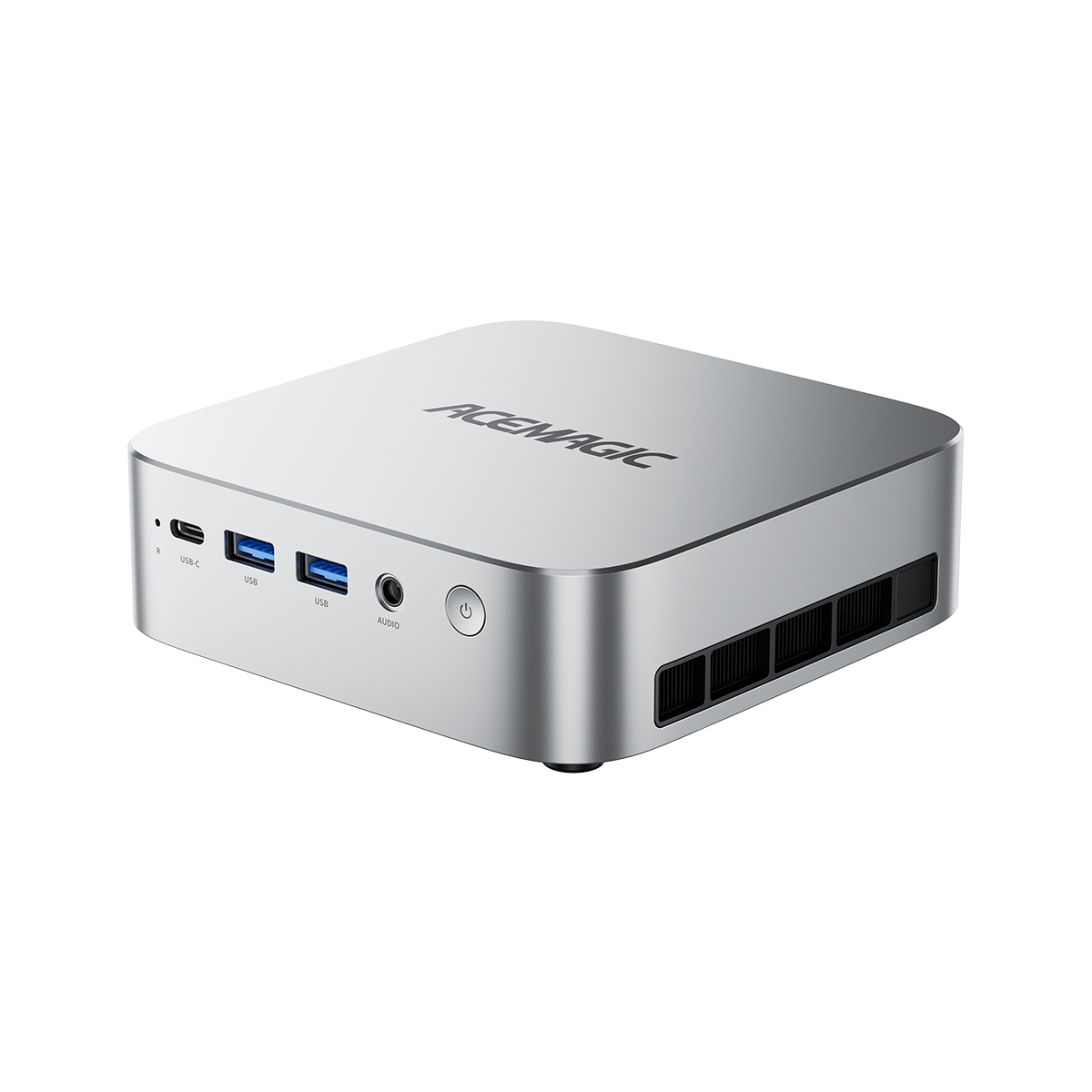
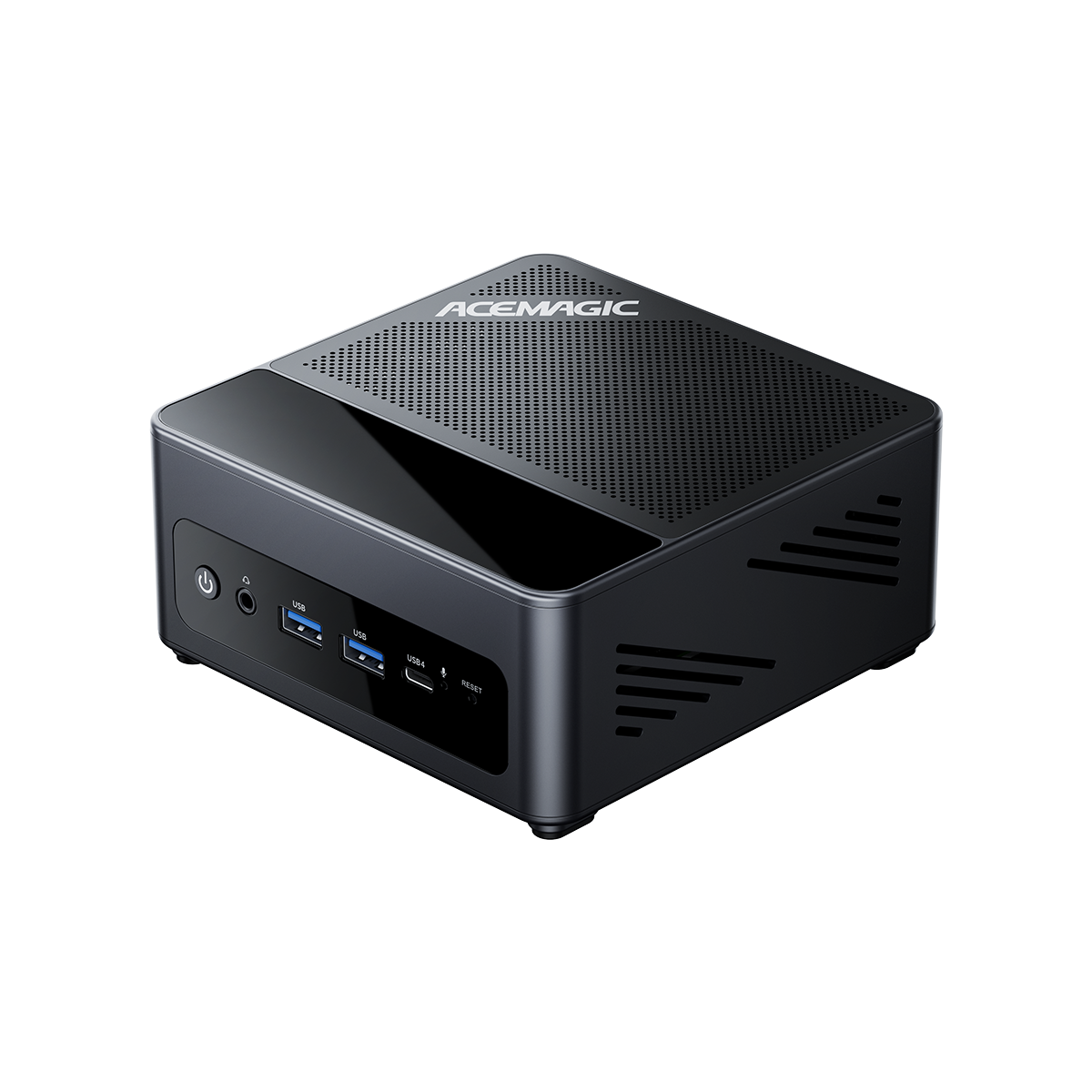
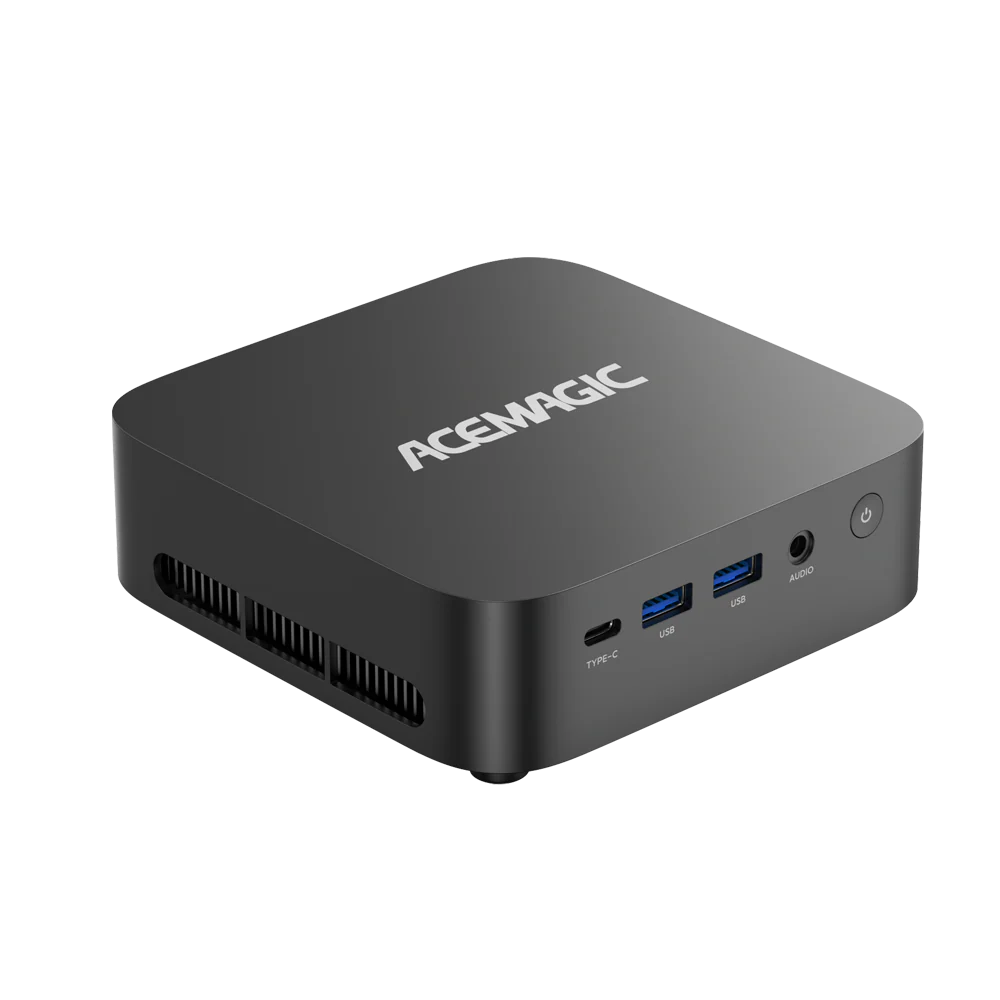
For branded desktops, Mini PCs, and laptops, manufacturers often list RAM layout and limits clearly. If you are working with a Mini PC from a vendor that sells configurable or barebone systems, their product page usually includes the number of slots, maximum capacity, and supported DDR generation.
Use your RAM info to plan a safe upgrade
Once you know what you have and what your system supports, you can decide how to upgrade.
Match the basics
When you shop for RAM, line up these points:
- DDR generation must match your system (DDR4 boards do not accept DDR5 modules, and the other way around).
- Form factor must match: choose DIMMs for desktop motherboards, SO-DIMMs for laptops and many Mini PCs.
- Stay within the maximum capacity listed in the specs.
- Choose speeds that your platform can run reliably. You can buy faster RAM than stock, but your motherboard and CPU still set the upper limit.
Add vs replace
Look at how many slots you have and how they are populated:
- If you have a free slot and your maximum capacity allows it, you can often add another module.
- If all slots are filled and you want more memory, you will need to replace the existing modules with larger ones.
For example, if you have 2 x 4 GB (8 GB total) and two slots, going to 32 GB will require replacing both sticks with 2 x 16 GB.
Mixing modules
You can often mix modules from different brands or speeds, but there are trade-offs:
- The system usually runs all memory at the speed of the slowest stick.
- Mixed kits may carry a higher risk of minor stability quirks, especially when pushing higher speeds.
- For best results, use a matched pair from the same kit, especially if you care about gaming or content creation performance.
💡Dual-channel memory (two matched modules working together) can noticeably improve bandwidth in many games and creative workloads. If you want to see when single-channel vs dual-channel RAM makes a practical difference, our single vs dual channel RAM guide breaks down the most common scenarios with clear before-and-after comparisons.
When a barebone Mini PC makes more sense
Sometimes the problem is not just “what RAM do I have?” but “this system is capped too low, even at max”. That is common with older laptops or compact PCs that have limited or soldered memory.
In those cases, it can be more practical to move to a system that lets you choose the RAM yourself:
- Barebone or “0+0” Mini PCs ship without memory and storage.
- You add your own DDR4 or DDR5 SO-DIMMs and SSD, choosing capacity and speed according to your needs and budget.
- Future upgrades stay straightforward: you can swap modules or drives later without replacing the entire machine.
If your current device is stuck at 8 GB or 16 GB soldered RAM and you rely on heavier multitasking, creative apps, or virtual machines, moving to a Mini PC with two accessible memory slots and support for higher capacities can be a cleaner long-term answer than forcing a small upgrade into a platform that has already reached its limit.
With the methods in this guide, you can move from “no idea what’s inside” to a clear list of your RAM’s type, speed, layout, and upgrade options. Keep those notes somewhere handy; they’ll save time the next time you diagnose slowdowns or plan a new memory kit for your system.
Frequently Asked Questions
How do I know if my RAM is DDR4 or DDR5?
Run wmic memorychip get SMBIOSMemoryType in Command Prompt, or use the PowerShell command. A value of 26 means DDR4, while 34 means DDR5. CPU-Z's Memory tab also displays the memory type in plain text.
Why does Task Manager not show DDR4 or DDR5?
Task Manager shows information such as memory speed, slots used, and form factor, but on many PCs it does not identify the DDR generation. Use CPU-Z or the Command Prompt or PowerShell method if you need to confirm whether your RAM is DDR4 or DDR5.
Can I put DDR5 in a DDR4 slot?
No. DDR4 and DDR5 use different physical notches and electrical pin layouts, so a DDR5 module cannot be installed in a DDR4 memory slot. Your motherboard is designed to support a specific memory generation.
What does SMBIOSMemoryType 0 mean?
A value of 0 means that your BIOS or firmware is not reporting the memory type. Check the SPD tab in CPU-Z or inspect the label on the memory module to identify it.
Is my laptop RAM upgradeable?
It depends on the laptop's memory design. If it has accessible SO-DIMM slots, the RAM may be upgradeable. If the memory is soldered to the motherboard, it cannot be replaced or upgraded. LPDDR memory is commonly soldered, but check your laptop's specifications or physical memory slots before assuming whether an upgrade is possible.