
How to Install RAM: A Practical Guide to Upgrades, Settings, and Stability
Upgrading RAM is one of the easiest ways to give a slow PC more breathing room, but the physical install can feel intimidating if you have never opened a case before. This guide is written for people who already plan to upgrade RAM and just want clear, practical steps. You will learn how to prepare your system, choose the right slots, and install RAM safely on desktop PC, laptop, or mini PC.

Before you install RAM: quick compatibility checklist
A few minutes of checking specs can save you from ordering the wrong kit or running into strange stability issues later. Before you touch a screwdriver, confirm these basics.
Find out how much RAM your system supports
Every motherboard and laptop has a maximum supported memory capacity and a limited number of slots. If you try to go beyond that, the system may not boot or will simply ignore the extra capacity.
Start by:
- Checking the product page for your device on the manufacturer’s website.
- Looking for lines like "Maximum memory" and "Number of memory slots" in the specification sheet.
- Comparing that limit with what you already have installed so you know how much you can realistically add.
If you cannot find the original product page, system info tools on Windows, Linux, or macOS can at least tell you the current capacity and slot usage, which is enough to avoid buying a kit that clearly overshoots what you need.
DIMM vs SODIMM: desktop, laptop, and mini PC differences
RAM sticks are not all the same size or shape. Desktop PCs use full-size modules called DIMMs, while most laptops and many mini PCs use shorter SODIMM modules. The two types are not interchangeable.
You can tell them apart visually:
- DIMM modules are longer and usually sit upright on a motherboard.
- SODIMM modules are shorter and often sit at an angle inside laptops and compact systems.
When you buy RAM, the product listing will clearly state whether it is DIMM or SODIMM. Always match this to your system type. If you own a mini PC, it almost always takes SODIMM, but checking the spec sheet or manual is still worth the extra minute.
DDR3, DDR4, DDR5: how to confirm what you already have
Modern systems use DDR3, DDR4, or DDR5 RAM, and each generation has a different notch position in the connector so you cannot mix them in the same slot. However, you can still accidentally order the wrong generation if you rely on guesswork.
To confirm what you have now, you can:
- Check the memory section of the manufacturer’s spec sheet for your exact model.
- Use a system information tool that shows the current memory type and speed.
- If you are already opening the PC, read the label printed on the existing RAM stick.
Once you know the generation, stick to the same type. Mixing different generations is not possible, and trying to force a stick with a different notch pattern into the slot can damage both the module and the motherboard. If you are deciding between a DDR4 and DDR5 upgrade for a newer system, it helps to look at the trade-offs in more detail.
💡We have a separate guide that breaks down DDR4 vs DDR5 performance, pricing, and platform support so you can match your choice to your build.

Single-channel vs dual-channel and simple rules for pairing sticks
Most modern systems support at least dual-channel memory. In simple terms, dual-channel mode lets the CPU talk to RAM over two paths instead of one, which can noticeably improve performance in some workloads.
You do not need to understand the electrical details, but you should follow a few basic rules:
- Use matched pairs when possible: same capacity, speed, and preferably the same brand and model.
- Follow the slot numbering in the motherboard or system manual when you only use two sticks out of four.
- Avoid running three sticks in a four-slot system unless the documentation explicitly describes how it will behave.
If you are just adding a second stick to an existing single module, try to match its capacity and rated speed. Mixed kits often work, but the system will fall back to the lowest common speed, and the chance of random instability is slightly higher than with a matched kit.
💡If you want a clearer picture of how single-channel and dual-channel memory behave in real workloads and games, you can check our in-depth comparison of single vs dual-channel RAM.
Safety first: tools, power, and static electricity
Before you touch any components, make sure the PC is fully shut down and unplugged from the wall. For desktops and many mini PCs, flip the power switch on the power supply to off, disconnect the power cable, and press the power button for a few seconds to discharge leftover electricity.
Work on a clean, stable surface with good lighting. Avoid thick carpets if possible. Before you handle a RAM stick, briefly touch a grounded metal part of the case or another metal object to release static buildup. Hold the RAM by the edges and avoid touching the gold contacts.
You usually only need a small Phillips screwdriver and a container for screws. If your case uses clips or a tight plastic shell (common with laptops and compact mini PCs), a plastic pry tool makes it easier to open the cover without leaving marks or bending the panel.

How to install RAM in a desktop PC
For a desktop PC, most of the work is simply opening the case and giving yourself enough room to see what you are doing.
- Power off the PC, unplug the power cable, and move the case to a clear workspace. If it is on the floor, place it on a desk so you can look straight into the side panel.
- Remove the side panel that exposes the motherboard. On most cases, this means taking out two screws at the back and sliding the panel backward or lifting it away.
- Locate the RAM slots next to the CPU socket. Existing modules sit in long slots with plastic clips at both ends. Identify any empty slots and check the small diagram printed on the board or in the manual to see which slots should be populated first for dual-channel mode.
- If you are replacing modules, gently push the clips at both ends outward. The old RAM will pop up slightly, and you can lift it out by the edges. Set it aside somewhere clean.
- Take the new RAM stick and line up the notch in the connector with the ridge in the slot. The stick only fits in one direction, so do not force it if it feels wrong.
- Insert the RAM by setting it into the slot and pressing down firmly on both ends at the same time. You should hear or feel the clips snap into place around the module. If a clip is not fully closed, press again until it locks.
- Double-check that all installed sticks sit level and fully seated, with both clips locked. Look for any loose cables that might interfere with case fans.
- Reinstall the side panel, tighten the screws, and move the PC back to its usual position. Now you are ready for the first boot check in a later section of this guide.
How to install RAM in a laptop
Laptops vary a lot in how easy they are to open, so it is worth checking the manufacturer’s manual or a teardown video for your exact model before you start. The basic process is usually similar.
- Shut down the laptop completely and unplug the charger. If the battery is removable, take it out as well. Press and hold the power button for a few seconds to discharge any remaining power.
- Turn the laptop over and inspect the bottom panel. Some models have a small hatch just for RAM and storage, while others require you to remove the entire bottom cover.
- If there is a dedicated access panel, remove the screws, slide or lift the cover, and set it aside. For full covers, remove all visible screws around the edges and any in the middle, noting where each one came from.
- Use a plastic pry tool or your fingernails to gently release the clips around the edge of the bottom cover. Work slowly around the perimeter and avoid bending the panel. Lift the cover away once it is free.
- Locate the RAM slots. SODIMM modules usually sit at an angle, held by two small metal or plastic clips on the sides.
- To remove an existing module, push both clips outward at the same time. The RAM will spring up to a higher angle, and you can pull it out by holding the edges.
- To install new RAM, align the notch in the connector with the slot and slide the module in at the same angle. Once it is fully inserted, press the top edge down gently until the clips snap into place on both sides.
- Check that the modules are seated evenly and that no cables or thin ribbon connectors are trapped under them.
- Reinstall the bottom cover or access panel, press around the edges to re-engage the clips, and put the screws back in their original positions. Reinsert the battery if you removed it, then flip the laptop over for the next power-on.
How to install RAM in a mini PC
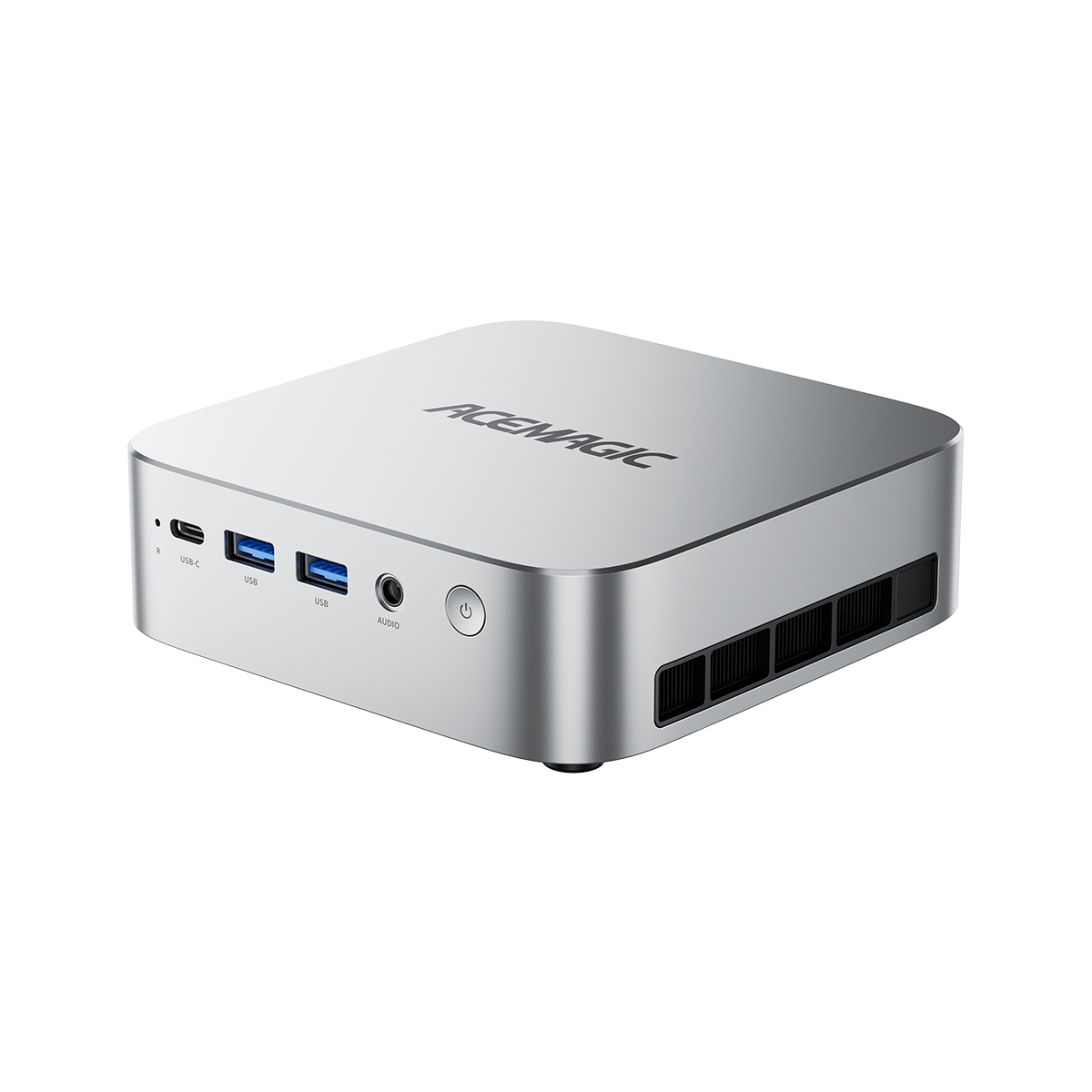
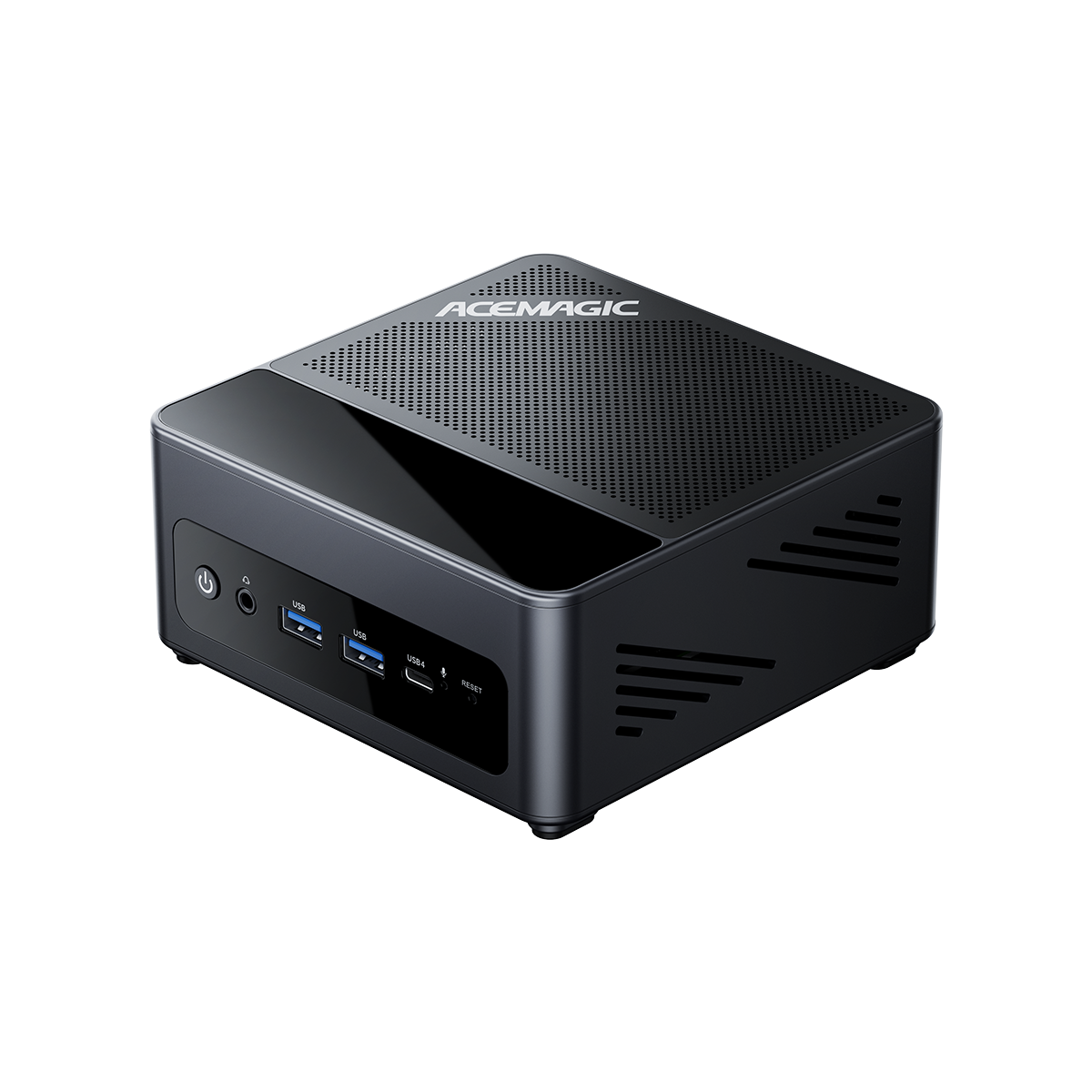
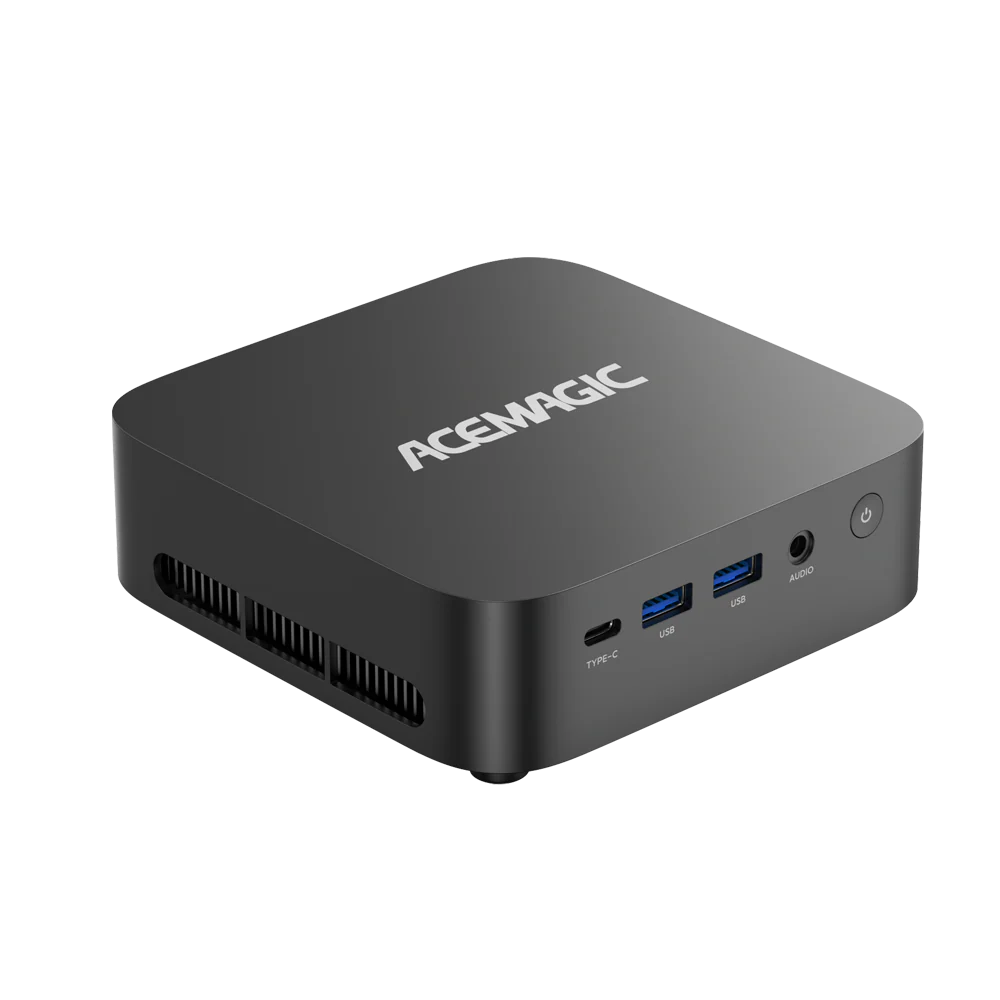
Mini PCs tend to use laptop-style SODIMM RAM but pack components into a much smaller space, so the main challenge is opening the case and working carefully around tight layouts.
- Shut down the mini PC, unplug the power adapter, and disconnect all cables so you can place the unit on a clean, well-lit surface.
- Inspect the case to see how it opens. Some models use screws on the bottom, others use side screws or a slide-off top cover. Remove the screws and keep them in a small container.
- Gently lift or slide off the cover. If the design has an internal drive tray or a secondary frame, check whether it needs to be lifted out to reveal the motherboard and RAM slots.
- Once you can see the motherboard, locate the SODIMM slots. They often sit near the center of the board or alongside the cooler, with modules held at an angle by two small clips.
- To remove existing RAM, push the clips outward so the module pops up, then pull it out by the edges. Take care not to press on heat pipes, small cables, or fan blades.
- Align the new SODIMM with the slot, making sure the notch lines up with the ridge. Slide it in at the same angle until it is fully seated, then press the top edge down until the clips click into place on both sides.
- Check that nothing is blocking any fans and that all cables and connectors are still firmly attached. If you removed an internal frame or drive tray, reinstall it in the original position.
- Put the outer cover back on, reinstall the screws, and reconnect your display, keyboard, mouse, and power adapter. The system is now ready for the verification steps later in this guide.
If you are choosing a mini PC with future upgrades in mind, pay attention to how easy it is to reach the SODIMM slots and whether the system offers two slots instead of one. Clear internal access and a simple cover design make later upgrades much less stressful than dealing with a sealed or glued-together chassis.
Many compact systems are now offered in a barebones or “0+0” configuration: no RAM, no SSD, and a design that expects you to bring your own parts. That kind of mini PC is ideal if you want full control over memory capacity and brands, or if you plan to reuse high-quality RAM you already own.


First boot: how to check if your RAM is detected
After installing the modules and closing everything up, the first power-on is mainly about checking that the system sees the new RAM and runs normally.
Start with a normal boot. If the PC powers on, shows the manufacturer logo, and loads your operating system as usual, that is a good sign. Many systems briefly show a memory count or a short message like “Memory changed” on the first boot after an upgrade.
For a more reliable check, open the system firmware. On most PCs this means pressing a key such as Delete, F2, F10, or Esc right after you power on, before the operating system loads. In the BIOS or UEFI main screen, look for a line that shows total installed memory. It should match the new capacity you expect.
Once you are back in the operating system, confirm the result there as well:
- In Windows, right-click This PC, choose Properties, and check the Installed RAM line. You can also open Task Manager and look at the Memory tab for total capacity and slot usage.
- In macOS, click the Apple menu and choose About This Mac, then look under the Memory section. (Many modern Macs do not have user-upgradable RAM, but this check still confirms the total.)
- In common Linux desktop environments, the System Information or Settings panel usually shows installed memory. You can also run a terminal command like free -h to see total RAM.
If you want to be thorough, you can run a basic memory test later using tools like Windows Memory Diagnostic or a bootable utility. For most simple upgrades, a clean boot with the correct total capacity and no crashes during light use is enough to confirm that the install went smoothly.
Common problems and quick fixes
Even when you follow the basic steps carefully, RAM upgrades can sometimes expose older issues or highlight small mistakes. Most problems fall into a few common patterns that are easy to troubleshoot.
If the PC does not boot at all or shows a black screen, power it off and open the case again. Check each module to make sure it is pressed fully into the slot with both clips locked. Many no-boot situations come from a stick that is slightly tilted or not seated all the way down. Try booting with one module at a time to see whether a specific stick or slot causes the failure.
If the system boots but reports less RAM than you installed, first confirm the total in the BIOS or UEFI. Then check the operating system: 32-bit versions of Windows and some older systems cannot use more than about 4 GB of RAM. Integrated graphics can also reserve part of the memory, so the usable amount will look slightly lower than the physical total.
Random crashes, freezes, or blue screens after a RAM upgrade often point to unstable settings rather than a bad stick. If you enabled an XMP or EXPO profile in the BIOS to reach higher speeds, try switching back to the default memory profile and test again. If the system stabilizes at standard speeds, you can either keep it there or experiment with more conservative settings.
When a problem is hard to pin down, go back to a simple configuration: one known-good stick in the primary slot, default firmware settings, and no extra overclocking. Once the system runs reliably in that state, add modules and features back one step at a time until you either reach a stable final setup or identify the exact combination that causes trouble.
When a RAM upgrade is not the best answer
A RAM upgrade is one of the easiest hardware changes you can make, but it is not always the smartest way to spend your budget. Very old systems with limited processors, slow chipsets, or a single memory slot may gain only a small improvement even if you add more capacity. In those cases, overall responsiveness is often held back by the CPU, storage, or other aging components.
If your machine already has plenty of memory for everyday work—16 GB or more for office tasks and light creative use—adding even more RAM will rarely fix stutter caused by a slow hard drive, weak graphics, or heavy background software. When the real bottleneck sits elsewhere, money spent on extra RAM would be better directed toward a faster SSD, a newer graphics solution, or a full system replacement.
Some laptops and compact desktops also hide their limitations behind soldered or partially upgradable designs. You might only have one accessible slot and several gigabytes of memory permanently attached to the board, which caps the total capacity you can reach. Before buying new modules for such a system, check the official maximum supported RAM to avoid chasing an upgrade path that will never quite meet your needs.
If you are already running into multiple limits at once—maxed-out RAM slots, outdated ports, and a CPU that struggles under modern workloads—it can be more sensible to move to a newer desktop or mini PC that is built with easy upgrades in mind. A compact system with two SODIMM slots, modern storage support, and straightforward internal access gives you room to grow over the next few years instead of forcing you into one more stopgap upgrade on old hardware.
Before you decide between one more upgrade or a new system, it is worth reviewing your whole setup for CPU, GPU, storage, and memory balance. Our PC bottleneck guide uses real-world scenarios to help you connect everyday slowdowns to the right type of upgrade.
FAQ
Can I mix different RAM brands or speeds?
You can often mix different RAM brands and speeds, but the system will run all modules at the speed and timings of the slowest one. This can work for basic use, yet it slightly increases the chances of small compatibility quirks or stability issues. When possible, use a matched kit so every stick is identical.
How much RAM do I need for office work, gaming, and light editing?
For simple office tasks and web browsing, 8 GB is the bare minimum and 16 GB is more comfortable. Many modern games and light content creation tools run best with 16 GB as a starting point, while heavier workloads such as large photo catalogs or video editing can benefit from 32 GB or more. If you are unsure, aim for a configuration that leaves at least one slot free for future upgrades.
Is it safe to install RAM by myself at home?
Installing RAM is generally safe if you follow basic precautions: shut the system down, unplug it, discharge any remaining power, and avoid static by touching grounded metal before handling modules. Take your time opening the case and never force parts that do not move easily. If something feels unclear, checking your manufacturer’s manual or a trusted step-by-step video for your exact model can help.
Will installing RAM void my warranty?
Many desktops and some laptops are designed with user-upgradable RAM and storage, and manufacturers document this as an allowed change. Others use seals, glued panels, or specific wording in their warranty that discourages opening the case. Before you start, read the warranty terms and look for any clear statements about RAM upgrades so you understand the risks for your particular system.
Do I need to change any BIOS settings after installing RAM?
Most RAM upgrades work fine with the default BIOS or UEFI settings, so you do not have to change anything for the system to recognize the new modules. If you bought performance-oriented memory, you might see an option to enable an XMP or EXPO profile, which applies the advertised speed and timings. Those settings can improve performance but may reduce stability on some systems, so enable them only after confirming that the PC boots and runs reliably at standard defaults.