

How to Speed Up a Slow Windows PC (What Actually Works)
When a computer feels slow, the cause is usually simple: storage is overloaded, memory is running out, a background process is chewing CPU, the system is throttling from heat, or (in games) graphics settings/drivers are the problem. This guide walks you through a clean order: check the bottleneck once, then apply the fix that matches what you saw.

Start here: the 60-second check
Open Task Manager (Ctrl + Shift + Esc), go to Processes, and watch the CPU, Memory, Disk, and GPU columns for about a minute while the PC feels slow.
Use this mapping:
| What stays high | What it usually means | Where to start |
| Disk 90–100% | background reads/writes, low free space, HDD limits, sync/indexing | Fix slow storage and 100% disk |
| Memory 85–95%+ | too many tabs/apps, paging to disk | Fix lag from low RAM |
| CPU 90–100% without a heavy task | startup/background apps, updates, something misbehaving | Fix heavy background load |
| GPU high mainly in games | settings too heavy, VRAM limits, driver/heat/power limits | Gaming-only fixes |
If nothing stays high but the PC still feels sluggish, skip to Special cases.

Start with the basics
Do these once. They won’t fix every slow PC, but they help rule out the usual culprits.
- Restart (especially if you’ve been using Sleep for days).
- In Task Manager, close the one recognised app that’s clearly dominating CPU or Memory.
- If you’re on a laptop and performance feels capped, plug in and set Power mode to Balanced or Best performance.
After that, go in order. Storage and RAM problems are the most common.
Fix slow storage and 100% disk
When Disk is pegged, the whole PC feels delayed: apps open slowly, clicks don’t register right away, and typing can stutter.
1) Make room on the system drive
Open File Explorer → This PC and check the drive Windows is on (usually C:). If it’s nearly full, clear space first:
- Settings → System → Storage
- Clear safe items (Temporary files, Recycle Bin) and remove large files you no longer need
A practical baseline is keeping 15–20 GB free on the system drive.
2) Identify what’s using your disk
In Task Manager → Processes, sort by Disk and watch for 30–60 seconds. You’re looking for what stays near the top.
Common culprits you’ll recognise:
- Cloud sync (OneDrive/Dropbox/Drive)
- Game downloads
- Antivirus scans
- Windows Update
If it’s sync or downloads, pause them and re-test. If it’s Windows Update, let it finish when possible, then restart once.
3) Check if Windows is running from an HDD
If your system drive is a mechanical hard drive, 100% Disk spikes are normal under modern Windows.
- Press Win + R, type dfrgui, press Enter
- Look for Media type: Hard disk drive vs Solid state drive
💡If it’s an HDD, moving Windows to an SSD is usually the most noticeable long-term improvement. If you want the hands-on steps, read our How to Install a Solid State Hard Drive guide.
If this fix worked, you’ll notice Disk is no longer stuck near 100% during normal tasks and the PC responds instantly again.

Fix lag from low RAM
If the PC is fine with one thing open but stutters when you multitask, memory pressure is often the reason. When RAM is low, Windows pushes data to disk, which feels like short freezes.
1) Confirm you’re actually running out of memory
Go to Task Manager → Performance → Memory while the PC feels slow. If Memory sits around 85–95%+ for long stretches, that’s your bottleneck.
2) Reduce RAM load where it matters
Start with the usual sources:
- Browser: close tabs you don’t need, remove unknown extensions, enable sleeping tabs/memory saver.
- Always-running apps: quit tray apps you’re not using (chat/meeting tools, launchers, sync tools during focused work).
3) Decide if a RAM upgrade is the clean answer
If you routinely hit high memory use in your normal workflow, upgrading is often more effective than chasing small tweaks.
- 8 GB can feel tight with modern browsers and many tabs.
- 16 GB is a solid baseline for everyday multitasking.
- 32 GB helps if you run heavier creative apps or keep many apps open.
💡You’ll know this helped when switching apps stops causing pauses and tabs stop reloading. If you want to confirm what your system supports before buying anything, read our How to Tell What Kind of RAM You Have guide.
Fix heavy background load and slow boot
This is the right section when boot feels slow, the PC feels heavy for minutes after login, or CPU stays high even when you’re not doing anything demanding.
1) Reduce startup apps
Open Task Manager → Startup apps and disable programs that don’t need to launch with Windows. Game launchers, unused vendor utilities, and rarely used auto-updaters are usually safe places to start.
Be cautious with anything that sounds like a driver or hardware control (touchpad, hotkeys, audio console, GPU utilities). If you’re not sure, leave it enabled.
2) Catch the repeating CPU hog
Back in Processes, sort by CPU and watch for a minute.
- If it’s a known app, close it and stop it from auto-starting.
- If it’s Windows Update, let it finish, then restart once.
- If it’s something you don’t recognise, don’t delete anything yet—use the malware steps in Special cases.
3) Uninstall what you don’t use
Go to Settings → Apps → Installed apps and remove trial software and tools you never open. This prevents background services from coming back.
This worked if the time from boot to “usable” is shorter and CPU settles down during idle.
Fix slowdowns caused by heat
If the PC starts fast and then gets slower after 10–30 minutes, it may be throttling due to temperature.

Start with simple airflow fixes: keep vents clear, avoid soft surfaces, raise the back slightly, and use a reasonable performance profile when plugged in. If vents are dusty, clean them gently (compressed air at the vent openings is fine if you’re not opening the device).
💡You’ll know you’re on the right track when performance stays consistent over time instead of fading as the fan ramps up. If you want a quick way to verify it, read our How to Check CPU Temperature guide.
Gaming-only fixes
Use this section if everyday work feels fine but games stutter or FPS drops.
- While the game is running, check Task Manager → Performance.
- If GPU is near 95–100%, lower settings that hit the GPU hardest first: resolution/render scale, shadows, reflections.
- If CPU is high and GPU isn’t, close background apps and reduce CPU-heavy settings.
- Update graphics drivers when you have a reason: new game release, crashes/flicker, or a clear performance change after an update.
This worked if stutters reduce and frame pacing feels steadier (even if peak FPS doesn’t change much).
Special cases
It got slower after a Windows update
Right after an update, Windows may run background work. Give it one normal cycle: leave the PC on for 15–30 minutes, then restart once. If it still feels slow, re-check free space on the system drive and look at Disk/CPU in Task Manager for a clear offender.
It feels suspicious (possible malware/adware)
If you see pop-ups, redirects, unknown extensions, or high usage while idle:
- Run Windows Security → Full scan
- Remove unknown browser extensions and reset your default search engine if it was changed
- If an unknown process keeps topping Task Manager, search the exact process name and confirm what it is before taking action
Too much preinstalled software
Uninstall what you don’t use (Settings → Apps). Then re-check Startup apps so the same utilities don’t keep launching.
Reset or reinstall
If disk, RAM, background load, heat, and malware checks don’t change anything, a reset can be the fastest way back to a clean, responsive system.
- Reset this PC (keep my files) is fine when Windows feels messy but stable.
- A clean install is best if malware was involved or the system is unstable.
💡Before you start, back up important files and write down logins/licence keys. If you want step-by-step instructions, read our How to Factory Reset Windows guide.
Upgrade or replace
If fixes don’t stick, it’s often a hardware limit.
- Moving from HDD → SSD is the biggest responsiveness upgrade for older systems.
- Adding RAM helps when you regularly run near full.
Replacement makes more sense when your CPU/GPU can’t meet your current workload, overheating persists even after basic cleaning, or storage errors keep returning.
Quick recap
- Use Task Manager once to find the bottleneck.
- Fix disk pressure first (space, top disk process).
- Fix RAM pressure next (tabs/apps, then consider a RAM upgrade).
- Reduce startup/background apps when CPU is high or boot is slow.
- Treat “gets slower over time” as a heat problem until proven otherwise.
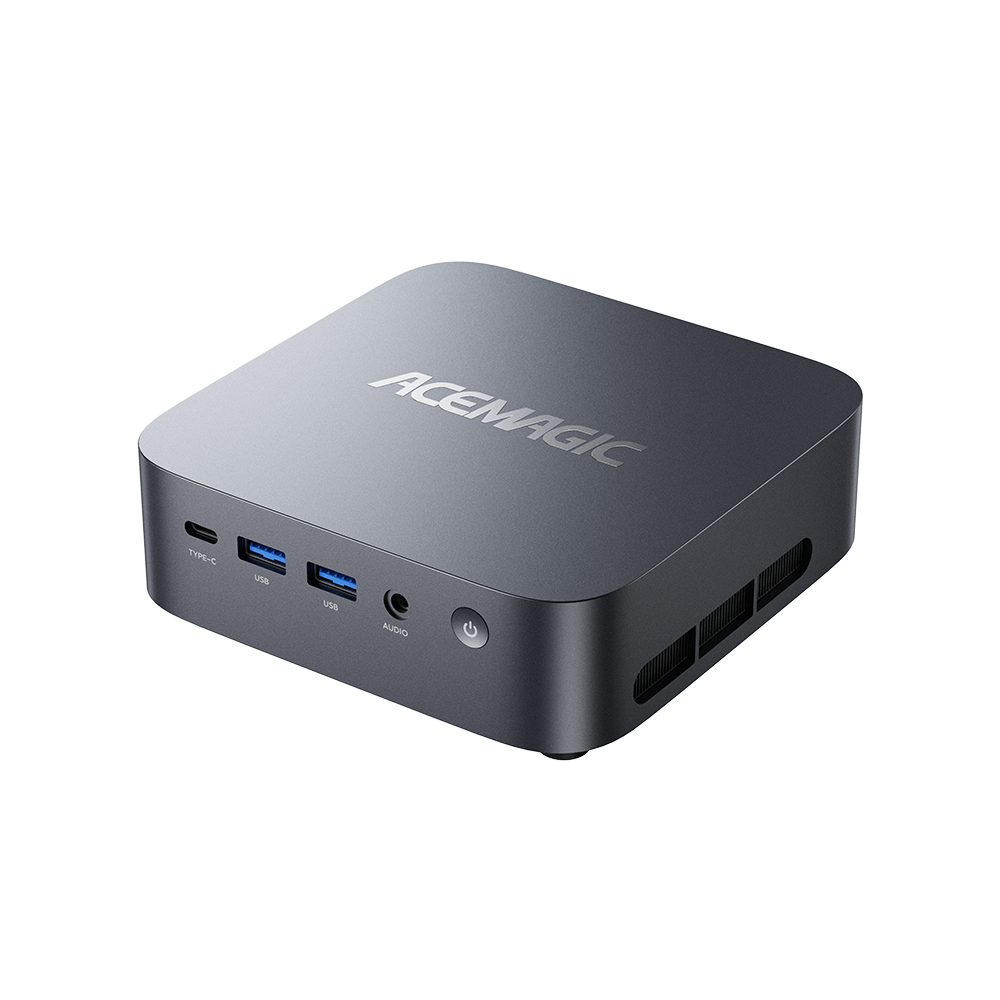
If you’ve tried the fixes above and your PC still feels slow, you may be running into a hardware limit. Here are two compact mini PC options—one for AI-heavy workflows and one for a clean, business-ready setup.

Conclusion
This guide walked you through a practical way to troubleshoot a slow PC: check what’s limiting performance in Task Manager, then fix storage, RAM pressure, background load, heat, or (for games) graphics settings in that order. If you only do one thing, run the 60-second check first—it keeps you from wasting time on changes that don’t match the real bottleneck. If you’re still not seeing improvements, a Windows reset or a targeted upgrade (SSD/RAM) is often the cleanest next step. Keep this guide bookmarked.
💡ACEMAGIC support
If you need help with an ACEMAGIC device, you can reach support and downloads here:
- Support email: service@acemagic.com
- Contact page: https://acemagic.com/pages/contact-us
- Drivers & Downloads: https://acemagic.com/pages/drivers-downloads
When you contact support, include your model name and what you’ve already tried.
FAQ
Why is my computer suddenly so slow?
Most sudden slowdowns come from a background task (updates, indexing, sync) or a single app misbehaving. Check Task Manager while it feels slow and see which resource stays high. Fixing that bottleneck is faster than trying random “cleaning” steps.
How do I speed up Windows 11 without buying new parts?
Reduce startup apps, free space on the system drive, and reduce browser and background app load. Then check Disk usage—if it’s frequently near 100%, identify the top process and address it directly.
What should I do if Disk is at 100%?
Check free space first, then sort Task Manager by Disk and watch for a minute. Pause obvious causes like sync or downloads. If Windows is installed on an HDD, moving to an SSD is usually the best long-term fix.
How much RAM do I need for smooth multitasking?
16 GB is a practical baseline for everyday multitasking and lots of tabs. 8 GB can feel tight on Windows 11 with modern browsers. If you run heavier creative apps or keep many apps open, 32 GB can be more comfortable.
Why does my laptop slow down after it gets hot?
It’s likely throttling. The CPU or GPU reduces speed to protect the hardware. Improve airflow, avoid blocked vents, and use a sensible performance profile when plugged in.
Are PC cleaner apps worth using?
Most don’t fix the real bottleneck and some add background load. You’ll usually get better results by checking Task Manager, reducing startup apps, freeing storage space, and addressing heat.