
How to Check PC Specs on Windows 11 and 10 (2026 Guide)

Knowing your computer's specifications helps you verify software requirements, identify hardware limits, and determine if an upgrade is necessary. This guide explains four direct methods to find your PC specs on Windows 11 and 10 and details how to read the output data.
Why You Need to Know Your PC Specs
Software and Game Compatibility
Software publishers and game developers publish minimum and recommended system requirements. Checking your specific processor and graphics card against these lists prevents software crashes and prevents you from buying incompatible programs.
Diagnosing Performance Issues
If a computer operates slowly during multitasking, checking the RAM capacity and CPU usage helps pinpoint the specific hardware causing the delay. Identifying a 100% CPU usage or maxed-out RAM allocation indicates which part requires an upgrade.
Preparing for an Upgrade or Resale
Hardware buyers require exact part names and numbers. Listing the specific CPU model, RAM amount, and storage capacity ensures accurate pricing and clear communication when selling an older unit or buying replacement parts.
4 Quick Ways to Check PC Specs on Windows
Method 1: The Settings App (Best for Basic Info)
- Press the Windows key + I to open Settings.
- Click System on the left menu.
- Scroll to the bottom and click About. This page displays your Processor model, Installed RAM, and the specific version of Windows you are running.
Method 2: Task Manager (Best for Real-Time Monitoring)
- Press Ctrl + Shift + Esc to open Task Manager.
- Click the Performance tab (the graph icon on the left).
- Click on CPU, Memory, Disk, or GPU to see specific model names in the top right corner and current usage percentages in the center graphs.
Method 3: System Information (Best for Detailed Hardware Data)
- Press the Windows key + R to open the Run dialog.
- Type msinfo32 and press Enter. This window provides exact text strings for your System Model, BaseBoard (Motherboard) Manufacturer, and BIOS Version.
Method 4: DirectX Diagnostic Tool (Best for Checking Graphics)
- Press the Windows key + R.
- Type dxdiag and press Enter.
- Click the Display tab. This section lists the exact name, manufacturer, and VRAM (Video RAM) of your installed graphics card.
Understanding Your Computer Specs: What Do the Numbers Mean?
CPU (Processor): The Engine of Your Machine
The CPU executes instructions from the operating system and applications. Models like the Intel Core i5 or AMD Ryzen 5 handle standard office tasks. Numbers following the brand name (e.g., Ryzen 7 7840HS or Intel Core i7-13700H) indicate the generation and performance tier. Higher numbers generally indicate higher processing limits.
RAM (Memory): Your Multitasking Capacity
RAM stores data for active applications. While 8GB allows for basic web browsing, 16GB is the current baseline standard. 16GB allows users to keep multiple browser tabs and office applications open simultaneously without application freezing. 32GB is required for consistent video editing, large database management, or 3D rendering.
Storage (SSD vs. HDD): Speed and Capacity
Storage holds your files and operating system. Solid State Drives (SSDs), specifically modern NVMe M.2 models, read data at speeds ranging from 3,500 MB/s to 7,000 MB/s. Older mechanical Hard Disk Drives (HDDs) read data at 100 MB/s to 160 MB/s. Using an NVMe SSD reduces operating system boot times from minutes to seconds compared to an HDD.
Form Factor: Desktop vs. Laptop vs. Mini PC
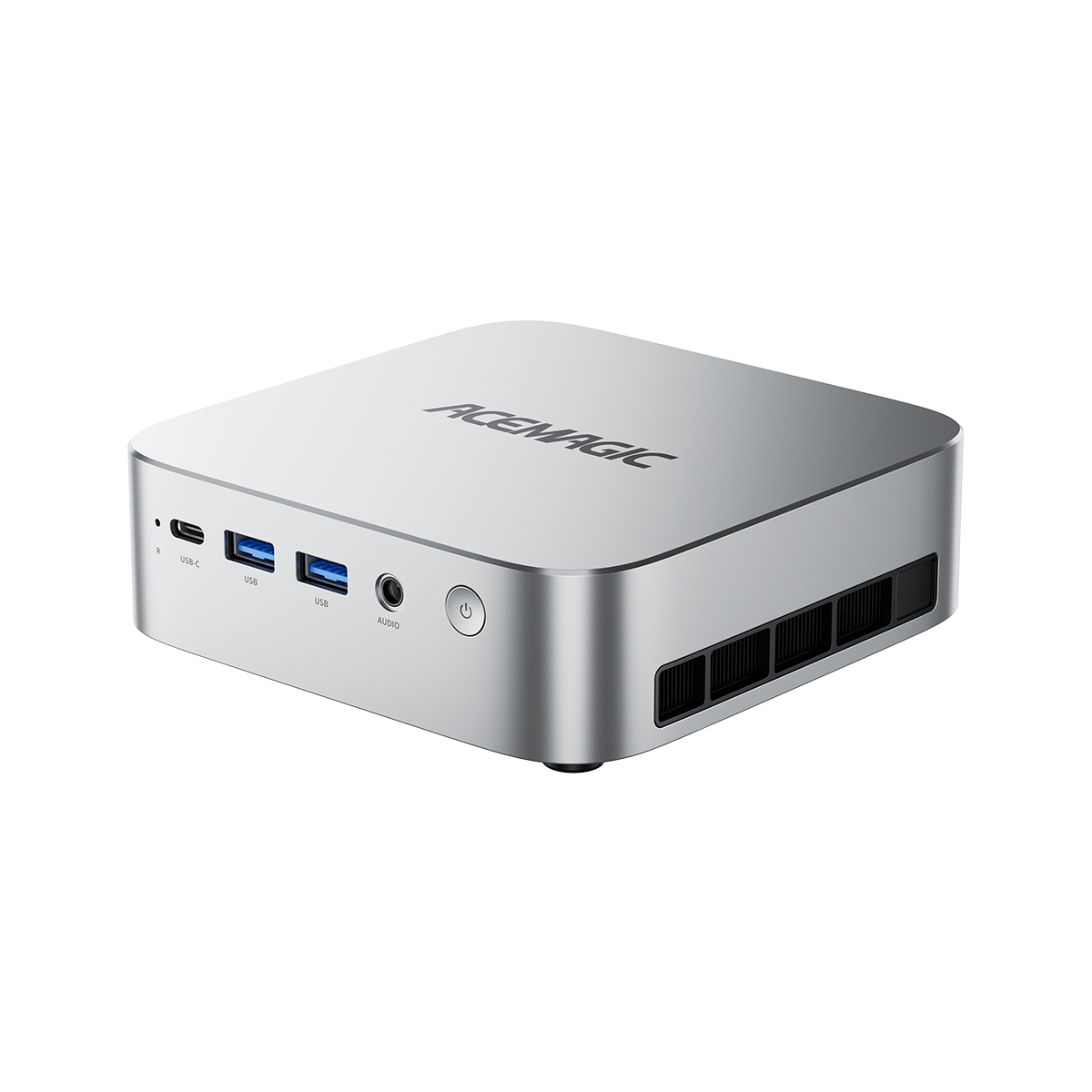
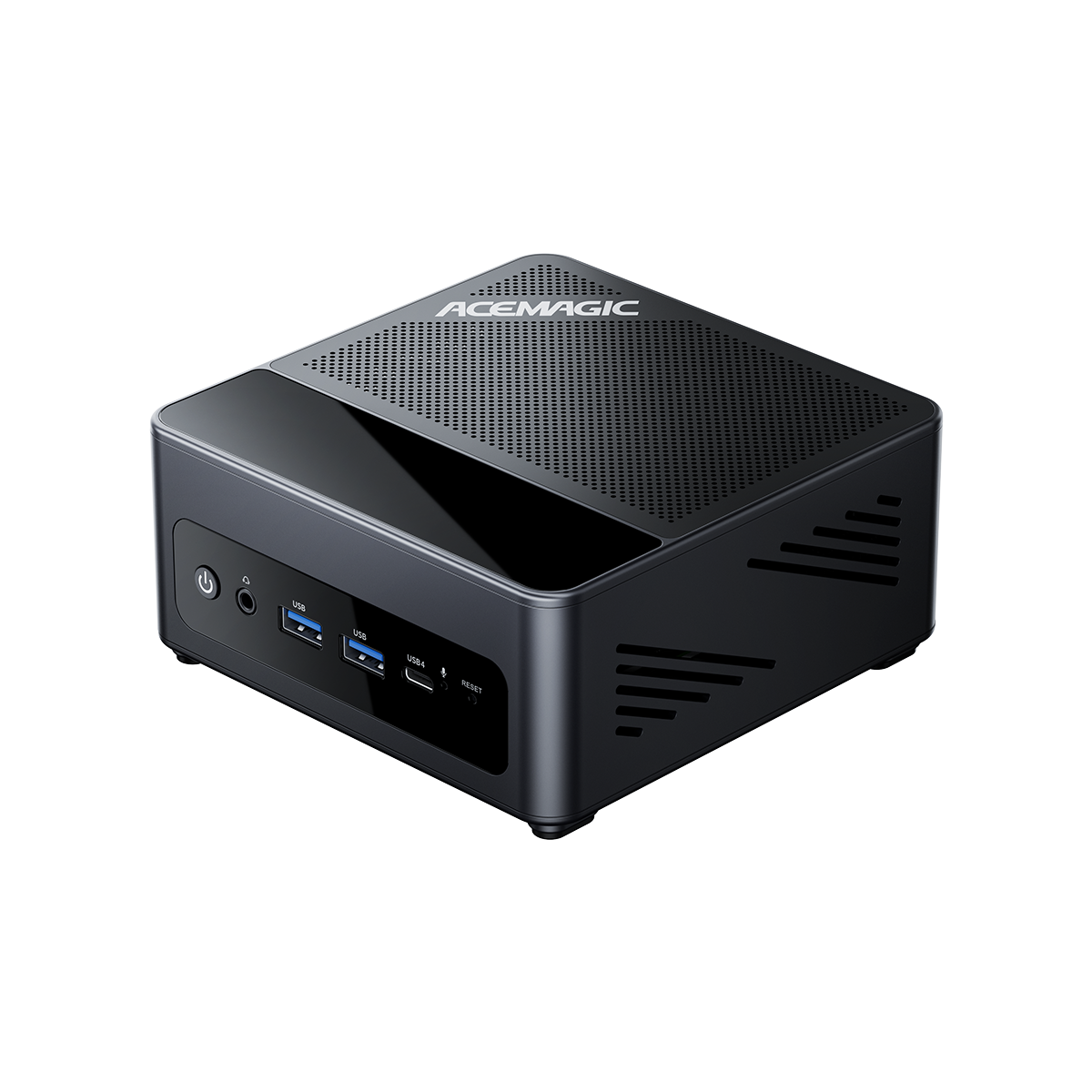
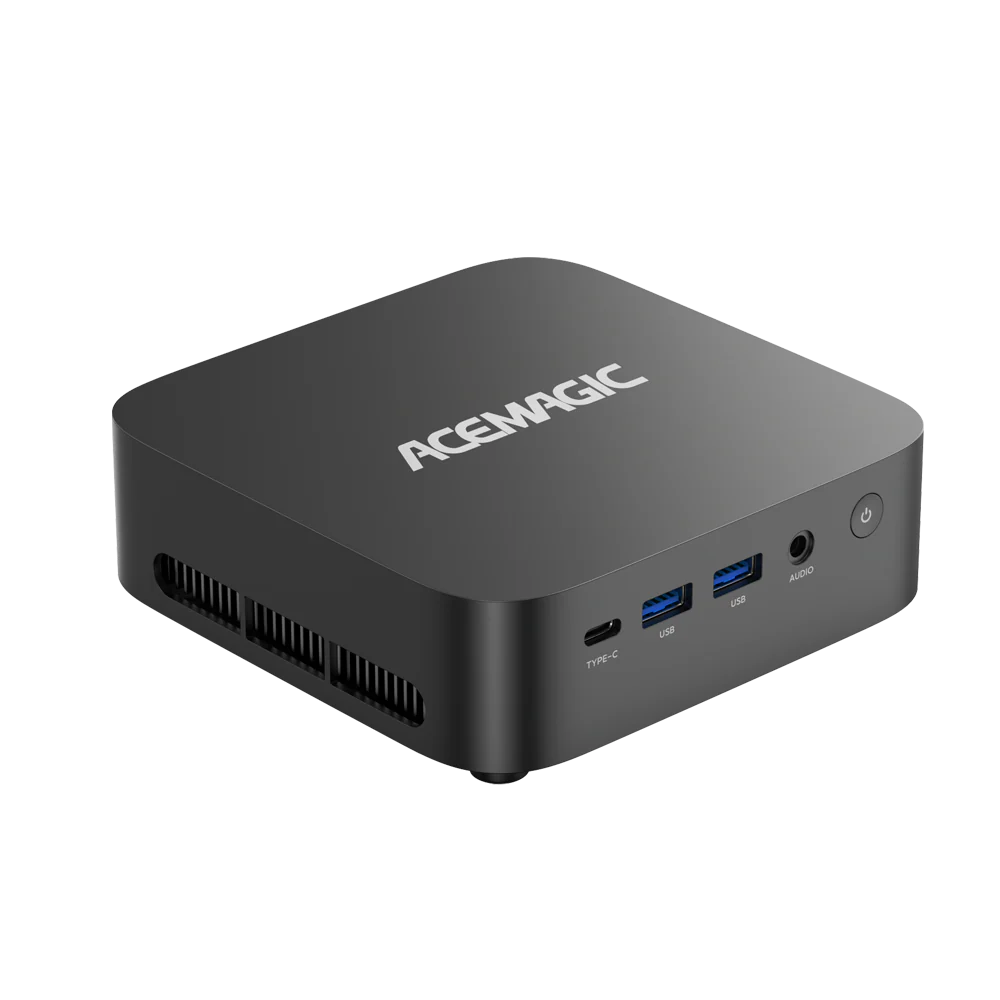
Form factor refers to the physical dimensions of the computer. Standard desktop towers are 18 to 22 inches tall. Mini PCs are typically 4 to 5 inches square and 2 inches tall, occupying less desk space while providing identical ports for monitors and peripherals. Laptops include a built-in battery and screen for mobile use.
💡If you are deciding between a stationary setup and a mobile unit, our [laptop vs desktop] guide breaks down the thermal and performance limits of each form factor.
Is It Time to Upgrade? Mini PCs vs. Laptops
Signs Your Current Specs Are Holding You Back
Hardware limits your software options when your CPU consistently stays at 100% usage in Task Manager during standard tasks. Additionally, if your PC fails to meet Windows 11 minimum requirements—such as lacking a TPM 2.0 module or running a processor older than an 8th-gen Intel or Ryzen 2000 series—the system will stop receiving Microsoft security updates.
Why a Mini PC is a Practical Desktop Replacement
Replacing a 5-year-old tower with a modern Mini PC reduces power consumption and physical footprint. An older desktop CPU often draws 65W to 100W of power. A modern mobile processor inside a Mini PC draws 15W to 45W while providing equal or higher benchmark scores due to architectural improvements. Mini PCs clear up physical desk space while supporting dual or triple 4K monitor outputs.
💡Read our comprehensive [mini PC vs desktop] analysis to compare specific wattage requirements and cooling capabilities before making a switch.
Choosing the Right Machine for Your Needs
If you are unsure whether to choose a battery-powered device or a compact desktop unit, review our [mini PC vs Laptop] comparison to evaluate the cost-to-performance ratio of both options.
-
Home Office & Browsing: A Mini PC or laptop equipped with an Intel N100 or Ryzen 3 processor, 16GB RAM, and a 500GB SSD handles document editing, web navigation, and media playback without delay.
-
Creative Work & Multitasking: Workloads requiring Adobe Premiere, CAD software, or large Excel datasets require a Ryzen 7 or Intel Core i7/i9 processor, 32GB RAM, and a 1TB NVMe SSD to process data quickly.
FAQ
How do I check my PC specs without turning it on?
Read the manufacturer sticker located on the bottom of the laptop or the back panel of the PC case. Alternatively, locate the serial number on the physical unit and search for it on the manufacturer's official support website.
How do I check what motherboard I have?
Open the Run dialog (Windows key + R), type msinfo32, press Enter, and look for the items labeled "BaseBoard Manufacturer" and "BaseBoard Product" in the system summary list.
What is a standard RAM size for a Windows 11 PC in 2026?
Microsoft requires a minimum of 4GB to install Windows 11. However, 16GB is the practical standard required to run the operating system and concurrent applications (like web browsers and word processors) without the system slowing down.
How can I tell if my PC has an SSD or an HDD?
Open Task Manager (Ctrl + Shift + Esc), navigate to the Performance tab, and select your Disk on the left panel. The type (SSD or HDD) is displayed directly below the performance graph.
Can I upgrade the specs on a Mini PC?
Users can manually replace the RAM and M.2 SSD storage in most Mini PCs by opening the bottom casing. The CPU and GPU are permanently soldered to the motherboard and cannot be changed after purchase.