
OpenClaw Installation Guide: Setup on Windows, Linux or macOS Step-by-Step

1. Hardware Requirements
x86-based PC or Mac
Basic Configuration: 2-core CPU, 4 GB RAM, 100 GB storage
Mid-range Configuration: 4-core CPU, 8 GB RAM, 250 GB storage
High-end Configuration: 4-core CPU, 16 GB RAM, 500 GB storage
2. Software Requirements
Operating System: Linux, macOS, or Windows (with WSL2)
Core Software: Node.js (version ≥ 22)
NPM (Node Package Manager)
3. How to Install Linux on Windows Using WSL
Step-by-Step Guide: https://learn.microsoft.com/en-us/windows/wsl/install
4. Setting Up the Software Environment
For this guide, we use Ubuntu 24.04 LTS(Linux). OpenClaw is written in TypeScript and requires a Node.js runtime environment. Below are the steps to install Node.js and NPM.
4.1 Update Ubuntu packages
Open a terminal and run the following command to update system packages:
sudo apt update & sudo apt upgrade
4.2 Add the NodeSource repository
This allows you to install the latest Node.js version:
curl -fsSL https://deb.nodesource.com/setup_lts.x | sudo -E bash -
4.3 Install Node.js and NPM
The -y flag ensures NPM is installed alongside Node.js automatically:
sudo apt install nodejs -y
4.4 Verify the installation
Check the installed versions of Node.js and NPM:
node -v
npm -v
Ensure Node.js version ≥ 22
5. Installing and Deploying OpenClaw
Method 1: Official Installation Script:
curl -fsSL https://openclaw.ai/install.sh | bash
Method 2: Using NPM Package Manager:
npm install -g openclaw@latest
For this guide, we will use the global NPM installation. Run the following command in the terminal to install the latest version of OpenClaw:
sudo npm install -g openclaw@latest
6. Configuring OpenClaw
6.1 Launch and Full Configuration
Open a terminal and run the following command to start OpenClaw and enter the configuration wizard:
openclaw onboard --install-daemon
A configuration interface will appear. A security prompt will ask if you want to continue—select Yes and press Enter.

Select QuickStart and press Enter

In the configuration, for security purposes, select the Gateway bound to the Loopback network interface and press Enter.
6.2 Model Configuration
The following interface will appear. Select the model provider. OpenClaw supports multiple major model providers, including leading providers from both international and Chinese markets.
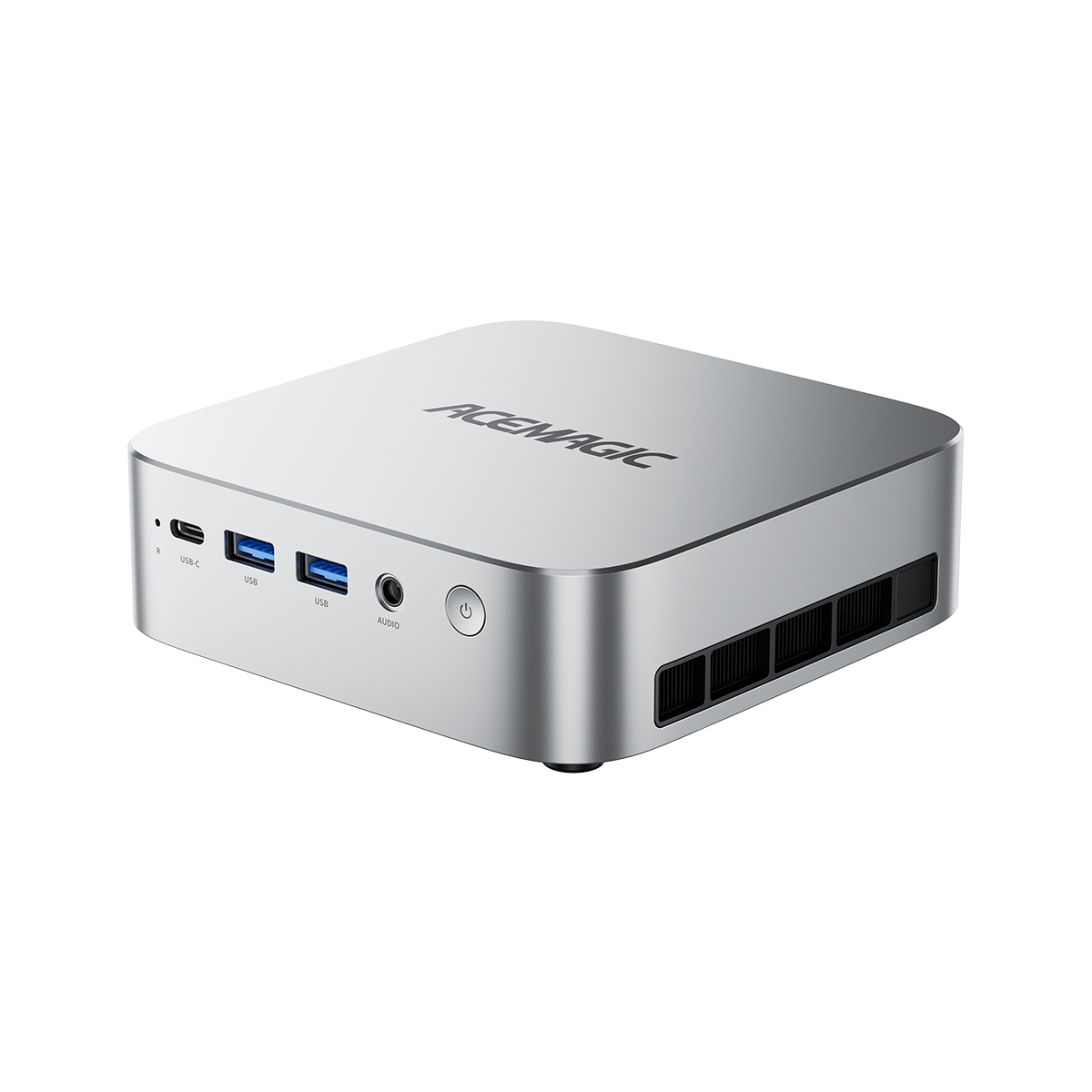
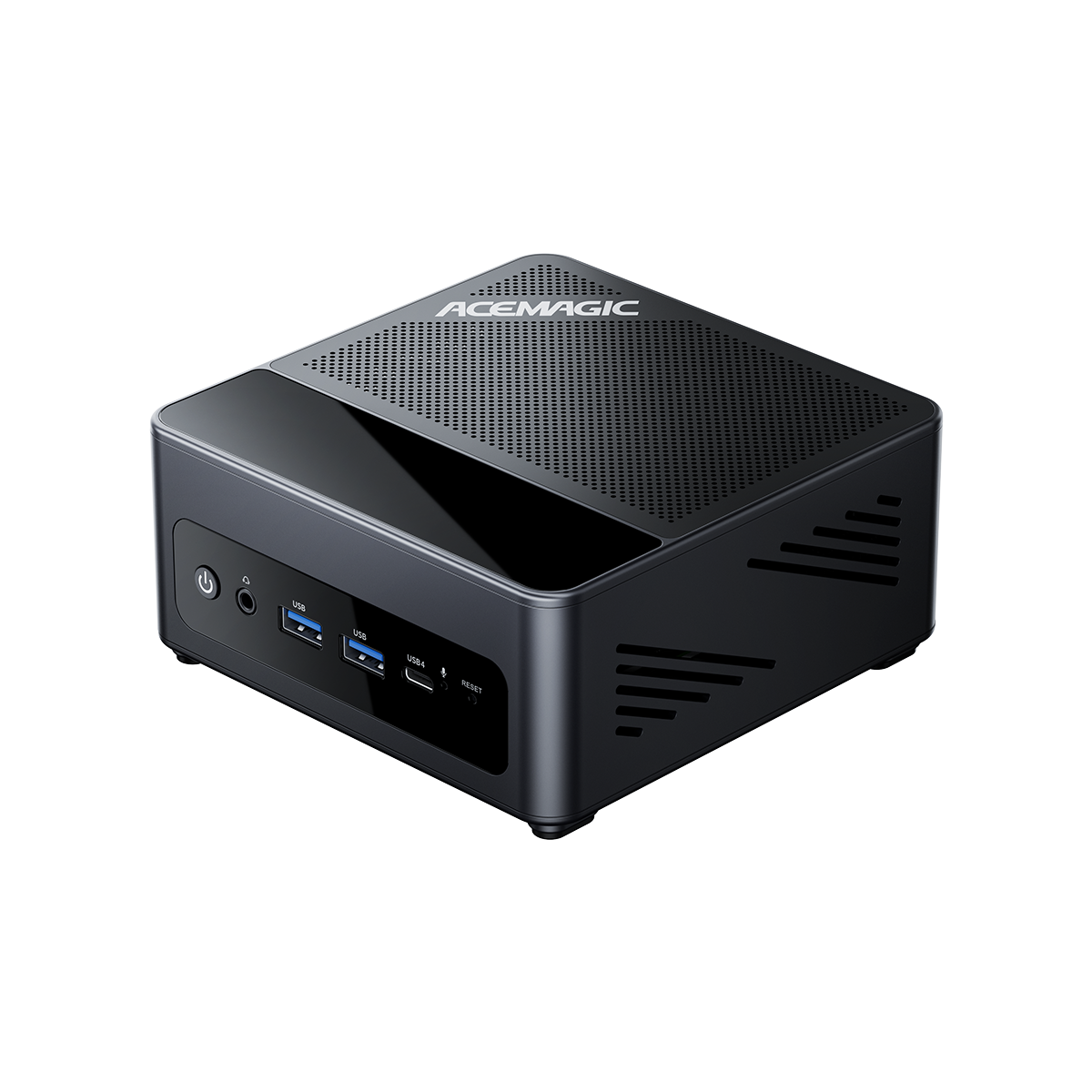
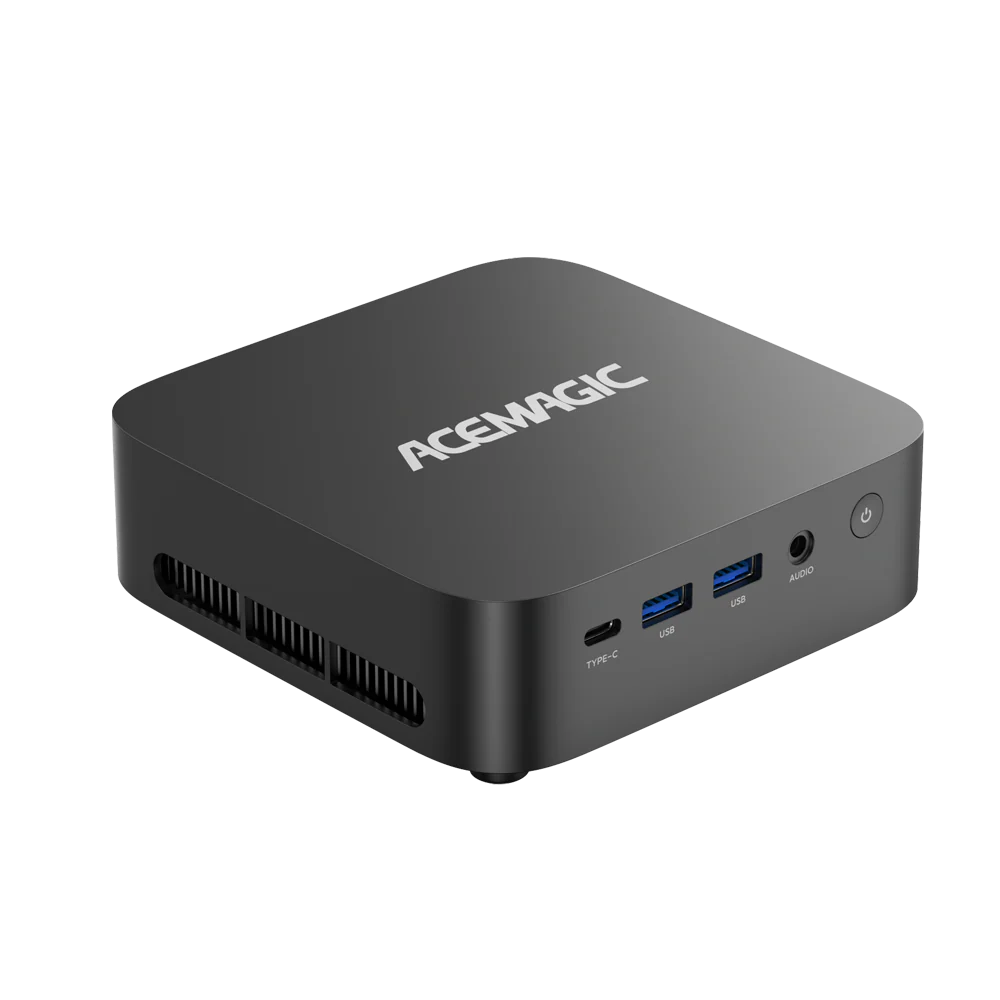
💡 IMPORTANT NOTE FOR ACEMAGIC & LOCAL AI USERS:
If you are setting up this system on your ACEMAGIC Mini PC to run models locally and avoid cloud API costs, do not select a cloud provider.
For the purpose of this general demonstration (if you are not running a local model yet), we select Z.AI as the model provider and press Enter.

Next, the model authentication method options will appear. OpenClaw supports authentication for both global and Chinese regions. Here, we select CN and press Enter.

Select the API Key method for model access. Here, we choose Paste API Key now and press Enter.

Then, copy and paste the API key you obtained from the model provider into the field.

After verification, OpenClaw sets Z.AI zai/glm-5 as the default model. However, since glm5 is relatively expensive, we ultimately select the more cost-effective zai/glm-4.5-air model and press Enter.

Once the model configuration is complete, the Skills configuration screen will appear. We will skip this step for now and configure it later. Select No and press Enter.

Next, the Hooks configuration screen will appear. We will skip this for now and configure it later if needed. Press Space to select Skip for now, then press Enter.

At this point, all default configurations are complete. The system will prompt that OpenClaw has been successfully installed and configured, and ask whether to restart the service. Select Restart and press Enter to apply all the configurations.

The following interface will appear, indicating that OpenClaw is now online. OpenClaw has launched a main Agent, which is ready for use.

In the Control UI section, the OpenClaw Web UI access link is displayed: http://127.0.0.1:18789. The access token is also shown here—copy it, as you will need it later.
6.3 Accessing OpenClaw via Browser
Open a web browser on your computer and enter the OpenClaw Web UI access address: http://127.0.0.1:18789
OpenClaw will indicate that the connection to the gateway is currently disconnected. Paste the token you copied earlier into the corresponding field in the Web UI settings.

Move your mouse to the Overview menu. The Web UI will still show Offline and will not be functional. Paste the token you copied earlier into the Gateway Token field, then click the Connect button.
The Web UI will successfully connect to the gateway. You can interact with OpenClaw here and issue commands.

OpenClaw will indicate that it is online. You can ask it questions—for example, “Hello?”, “What can you do for me?”, and it will respond accordingly.


You can define OpenClaw’s identity and have it remember this information to better serve you.

At this point, the installation and setup are complete. Start your OpenClaw journey now.
- OpenClaw Official Website: https://openclaw.ai
- OpenClaw Documentation: https://docs.openclaw.ai