
Windows 11 24H2 EOL: Update Mini PC to 25H2/26H2 Without Losing Files
Windows 11 24H2 Home and Pro reached end of support on October 13, 2026. Your mini PC still works, but those editions no longer receive regular security updates. Check your edition, then move to a supported release through Windows Update.
For ACEMAGIC and other mini PC owners, the practical questions are which upgrade to take, what happens to files, and how to keep displays and drivers working. Start with your installed version. If something goes wrong, identify what changed before choosing a recovery method.
Quick Answer
Windows 11 24H2 Home and Pro reached end of support on October 13, 2026. Your mini PC still works, but you need a supported Windows version to continue receiving regular security updates. Back up your files, install the compatible upgrade offered through Windows Update, and confirm the new version with winver. The update normally keeps your files and apps. If Wi-Fi or audio stop working afterward, identify the driver or update responsible before reinstalling Windows. Returning to unsupported 23H2 is not a lasting fix.

When did Windows 11 24H2 support end?
The Windows 11 24H2 End of Life (EOL) date depends on the installed edition. The support deadlines are:
| Windows 11 24H2 edition | End of updates |
|---|---|
| Home and Pro | October 13, 2026 |
| Enterprise and Education | October 12, 2027 |
Pro Education and Pro for Workstations follow the Home and Pro deadline. Long-Term Servicing Channel editions have separate schedules.
A product listing that says “Windows 11” does not establish your support deadline. Check the installed edition, including on a preconfigured mini PC. If you already run 25H2 or 26H2, the 24H2 deadline does not apply to that installation. For a work-managed device, confirm the approved upgrade with IT.
How to check your Windows version and edition
- Press Windows + R, type winver, and press Enter. Note the version and OS build.
- Open Settings > System > About. Under Windows specifications, note the edition, such as Home or Pro.
- Save a screenshot or write down both details. Include the exact mini PC model when asking for support.
24H2 is a feature version; Home and Pro are editions. You need both to identify the applicable deadline.

How to update from Windows 11 24H2
Use Windows Update as the primary path. It shows the feature update offered to your device and any compatibility message you need to address.
Back up files and record your working setup
Back up important files and open a few copies to check the backup. If BitLocker or device encryption is enabled, make sure you can retrieve the recovery key from another device.
Next, record the graphics and network driver versions in Device Manager. For a multi-monitor setup, note each screen’s port, resolution, and refresh rate. A photo of the connections is useful when a dock or adapter sits between the mini PC and a monitor.
Check free storage, save your work, and keep the PC connected to power. Keep intake and exhaust paths clear; our mini PC cleaning guide covers routine maintenance if dust is a concern.
A Windows upgrade alone is not a reason to flash the BIOS. Install firmware only when the instructions for your exact model call for it.
Choose the supported version offered to your device
For Home and Pro, 25H2 remains supported through October 12, 2027, and 26H2 through October 10, 2028. You do not need to remain on unsupported 24H2 while waiting for 26H2 if Windows Update offers 25H2 as a suitable upgrade.
If 26H2 is offered, an eligible 24H2 PC can move directly to it without installing 25H2 first. Availability is phased, so two mini PCs may receive different offers.
Install the offered update and confirm the result
- Open Settings > Windows Update > Check for updates.
- Read the offered version and any compatibility message.
- Install the supported feature update offered to your device and complete the requested restart.

Run winver again and confirm the new version. Then check your usual displays, network, audio, and sleep behavior.
To update Windows 11 24H2 to 25H2, select that feature update when offered. A completed monthly KB update does not, by itself, mean you have left 24H2. The version shown in winver is the check that matters.

For example, the October 13 update KB5127648 covers 24H2, 25H2 and 26H2, with builds 26100.9711, 26200.9711 and 26300.9711 respectively. Seeing that the KB installed does not prove the feature upgrade is complete.
Avoid mistakes that make recovery harder
Power-cycling when progress pauses: a download inside Settings and the full-screen installation after a restart are different stages. If the desktop remains usable, check the connection and use the update troubleshooter. During installation, follow the onscreen power instructions. Repeatedly unplugging the mini PC will not safely force progress forward.
Changing everything at once: follow any required prerequisites first. For optional manual changes, avoid combining a feature upgrade, several driver replacements and a BIOS flash in one session. Record each change and retest, so a new fault is easier to trace.
Deleting recovery files too soon: test displays, network and sleep before removing the previous Windows installation if you want to retain Go back. Deleting previous-installation files, including Windows. old, removes that recovery route. Keeping them does not extend the normal rollback window indefinitely.
What’s new with Windows after 24H2?
The Windows 11 2026 Update, or 26H2, became available on September 29, 2026. For mini PC owners, useful changes concern everyday navigation, peripheral reliability, and the update process.
Displays and wireless peripherals: the 26H2 feature overview describes USB4 dock display-resume improvements and Bluetooth reliability changes, including reconnection after hibernation. Test your own monitors and peripherals after updating; a release-level improvement does not certify every dock, cable, and display combination.
Files and search: File Explorer and Windows Search improvements cover navigation, responsiveness and finding apps or files. Some changes may already have arrived through monthly updates before the feature version changes. A familiar-looking desktop does not mean the upgrade failed.
Why a feature in the news may still be missing
Recent coverage of the redesigned Windows Search can be confusing. Microsoft’s October 7 Experimental preview notes describe a gradual rollout of the new interface and inline actions. That preview announcement is separate from the standard 26H2 upgrade offer.
Check the article’s release channel and build number before expecting the same interface. You do not need to join the Windows Insider Program to move off unsupported 24H2. Confirm the installed version with winver rather than using one new feature as your test.
Will updating erase files or require a reinstall?
Windows Update normally keeps your files and installed apps. The support deadline does not require you to wipe the drive.
For the 24H2-to-25H2 path, KB5054156 is an enablement package.
It activates components already delivered through monthly updates, typically with one restart. Eligible 24H2 and 25H2 PCs can also receive 26H2 through an enablement package. This is a lightweight switch, not a full OS reinstall; pending updates can still affect installation time.
| Installation route | Files and apps |
|---|---|
| Feature update through Windows Update | Normally retained; keep a backup |
| Setup opened inside Windows | Depends on the retention option |
| Clean installation from boot media | Files, apps and settings removed |
When running Setup inside Windows, Keep personal files and apps preserves both. Keep personal files only removes apps. Keep nothing removes both. If the option you need is unavailable, stop before installing and check why.
Why is a newer Windows version not showing in Windows Update?
If Windows 11 25H2 is not showing, check whether 26H2 is offered instead. The absence of one specific release does not necessarily mean your PC has no upgrade route. Use the message on the update page to choose the next check.
A compatibility message appears: open its details and identify the affected hardware or application. A safeguard hold can prevent a feature update while a known issue is being addressed. Follow the fix for that issue and wait for the hold to be released. Do not bypass a confirmed hold.
There is no offer and no compatibility message: finish pending updates and restart when requested. Check whether updates are paused. Resume them on your own PC; if settings are organization-managed, ask IT about the upgrade policy. A missing offer alone does not prove hardware incompatibility.
The update downloads but fails: note its name and error code under Windows Update > Update history. Open Settings > System > Troubleshoot > Other troubleshooters and run Windows Update. This may open Get Help. If it fails again, retain the error and update name for support.
Windows 11 24H2 EOL tips for mini PC users
Keep a short before-and-after record
| Item | Before updating | After updating |
|---|---|---|
| Windows | Version and edition | Confirm new version |
| Displays | Ports, resolution, refresh rate | Detection and screen layout |
| Drivers | Graphics and network versions | Versions and device warnings |
| Network and sound | Connection and audio output | Browse and play audio |
| Sleep and wake | Normal wake behavior | Screens, network and audio |
Test the setup you actually use. One screen working over HDMI does not establish that a second screen through a USB4 dock also works, particularly after sleep. Check those connections separately before returning to normal work.

Get the correct ACEMAGIC support files
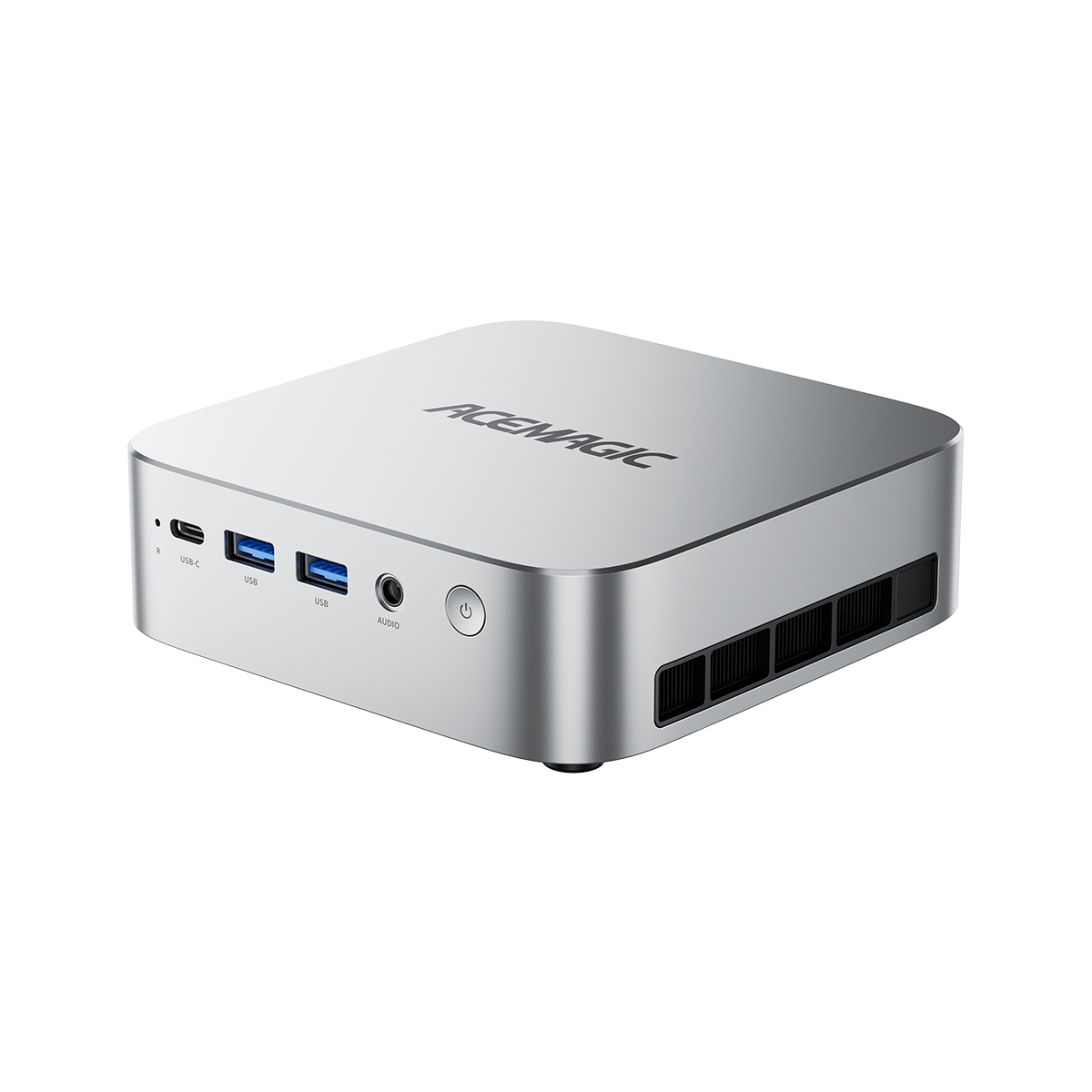
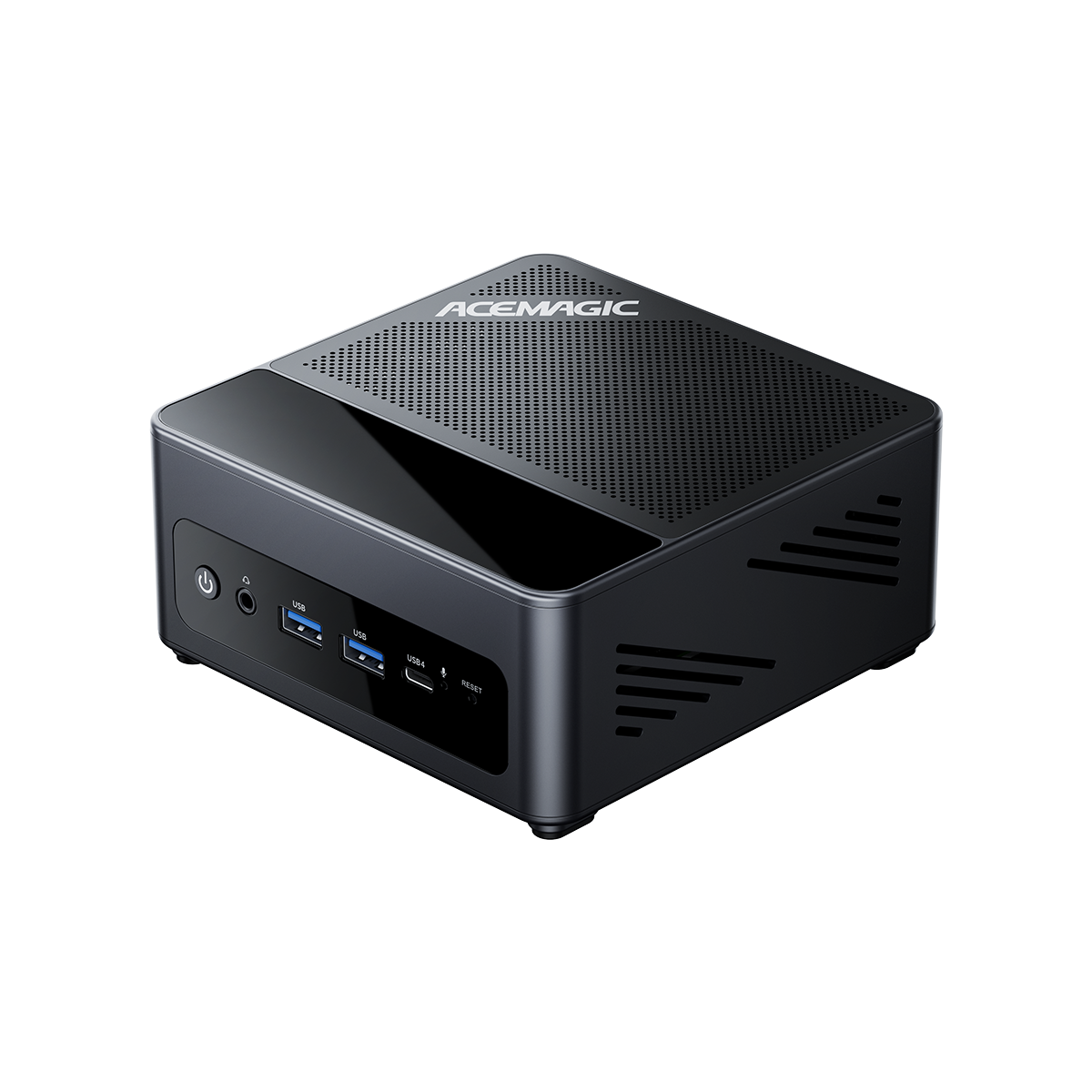
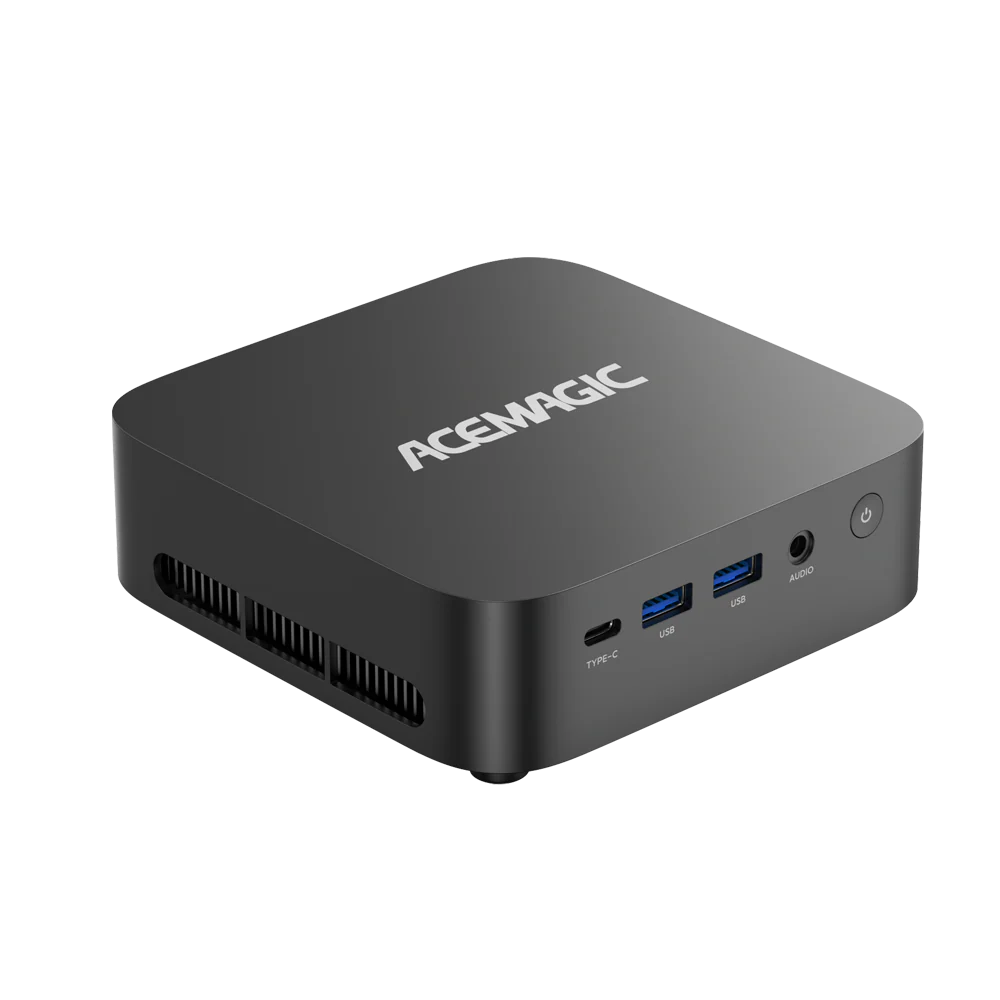
- Note the model on the unit and its CPU under Settings > System > About. Keep the order configuration available if the model has several variants.
- Open ACEMAGIC Drivers & Downloads and look for the exact model. If absent, check that model’s product FAQ.
- For example, the ACEMAGIC F5A AMD Ryzen AI 9 HX 470 Mini PC product FAQ separates driver, OS, and BIOS resources. Confirm the hardware variant and Windows version supported by the package before installing it.
Use the driver package for the affected hardware. An OS package may involve reinstallation; a BIOS package changes firmware. If the description does not identify your configuration clearly, ask support to confirm the file. The OS version available for download does not prove what is installed on your unit.

If Wi-Fi disappears before you can download a replacement
Try an available wired connection. If the mini PC cannot get online, download the matching network driver on another computer and transfer it by USB. Save that installer before uninstalling the existing network driver; otherwise, you could be left without a working connection or a local replacement.
Check Device Manager > Network adapters and note the adapter name and any error. Use the package for the exact mini PC configuration, restart as instructed, and test the connection again. A warning alone does not establish that the Wi-Fi hardware has failed.
If a second monitor disappears after updating
Keep any working display connected while troubleshooting. After installation has completed, if every screen remains black, try one powered monitor connected directly to the mini PC. Check its selected input and use a known-working cable. If a restart still does not bring back the desktop, stop the Settings-based steps and contact support with that result.
Identify which kind of update changed the setup
Check Windows Update > Update history, the version in winver, and Device Manager > Display adapters > your adapter > Properties > Driver. Record the driver version. Driver Date describes the package, not when you installed it. It comes from the driver package information.
| Change | Evidence | Recovery to consider |
|---|---|---|
| Graphics driver | Driver version changed | Driver rollback or replacement |
| Monthly Windows patch | KB number; feature version unchanged | Fix for that specific update |
| Feature upgrade | winver changed to another release | Previous-installation recovery |
Several changes can occur in one update session. A new KB number alone does not prove the driver stayed the same.

Suppose both screens worked after the feature upgrade, but one goes black after a later graphics-driver update. Compare the current driver version with your saved record. If it changed with the fault, open the adapter’s Driver tab and check Roll Back Driver. If unavailable, obtain a compatible replacement through model support before removing the installed driver package.
After a rollback, restart and test both screens, then sleep and wake the PC. If the original setup works again, that points to the driver change. Driver rollback does not downgrade your Windows feature version.
For a monthly patch, first check for a corrective update. If the workaround for your exact KB recommends removal, open Windows Update > Update history > Uninstall updates. Not every update can be removed. Treat removal as temporary recovery and resume a supported update path.
Follow the result of the connection check
Windows does not detect the screen: open Settings > System > Display > Multiple displays > Detect. If it remains absent, test the monitor alone on a direct connection with a known-working cable. Record whether another supported port or computer detects it.
Windows detects it, but the screen is black: press Windows + P, select Extend and check the monitor’s input. If it works alone but fails when another screen is added, note both resolutions, refresh rates and connection paths.
A direct connection works but the dock path fails: keep the working connection. Check the dock’s power, host cable and supported display arrangement. Change one part at a time and repeat the same test.
It fails only after sleep: compare a restart with a sleep-and-wake cycle on each connection. A screen that works after a restart but not after sleep needs a different investigation from one that never works.
A worked F5A example with HDMI and a USB4 dock
Consider this hypothetical setup: an F5A’s main screen uses HDMI, while a second screen connects through a USB4 dock. Both work after a restart, but the dock-connected screen stays black after sleep. The working HDMI desktop shows that Windows is still usable; the dark second screen alone is not a reason to power-cycle the whole PC.

- Keep the main screen connected. Move the affected monitor to a direct supported video output and select its matching input.
- Use the same resolution and refresh rate where both connections support them. Test a restart, then a sleep-and-wake cycle.
- Return to the dock connection and repeat those checks. Note any cable, adapter, or display-mode change.
If direct connection passes both checks but the dock fails after sleep, focus on the dock path and resume behavior. If both paths fail after sleep, the evidence does not isolate the dock. If the direct test needed a different cable, that change remains another possible explanation.
Keep the usable connection while checking the dock’s host cable, supported configuration, and any applicable driver or firmware fix. Retest the original setup after both a restart and sleep. A picture returning once does not establish that the wake problem is resolved.
If the symptom remains, send ACEMAGIC support the model and CPU, Windows version and edition, driver version, update name or KB number, monitor and dock models, and the connection results. Include whether the failure occurs at startup, after sign-in, or only after sleep.
For layout settings after detection, see our dual-monitor setup guide.
How to downgrade Windows 11 24H2 to 23H2: limits in 2026
First check whether 23H2 was actually installed before 24H2. If it was, Settings > System > Recovery > Go back may return you to it while the recovery option remains available, normally for 10 days. Back up first. Go back keeps personal files but removes apps and drivers installed after the upgrade, along with subsequent settings changes.
A mini PC supplied with 24H2 has no automatic 23H2 installation to return to. If Go back is unavailable, Reset this PC will not create that route. Its Keep my files option also removes apps and settings.
Treat a downgrade as temporary recovery. 23H2 Home and Pro support ended on November 11, 2025; Enterprise and Education support ends on November 10, 2026. For current faults, identify the driver, KB, or feature upgrade involved before choosing recovery. Returning to 26H2 also means returning to the previous installation, not selecting any older release you want.
Current update issues to check before rolling back
Smart App Control cannot be turned on
The KB5127648 notice confirms that some devices cannot turn Smart App Control back on after it has been off. Devices where it is already on remain protected by that feature.
Match the installed KB and symptom before using the targeted workaround. This alone is not a reason to reset the PC or return to 23H2.
Wi-Fi works at home but fails on a work network
The same KB’s October 15 authentication note describes a change that can affect certain work Wi-Fi, Ethernet or VPN connections using MS-CHAPv2 under specific legacy sign-in conditions.
For an office-only failure, record the network type and KB. Ask IT to check the authentication policy before replacing the adapter driver.
USB audio stops working after a Windows update
Check the selected output device first. A monitor or dock may appear as a separate audio output after reconnection. Then note the peripheral model and any error under Device Manager > Sound, video and game controllers.
As of October 19, 2026, Microsoft’s 26H2 release-health notice lists a mitigated issue affecting some USB Audio Class 1.0 devices, with symptoms including no sound or Code 10. Its affected-platform list also includes 23H2, 24H2 and 25H2.
That means returning to 23H2 does not automatically avoid this issue. Check the peripheral maker’s specifications, the installed update, and the current fix for that device type before removing drivers or changing Windows versions. This notice does not establish that an F5A or every USB audio peripheral is affected.
For other audio symptoms, use the checks in our sound troubleshooting guide.
Frequently Asked Questions
Can I keep using Windows 11 24H2 after EOL without security updates?
It will still run. For a personal PC that uses the internet, move to a supported release rather than relying on antivirus alone.
Can I upgrade directly from 24H2 to 26H2 and skip 25H2?
Yes, if Windows Update offers 26H2 for your device. Eligible 24H2 PCs can move directly to it without installing 25H2 first.
Will updating erase my files?
Windows Update normally retains your files and apps. Installation media can offer different retention options, so check before proceeding and keep a backup.
Do I need to buy a new mini PC because 24H2 support ended?
No. Check the supported upgrade offered to your PC first. The deadline does not establish that your hardware needs replacing.
Why isn't 25H2 or 26H2 showing up in Windows Update?
Read the update-page message. A compatibility hold, rollout timing, paused updates, or an organization policy can delay the offer. Use the matching checks above.
Sources
- Microsoft. Reinstall Windows with the installation media; Recovery options in Windows; Troubleshoot problems updating Windows. support.microsoft.com.
- Microsoft. Safeguard holds for Windows; Supported versions of Windows client; Windows 11, version 26H2 known issues. learn.microsoft.com.