
Best Mini PC for Photo Editing (2026): Lightroom & Photoshop
If you're shopping for a mini PC for photo editing, don't start with the CPU badge. The delays photographers actually notice often happen elsewhere: Lightroom Classic can bog down while building previews or exporting a large shoot, Photoshop may fall back on scratch storage when a layered file grows, and some new AI tools run in the cloud instead of on your GPU.

This guide sorts those bottlenecks by software and workflow, then matches them to the hardware that can actually help. You'll also see what 1TB or 2TB means in real RAW files, when dedicated VRAM matters, and where three internal SSDs can make a compact workstation easier to live with.
💡 Quick answer: for most photographers, the best mini PC for photo editing is a balanced system rather than the model with the biggest headline spec. Start with 32GB of RAM and a fast NVMe SSD for Lightroom Classic and Photoshop. Favor CPU and storage when imports, previews, and batch exports are the bottleneck; favor stronger GPU capability when local AI tools such as Lightroom AI Denoise or Topaz are what make you wait. Cloud-based generative tools do not become faster simply because the local GPU has more VRAM.
Can a mini PC handle Lightroom and Photoshop?
Yes. A modern mini PC can be a serious photo-editing workstation, but the right configuration depends on the part of your workflow that makes you wait. A wedding photographer importing thousands of RAW files has different priorities from a retoucher working on a 4GB layered PSD, and both are different again from someone running AI Denoise on every high-ISO image.
Before comparing processors, pick one recent job and note the slowest step: card import, preview generation, culling, local adjustments, AI Denoise, batch export, saving a large PSD or moving finished work to archive storage. That one observation usually tells you more about what to buy than a generic benchmark score. For a broader overview of office, gaming and editing setups, see the beginner's mini PC buying guide.
Best mini PC for photo editing: quick picks

| Your workflow | ACEMAGIC mini PC to consider | Why it fits the job |
|---|---|---|
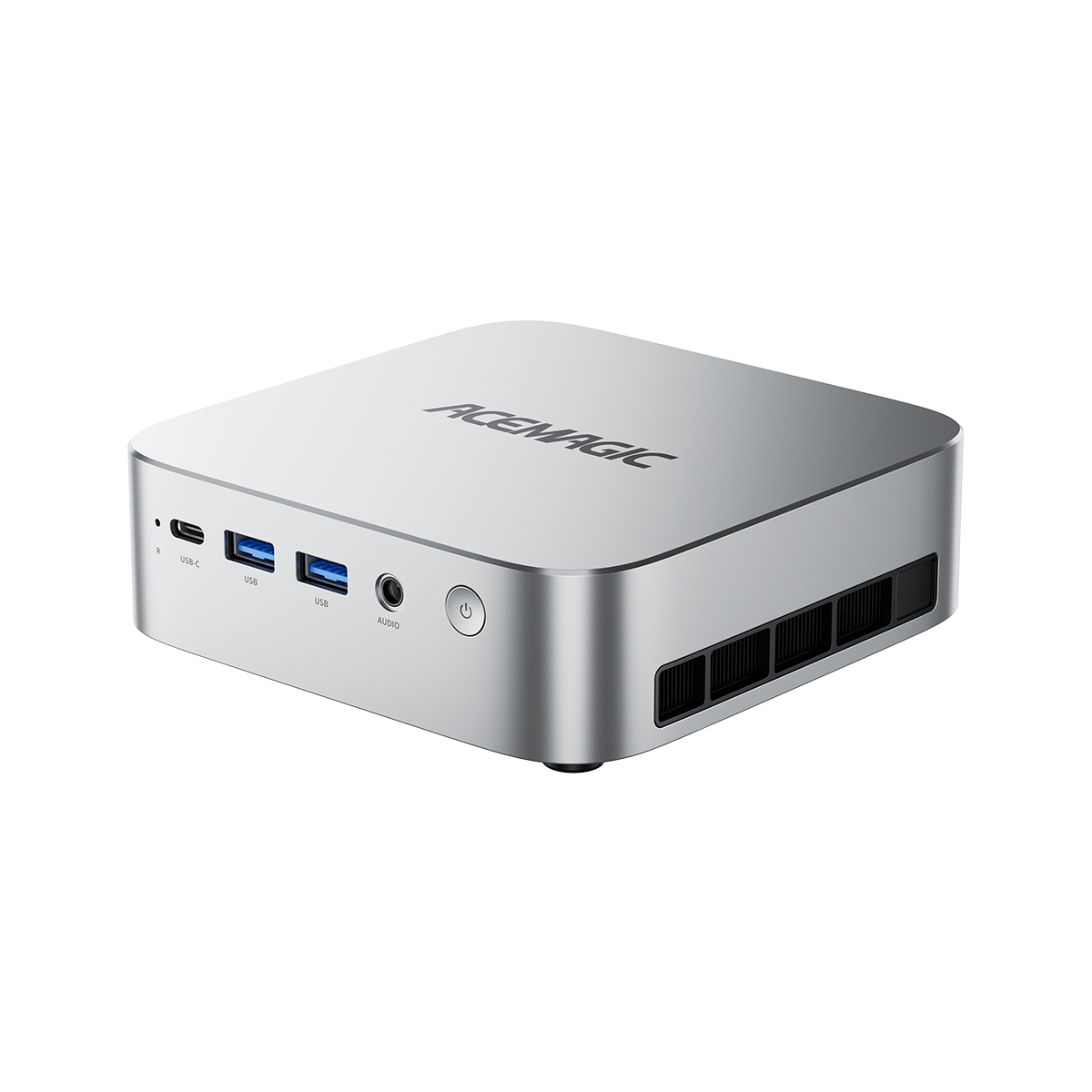
| Lightroom Classic, RAW edits and everyday Photoshop | F5A HX 470 | Ryzen AI 9 HX 470, Radeon 890M, 32GB RAM and three M.2 slots for a flexible photo-storage layout. |
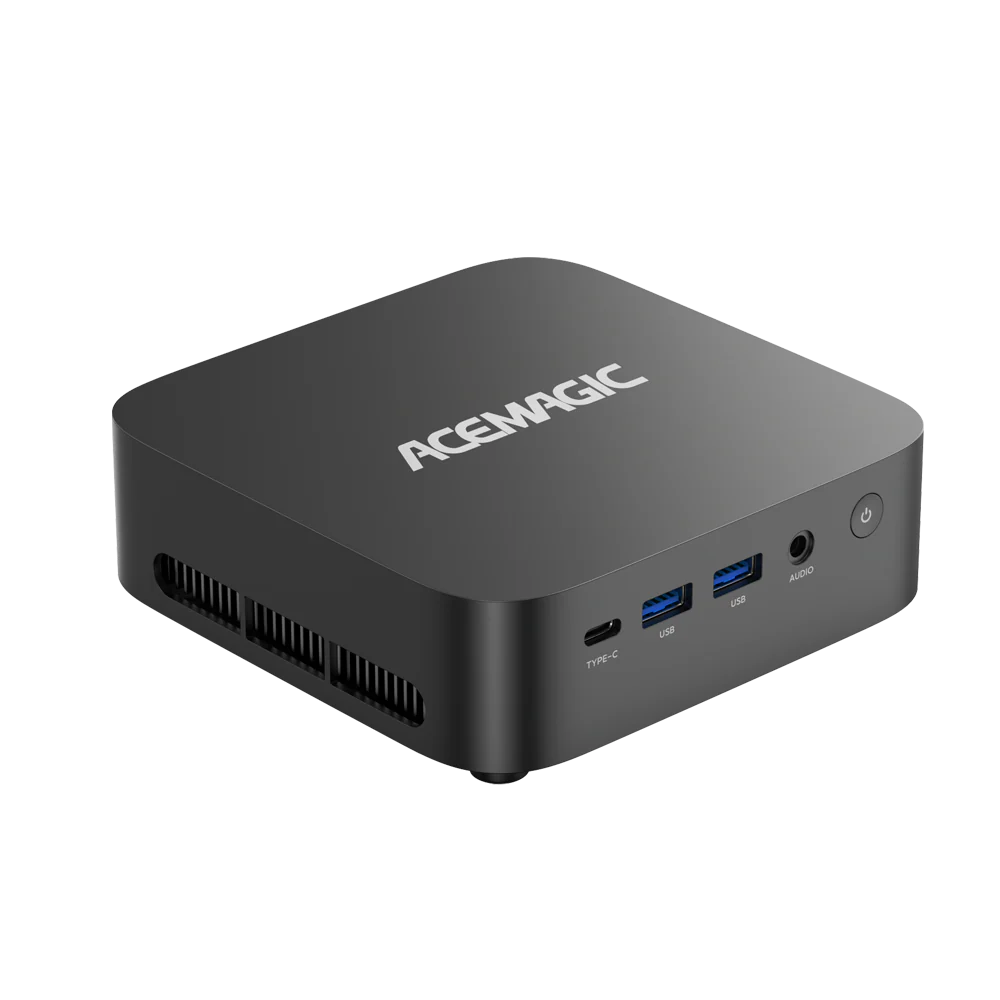
| Photography plus GPU-heavy professional apps | G3A RTX 2000 Ada | Core i9-13900F with RTX 2000 Ada 16GB dedicated VRAM; a better fit when photo work overlaps with GPU-heavy tools. |
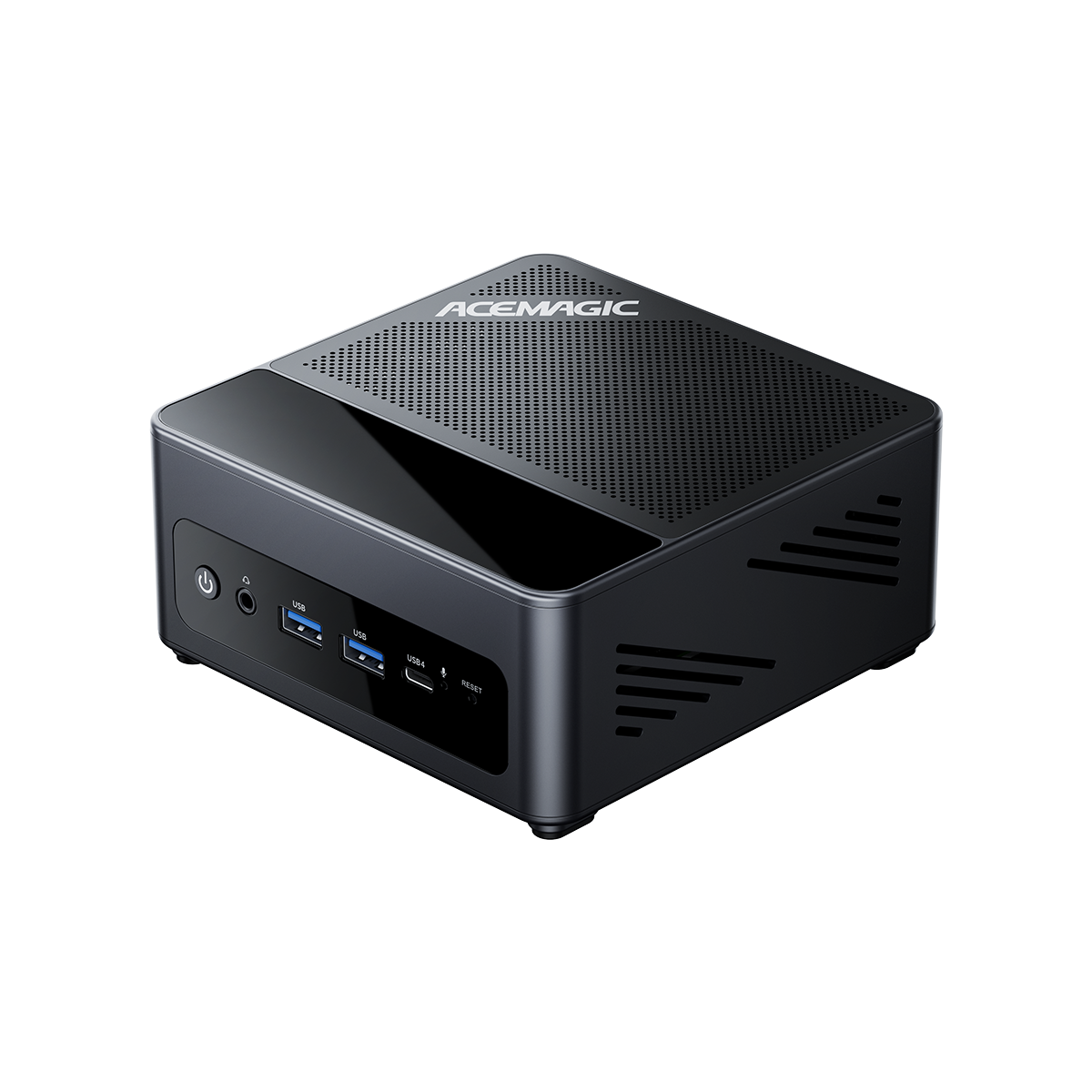
| Very large creative projects and heavy multitasking | M1A PRO+ 395 | Ryzen AI MAX+ 395, Radeon 8060S, 128GB unified memory, 2TB SSD and a built-in SD reader. |
These are workflow matches based on verified specifications, not head-to-head Lightroom or Photoshop benchmarks. Check the exact product variant before ordering.
Before you buy: Lightroom, Photoshop, and Topaz need different things
Software requirements are a floor, not a speed forecast. Adobe can tell you what Lightroom or Photoshop needs to run, but those numbers won't predict how long your next 800-photo export will take. Still, the official recommendations are useful because they show where the applications differ: system RAM, GPU memory, free SSD space, and whether a feature can use shared memory.
| Software | Recommended system RAM | Graphics guidance | Storage guidance |
|---|---|---|---|
| Lightroom Classic (15.x) | 16GB or more | 8GB dedicated GPU memory or 16GB shared memory for full GPU acceleration and AI features | Fast SSD; 8GB installation space minimum. |
| Photoshop (27.x+) | 16GB or more | DirectX 12 GPU; 4GB GPU memory recommended for 4K displays and above | 100GB free space recommended; fast internal SSD and a separate scratch disk are recommended. |
| Lightroom desktop (9.x+) | 16GB or more | 8GB dedicated or 16GB shared memory for full GPU acceleration and AI features | 10GB installation space, plus additional room for sync. |
| Topaz Photo (Windows) | 24GB recommended | NVIDIA RTX, AMD 5000-series or Intel Arc with 8GB dedicated VRAM recommended | 70GB free on C: recommended. |
Official Adobe and Topaz recommendations checked in October 2026. Shared GPU memory is not the same as dedicated VRAM, and some Topaz generative models have stricter local-rendering requirements than the general application.
Best mini PC for Lightroom Classic: follow the bottleneck
Lightroom Classic is not one workload. It imports, builds previews, manages a catalog, develops RAW files, runs local AI features, and exports finished images. That's why a PC can feel fast while you move sliders and still make you wait at the end of a wedding job.
For high-volume photographers, the first place to look is usually the repeatable work around the edit itself: how long previews take to build, whether the catalog and preview cache sit on fast local storage, and how quickly a representative export finishes. Adobe recommends an SSD, keeping the catalog and its preview cache together, and leaving about 20% free space on the drive used for Lightroom data.
If AI Denoise is the part you use on every shoot, the buying priorities change. Adobe describes Denoise as GPU-intensive, so an AI-specific result is more useful than gaming FPS or a generic CPU score. In other words, the best mini PC for Lightroom is the one that is strong at your slowest Lightroom task, not simply the model with the highest headline specification. If you are still deciding between 16GB and 32GB for creative work, the 16GB vs 32GB RAM discussion is a useful cross-check for multitasking headroom.
Best mini PC for Photoshop: plan for RAM and scratch space
Photoshop changes character as files get larger. A portrait retouch with a handful of adjustment layers is easy compared with a huge composite full of smart objects, masks and high-resolution layers. Once system memory becomes tight, Photoshop can lean more heavily on its scratch disk, so the storage layout starts to matter as much as the GPU name.
If a large PSD becomes sluggish or you see scratch-disk warnings, check Edit > Preferences > Scratch Disks in Windows. Adobe recommends using a fast internal drive with enough free space and lets you prioritize eligible disks. A separate scratch SSD is most useful when the workload actually creates memory pressure; it isn't a magic speed boost for every image.
The same distinction matters for Photoshop's generative tools. Generative Fill and other hosted models involve online services and generative credits, while the open PSD, layers, filters and local editing still depend on your computer. Buying more local VRAM does not directly make a cloud-hosted model generate faster.
Lightroom desktop, Capture One and Topaz: check the workflow, not just compatibility
Lightroom desktop: cloud library, different storage habits
Lightroom desktop is built around a cloud-centered library, while Lightroom Classic keeps the traditional local catalog workflow. That difference affects where originals live, how much local storage you need, and how you plan backups. Lightroom's Prompt to Edit feature also uses a generative-model workflow that is separate from local GPU-accelerated Denoise.
Capture One: tethered shooting can fail long before the CPU does
In a studio, a dropped camera connection is more disruptive than a benchmark that finishes a little slower. Capture One's 2026 Assisted Review beta can help flag potential focus or closed-eye issues, but a working tethered session still depends on camera support, the cable, the port, firmware, sleep settings, and the current Capture One release.
Capture One's troubleshooting guidance recommends testing another USB port when disconnects persist and checking cable length and camera power behavior. Treat a 10Gbps USB label as bandwidth information, not a promise of an uninterrupted client shoot.
Topaz Photo: the exact AI model decides what hardware you need
Topaz Photo is a good example of why 'AI-ready' is too vague to be useful. Its general Windows recommendations call for 24GB RAM and an 8GB dedicated GPU, but memory-intensive generative models have their own local-rendering rules. Denoise Max, for example, can use local rendering on supported Windows NVIDIA or AMD graphics with at least 8GB VRAM, or move the work to Topaz cloud processing — see the Topaz Photo system requirements.
Topaz also changes quickly. Version 1.7.1, released October 22, 2026, adjusted the local Denoise Max input limit and fixed some Intel GPU issues. If Topaz is central to your workflow, check the exact model and current release before you buy a PC around it.
AI photo editing in 2026: when does a stronger GPU actually help?
The phrase 'AI photo editing' now covers two very different jobs. Some features run primarily on your own GPU and can benefit directly from stronger graphics hardware. Others send the generative step to an online service. Those two workflows should not lead to the same hardware purchase.
| Feature | Where the intensive work happens | Verified detail | What it means when buying |
|---|---|---|---|
| Lightroom Classic AI Denoise | Local GPU-accelerated processing | Adobe recommends 8GB dedicated or 16GB shared GPU memory for full AI acceleration. | Use Denoise-specific tests when this feature is a daily bottleneck. |
| Topaz Photo Denoise Max: local | Local rendering on a supported GPU | Windows local rendering requires a supported NVIDIA or AMD GPU with at least 8GB VRAM. | Check GPU family, VRAM, and the exact Topaz model. |
| Topaz Photo Denoise Max: cloud | Cloud rendering | Topaz documents cloud processing up to 100MP. | Your local GPU is not the cloud renderer. |
| Lightroom Prompt to Edit | Online generative-model workflow | Model selection and generative credits apply. | Local GPU power is not the only constraint. |
| Photoshop Generative Fill | Online generative-model workflow | Adobe/partner models, online service and credits. | More VRAM does not directly accelerate the hosted model. |
Shared VRAM vs dedicated VRAM for photo AI
Dedicated graphics cards carry their own video memory. Integrated GPUs generally draw from memory shared with the CPU. For photo editing, that difference becomes important when Lightroom, Photoshop, Windows and a local AI model are all asking for memory at the same time.
A large unified or shared-memory pool can give demanding projects useful headroom, but it shouldn't be read as equivalent to the same number of gigabytes of dedicated VRAM. Likewise, a discrete GPU with more VRAM is not automatically faster at every Lightroom operation. Application version, driver support, compute capability, and the specific AI model still matter.
This is the useful way to read the ACEMAGIC options later in the guide: the M1A PRO+ 395 offers a very large unified-memory pool for big projects and multitasking, while the G3A RTX 2000 Ada has 16GB of dedicated graphics memory. They solve different problems; neither memory number is a universal photo-editing score.
What independent Lightroom tests actually show
One of the most useful Lightroom lessons from 2026 has nothing to do with buying a new PC. Puget Systems tested Lightroom Classic 15.0 and 15.2 on the same hardware and found that the software update itself materially changed benchmark results. Version 15.0 had regressions, including problems around smart previews and DNG exports; 15.2 recovered much of that lost performance.
| Same tested system | Lightroom Classic 15.0 | Lightroom Classic 15.2 | Change in extended overall score |
|---|---|---|---|
| Core Ultra 7 265K + RTX 5090 | 9,595 | 14,326 | about +49% |
| Ryzen 7 9850X3D + RTX 5090 | 7,385 | 11,731 | about +59% |
Source: Puget Systems, March 2026, Puget Bench for Lightroom Classic v1.0. These are version-to-version benchmark-score changes on two specific test rigs. They are not export-time gains, cross-PC rankings, or ACEMAGIC results. pugetsystems.com.
Puget's separate Lightroom Classic 15.2 analysis also split the workload into 250-image imports, smart-preview creation, JPEG/DNG exports and local AI operations across multiple camera RAW sets. Its conclusion is exactly why a single 'photo editing benchmark' can mislead: CPU performance mattered more for imports, exports and previews, while the GPU mattered more in AI workflows. Puget also reported some camera-specific differences and inconsistent DNG export behavior.
💡 Before trusting a review number, ask: Which Lightroom version was tested? And was the test measuring the task I actually wait for? A Denoise score is not an export score, and an old Lightroom result may not describe the software you're running today.
Which ACEMAGIC mini PC fits your photo workflow?
The quick-picks table above gives the short version. The sections below explain where each system makes sense in a real editing workflow—and where paying for more hardware may not change the work you actually do.
Everyday Lightroom and Photoshop: F5A HX 470
For photographers who mostly live in Lightroom Classic and Photoshop, the ACEMAGIC F5A HX 470 is the balanced place to start. Its Ryzen AI 9 HX 470, Radeon 890M, 32GB LPDDR5X memory, and 1TB SSD cover a conventional RAW-editing setup without forcing you into a workstation-class GPU.

The more interesting feature for photographers is storage expansion. The HX 470 configuration lists three M.2 2280 NVMe slots: one PCIe 4.0 x4 and two PCIe 4.0 x2. That gives you room to separate the system drive from an active photo library or add a dedicated Photoshop scratch drive later. The slots don't have identical bandwidth, so plan drive placement rather than treating all three as interchangeable. For capacity planning beyond the first drive, compare 512GB vs 1TB vs 2TB usable space.
Best fit: Photographers whose day is mostly Lightroom Classic, RAW development and regular Photoshop, especially if they can make real use of the three internal M.2 slots.
Less suitable if: your projects routinely need more than 32GB of system memory or a specific application requires a discrete NVIDIA GPU.

Photography plus GPU-heavy creative work: G3A RTX 2000 Ada
If photography is only one part of a wider GPU-heavy workload, the ACEMAGIC G3A RTX 2000 Ada makes more sense. The relevant variant combines a Core i9-13900F with an NVIDIA RTX 2000 Ada and 16GB of dedicated GDDR6, plus a 32GB/1TB configuration. The official listing also provides DDR5 SO-DIMM memory, two M.2 SSD positions and a 2.5-inch SATA bay. Creators comparing workstation-class mini PC setups can also read the 2026 guide to mini PCs for creators.

On paper, the RTX 2000 Ada's NVIDIA GPU class and 16GB VRAM clear the published local-rendering threshold for Topaz Denoise Max. That is a compatibility check, not proof that the G3A is the fastest Lightroom or Topaz machine in this guide.
Best fit: Studio and commercial photographers whose photo work overlaps with GPU-heavy professional applications, local AI, or multi-display production workflows.
Less suitable if: you only do conventional Lightroom and Photoshop work and would rarely use the dedicated RTX GPU or expandable memory.


Very large files and heavy multitasking: M1A PRO+ 395
The ACEMAGIC M1A PRO+ 395 is aimed at a different kind of pressure: capacity. Its Ryzen AI MAX+ 395 configuration pairs Radeon 8060S integrated graphics with 128GB unified memory and a 2TB SSD; the official listing also includes three M.2 slots and an SD reader. For how 395-class memory scales against higher-capacity options, see Ryzen AI Max+ 395 vs PRO 495.

That 128GB pool is useful when your real workload is enormous layered files, several creative apps, and memory-hungry projects running together. It is still unified memory shared by the CPU and integrated GPU, not 128GB of dedicated VRAM. Think of the M1A PRO+ as a high-capacity creative workstation option, not an automatic AI Denoise winner.
Best fit: Photographers and creators who regularly keep very large layered files, multiple creative apps, or memory-heavy workloads open at the same time.
Less suitable if: your real projects stay comfortably within 32GB of RAM and you would not benefit from the larger shared-memory pool.

RAW storage planning for wedding and event photographers
Storage advice gets vague fast. 'Buy a 1TB SSD' sounds reasonable until you translate a season of work into actual files. The table below uses a deliberately simple 40MB-per-RAW example so you can replace the number with your own camera's real file size. Browse the full ACEMAGIC mini PC collection once you know how much active capacity you need.
| RAW photos per shoot | One shoot at 40MB/photo | 20 shoots: originals only | What that means |
|---|---|---|---|
| 500 | 20GB | 400GB | Catalogs, previews, PSD/TIFF files, and delivered JPEGs still need extra space. |
| 1,000 | 40GB | 800GB | A 1TB active drive can fill quickly once previews and derivatives are included. |
| 2,000 | 80GB | 1.6TB | Separate active-project and archive storage becomes easier to manage. |
| 3,000 | 120GB | 2.4TB | A repeatable ingest, archive, and backup policy matters more than one large SSD. |
Illustrative arithmetic only: photo count × 40MB using decimal GB/TB. The table excludes the OS, apps, Lightroom catalog and previews, Photoshop files, exports, free-space reserve, and backup copies.
Use your own camera to make the table useful. Canon lists about 45.4MB for a full-resolution RAW from the original EOS R5 under its test conditions and about 21.9MB for C-RAW. Sony documents that compressed A7 IV RAW files are roughly half the size of uncompressed RAW, while the Fujifilm X-T5 offers multiple RAW compression modes. File size changes with camera, compression, and scene; there is no single 'normal RAW size.'
A concrete wedding example: 2,000 EOS R5 RAW files at 45.4MB each are about 90.8GB of originals. Twenty shoots at that rate reach roughly 1.82TB before Lightroom previews, PSD/TIFF edits, delivered JPEGs, or backups. That is why 1TB can be perfectly reasonable for active jobs and still be far too small for an entire season kept online.
A cleaner policy is to keep current work and the Lightroom catalog on fast local SSD storage, move completed jobs to an archive, and maintain a separate verified backup. Adobe also recommends leaving roughly 20% free space on the drive used for Lightroom catalogs, previews, and photo files.
Build a photo-editing workstation around the mini PC
A compact PC should simplify the desk, not turn every import into a cable puzzle. Before checkout, trace one real job from the memory card to the final delivery folder. That exposes the ports and storage decisions that a processor comparison never will.
- Camera to computer: match the actual SD or CFexpress card to a suitable reader, then confirm the reader and port speed. A built-in SD slot helps only if it matches the cards you use.
- Active work: keep the Lightroom catalog, previews and current projects on fast storage with room for caches, temporary files and exports.
- Color-critical editing: use a calibrated display and verify the exact mini PC has the connector, resolution and refresh-rate support your monitor needs.
- Delivery and protection: export to a clear folder structure, keep an independent backup, and occasionally test that the backup can actually be restored.
A simple flow is: camera card → reader → active SSD → Lightroom/Photoshop → delivery folder → independent backup. For many photographers, getting that chain right improves daily life more than chasing a small difference in synthetic CPU scores.
A three-SSD layout for Lightroom and Photoshop
If a mini PC gives you three internal NVMe positions, one useful optional layout is: SSD 1 for Windows, Adobe apps and general files; SSD 2 for the Lightroom Classic catalog, previews and active RAW jobs; SSD 3 for Photoshop scratch space and temporary working files. Adobe recommends keeping the Lightroom catalog and preview cache together, and Photoshop lets you set scratch-disk priority under Edit > Preferences > Scratch Disks.
💡 On the F5A HX 470, one M.2 slot is listed as PCIe 4.0 x4 and two as PCIe 4.0 x2 — put the highest-bandwidth drive where it matters most. Three drives can improve organization and capacity planning; splitting files across drives is not automatically faster than one well-managed high-speed SSD.
Tethered shooting: test the USB path before a client arrives
For a studio photographer, tethering reliability can matter more than a small benchmark advantage. A dropped camera connection interrupts the shoot, breaks the client-viewing flow, and leaves everyone waiting while you troubleshoot. Start with the basics: confirm that the exact camera is supported by your current Capture One release, connect directly to the mini PC for the first test, and use a tether cable you already trust.
Do not treat a USB4 or 10Gbps label as a guarantee of a stable camera link. Capture One recommends trying another USB port when disconnects persist, notes that some ports may be optimized for low-power devices, and calls out cable length and camera sleep behavior as troubleshooting points. For traditional USB 3.0 A-to-B cables, its guidance lists 3m as a recommended maximum; camera-specific USB-C setups should follow the camera and cable maker's guidance.
The best studio test is the one that looks like a real job. During the return window, run the camera directly into the mini PC, let RAW files land in the intended Capture One session or catalog, keep previews updating, and connect the same display and working SSD you would use with a client in the room. Add a dock or hub only after the direct path is stable.
If you use Capture One ReTether with a supported Canon or Nikon body, Capture One says performance depends on image size, the number of files on the card, USB speed and card speed, and recommends roughly 100–300 images on the card for optimal ReTether performance. That is a useful reminder that tethering is a whole data path—not just a CPU benchmark.
- Check the exact camera against Capture One's supported-camera list for your installed version.
- Test a direct camera-to-PC connection before introducing a dock, hub, extender or adapter.
- Use a short, high-quality tether cable and confirm camera power and sleep settings for long sessions.
- Simulate a paid shoot with the monitor, working SSD and other USB devices connected, then verify that files keep arriving reliably.
Which mini PC should you buy for photo editing?
If your day is mostly Lightroom Classic, RAW development and regular Photoshop work, start with the F5A HX 470—especially if its three-drive layout solves a real storage or scratch-disk problem for you. Move to the G3A RTX 2000 Ada when a discrete NVIDIA GPU is genuinely part of the job. The M1A PRO+ 395 makes more sense when very large files and heavy multitasking are what actually push your current system to its limit.
💡 The final check is simple: name the operation that currently costs you the most time, confirm the current software requirement for that operation, then buy enough RAM, GPU capability, and storage for that job. The best mini PC for photo editing is not the one with the largest number on the product page; it's the one that removes the bottleneck you actually feel.
Save this: photo-editing mini PC purchase checklist
Before checkout, run through this list with your real camera, software, and current project sizes. If you cannot answer an item yet, that is usually a better place to pause than guessing from a CPU badge alone.
- I know which app and operation is my real bottleneck: import, previews, culling, AI Denoise, export, large PSDs, or something else.
- I checked the current system requirements for my exact Lightroom, Photoshop, Capture One, or Topaz version.
- My RAM target is based on real project usage, not just a bigger number on the product page.
- I know whether the AI features I use run locally, in the cloud, or both—and whether they need dedicated VRAM.
- I have enough fast SSD capacity for active RAW files, Lightroom catalog/previews, Photoshop scratch space and exports.
- I have a separate backup plan. A second internal SSD is not a backup by itself.
- My monitor connection supports the resolution, refresh rate and color workflow I actually use.
- If I tether, my exact camera is supported, and I have tested the camera, cable and chosen USB port together.
- I checked the exact ACEMAGIC SKU—not just the model family—for RAM, SSD and port configuration.
- I can explain in one sentence why this configuration fits my workflow better than the next step up or down.
Frequently Asked Questions
Is 32GB RAM enough for Lightroom and Photoshop?
For many photographers, yes. Adobe recommends 16GB or more for both Lightroom Classic and Photoshop, so 32GB leaves additional room for normal multitasking and larger catalogs. Step up when your real projects routinely push past that, or when you keep several memory-heavy apps open together.
Do I need a dedicated GPU for Lightroom Classic AI Denoise?
Not necessarily. Adobe documents both dedicated-memory and shared-memory configurations for full GPU acceleration. But if Denoise is a frequent bottleneck, compare AI-specific results on your own RAW files rather than relying on a generic CPU score.
Does Photoshop Generative Fill need a high-end local GPU?
The generative step uses online Adobe or partner services and generative credits. Your local PC still has to keep the Photoshop document responsive, but upgrading local VRAM does not directly accelerate the hosted model.
Can Topaz Photo run locally on any integrated GPU?
No. Topaz Photo has general app requirements, while memory-intensive generative models have stricter local-rendering rules. Denoise Max, for example, specifies supported NVIDIA or AMD GPUs with at least 8GB VRAM for local rendering on Windows, or cloud processing as an alternative.
How large an SSD do I need for Lightroom photo editing?
Start with your camera's real RAW size × the number of images in a normal shoot × the number of jobs you keep active. Then add Lightroom previews and catalog data, Photoshop scratch space, exports, and roughly 20% free space. A 1TB drive can be fine for active work and still be too small for a full season kept online.
Is a mini PC good for professional photographers?
It can be, provided the machine matches the workflow. Check sustained performance, display output, card-reader needs, internal or external storage, backup strategy and—if you tether—camera support on the exact ports you will use.
References and Data Sources
Software requirements and product specifications were checked against official documentation on October 29, 2026. Puget Systems results are third-party tests on non-ACEMAGIC hardware and are cited for version-to-version and workload insights only.
- Adobe. “Lightroom Classic system requirements.” helpx.adobe.com; “Photoshop desktop requirements (27.x+).” helpx.adobe.com; “Lightroom desktop system requirements.” helpx.adobe.com; “Lightroom Classic release notes.” helpx.adobe.com; “Enhance / Denoise guidance.” helpx.adobe.com; “Generative AI features and credits.” helpx.adobe.com; “Lightroom Prompt to Edit.” helpx.adobe.com; “Optimize Lightroom Classic performance.” helpx.adobe.com; “Set up and manage Photoshop scratch disks.” helpx.adobe.com; “Optimize Photoshop performance.” helpx.adobe.com.
- Topaz Labs. “Topaz Photo system requirements.” docs.topazlabs.com; “Denoise RAW and non-RAW / local and cloud processing.” docs.topazlabs.com; “Topaz Photo release summary.” docs.topazlabs.com.
- Capture One. “Assisted Review (Beta).” support.captureone.com; “Reconnecting a camera.” support.captureone.com; “ReTether.” support.captureone.com.
- Puget Systems. “Lightroom Classic 15.0 vs 15.2.” pugetsystems.com; “Lightroom Classic 15.2 performance analysis.” pugetsystems.com.
- Canon. “EOS R5 RAW file-size specifications.” support.usa.canon.com.
- Sony. “A7 IV RAW file compression settings.” helpguide.sony.net.
- Fujifilm. “X-T5 RAW recording settings.” app.fujifilm-dsc.com.