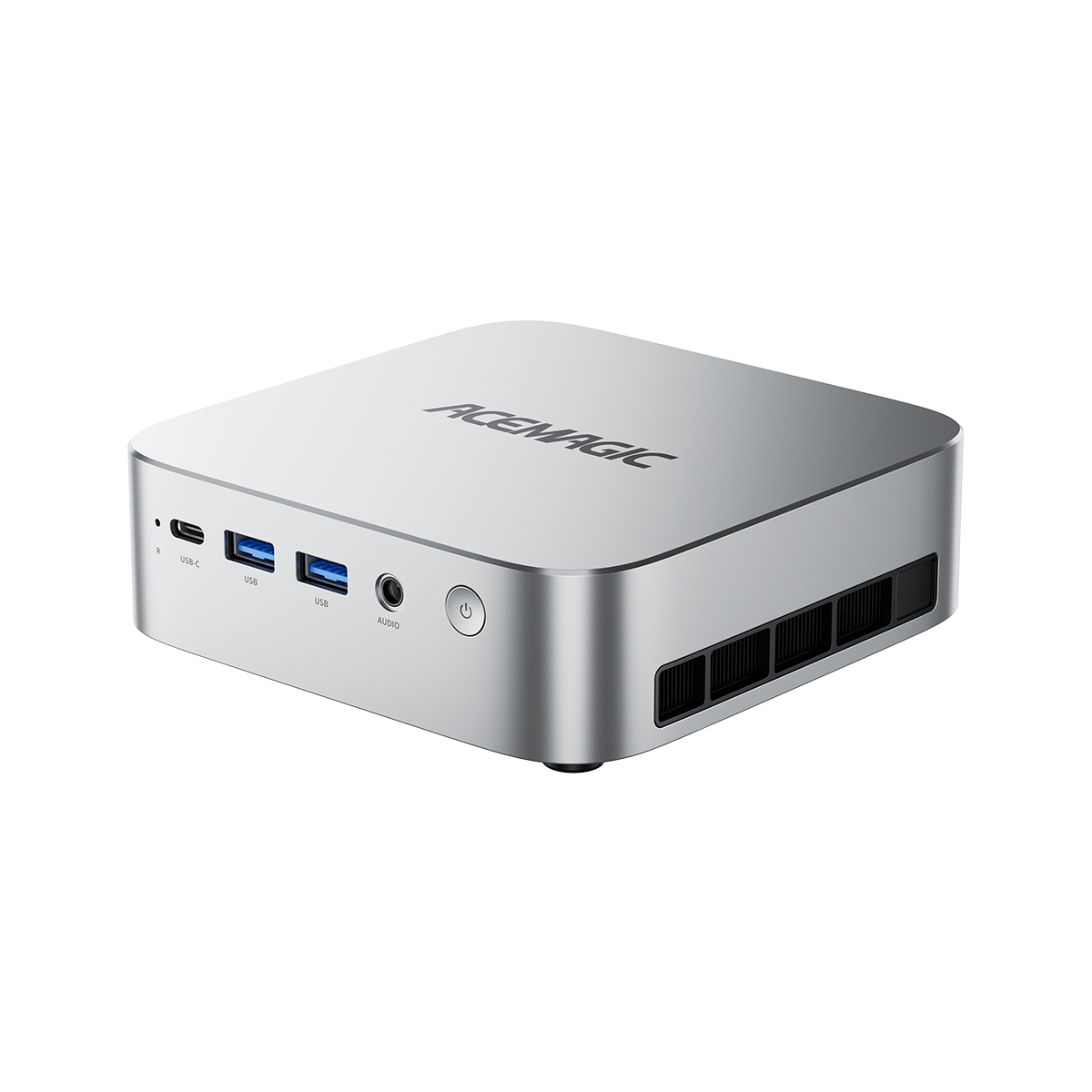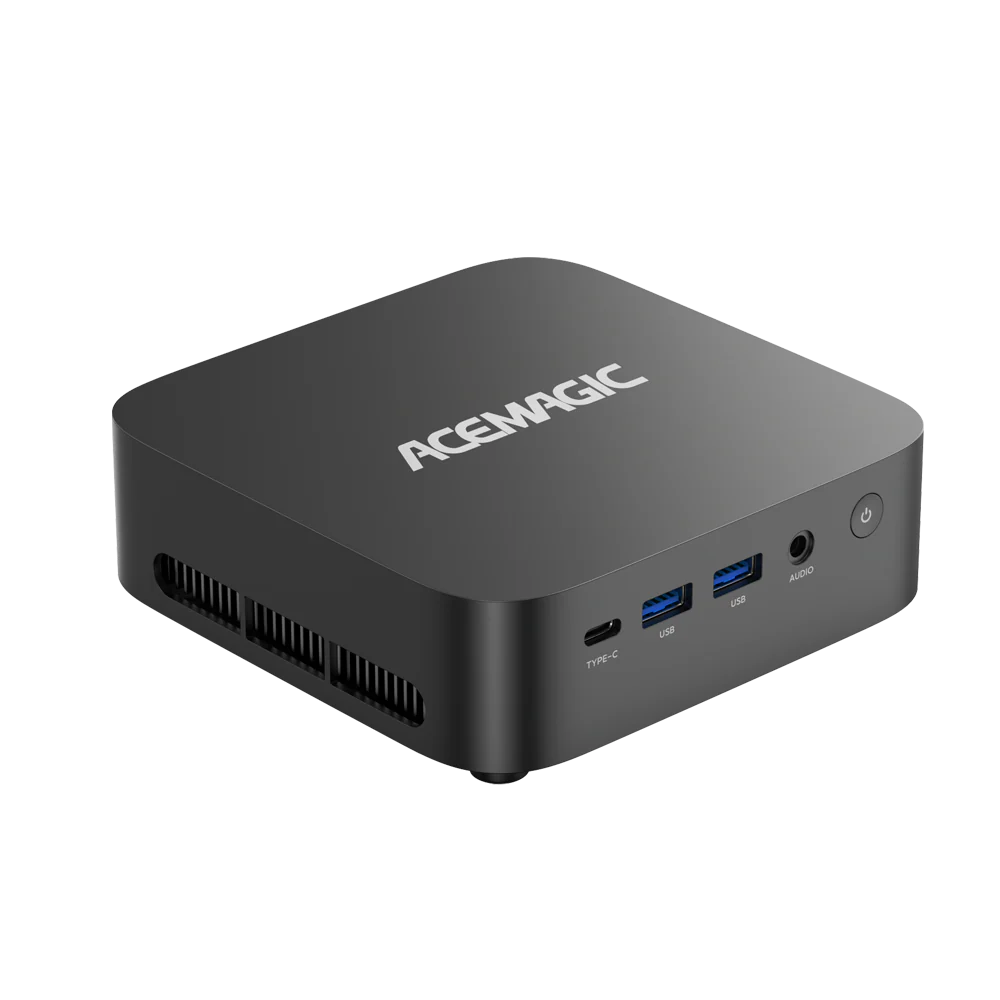

Beginner’s Mini PC Buyer’s Guide: Office, Business, Gaming and Editing
Maybe you want a cleaner desk, a family PC by the TV, or a replacement for an aging desktop. A mini PC looks promising until the processor names, memory options, and price gaps make the choice harder than expected.
This mini PC buying guide shows how to choose a mini PC for your own routine. It explains the core specs, compares ACEMAGIC configurations by use, and gives you a checklist for the full setup cost.
Quick answer: A mini PC can be a practical first computer if you already own a display and peripherals. Whether you need one for daily office tasks, creative editing, gaming, or local AI workloads, the right mini PC depends on your actual use case. This guide pairs different usage scenarios with suitable ACEMAGIC models, clarifies when an upgrade is worthwhile, and lists key checks before you place your order.
What is a mini PC?
A mini PC is a complete desktop computer in a small enclosure. It contains the processor, memory, storage, and connections for your applications. Most models need a separate monitor, keyboard, mouse, and power supply.
If you searched for a portable desktop CPU, you may mean the whole computer. The CPU is the processor inside it. That distinction matters because a CPU name does not tell you what comes with the finished system.

Which mini PC fits your needs?
Find your daily use, then follow the matching guide.
| Your main use | Start here | The decision that matters most |
|---|---|---|
| Browsing, lessons, and household tasks | K1 everyday guide | K1 7430U keeps the initial cost lower |
| Meetings, spreadsheets, and multiple screens | AM18 business guide | AM18 offers a path to more RAM later |
| Retro games and a shared entertainment PC | Retro X3 and X5 guide | Shortlist X3 first; check results for your games |
| Video projects and demanding applications | F5A and F2A guide | F2A costs less; F5A adds expansion connections |
| A television that doubles as a family computer | M1 home theater guide | M1 adds capacity for shared use and local files |
| Downloaded AI models running on your computer | Advanced local AI guide | 395 for a verified fit; 495 for a larger memory need |
If you regularly need a computer without a separate monitor, keyboard, and mouse ready for you, choose a laptop instead. A mini PC is easy to carry between two equipped desks, but it still needs those accessories and power when you arrive.
Product examples use ACEMAGIC's published specifications, not hands-on testing. Prices are shown in USD for reference. Coupons, regional taxes or VAT, shipping, and stock can affect the total. Confirm your configuration and final price at checkout. You can also browse the full ACEMAGIC mini PC collection when you are ready to compare live configurations.
Which mini PC CPU should you choose?
Choose by the complete CPU model and your workload.
Use the full model name, including its suffix. Ryzen 7 and Core i7 are broad labels; generation, chip design, power, and cooling decide real performance.
More cores help software that uses them; they do not speed every everyday task. For long exports, trust whole-system tests—the same CPU can behave differently in two chassis.
Before picking Intel or AMD, confirm apps, plug-ins, and peripherals support your OS. For Linux, check Wi-Fi, audio, and sleep on the exact model—our Linux mini PC buying guide covers those checks. A supported CPU alone does not prove the whole PC works with your distribution.
Which mini PC specs matter?
Buy enough capacity for the tasks you do every day.
Four listing terms matter: CPU (apps), GPU (graphics/acceleration), RAM (active work), and SSD (files). Skip the biggest number in every column—buy enough of each for your work.
Is 16GB RAM enough for a mini PC?
Yes, for many everyday workloads. Whether 16GB is enough depends on what you run together:
- 16GB: baseline for documents, browsing, and meetings.
- 32GB: for larger creative projects and heavy multitasking.
- More than 32GB: buy based on a named software or project need.
If you already own a PC, compare memory use in normal work with your software's recommended requirements.
Fixed RAM or upgradeable RAM?
Soldered (fixed) RAM cannot be upgraded later as a normal user change. Replaceable modules let you change capacity within model limits.
| Memory design | What it means | Choose it when |
|---|---|---|
| Soldered / fixed RAM | Installed capacity is the amount you keep | That amount covers your expected work |
| Upgradeable RAM | Compatible modules can be replaced or added within slot limits | You have a realistic reason to add capacity later |
Check shipped config too: a two-slot system may arrive with one module. AM18 recommended later ships with a single 16GB stick.
How much SSD storage do you need?
512GB suits modest apps and documents. Games, footage, and AI downloads often make 512GB versus 1TB (or more) the real call—leave room for updates and temp files.
For expansion, check slot, drive length, connection type, and capacity. M.2 is a form factor—not every NVMe and SATA drive is interchangeable. Extra internal space helps daily work; important files still need an independent backup.
Do you need a dedicated GPU?
Integrated graphics share system memory; a discrete GPU usually has its own VRAM. Compare results in your app, not the category label. Match games by title, resolution, and settings; for creative work, check GPU support in the software. At a desk, connecting the screens you own often matters more than extra graphics power. Gaming scores and output labels answer different questions—see the listing checks below.
Recommended Best mini PC options for Office work
Match the model to your desk, workload, and budget.
Use the essentials above to compare the options that match your day. Each section explains what the extra money buys, when a model fits, and which requirement should send you to another option. Check the full setup cost before ordering.
Which K1 should you buy?
Need a first PC for lessons, email, and household paperwork? The ACEMAGIC K1 gives you two configurations to compare without immediately moving into a higher price bracket. The Ryzen 5 7430U has six cores and twelve threads; the Ryzen 7 7730U has eight cores and sixteen threads. Both options below include 16GB RAM and a 512GB SSD.

| K1 option | Included memory and SSD | Reference price (USD) |
|---|---|---|
| Ryzen 5 7430U | 16GB and 512GB | USD 359 |
| Ryzen 7 7730U | 16GB and 512GB | USD 409 |
The extra USD 50 buys two more CPU cores, which can help applications that use them. It does not add RAM or storage. Both options have fixed memory, so neither is the right capacity choice if you already know you need more than 16GB.
For everyday browsing and documents, K1 7430U is the lower-cost pick. The 7730U deserves the extra spend when your applications can use its cores and its connections fit your desk. At USD 409, weigh it against AM18's upgrade options before deciding.
If 16GB fits your routine, compare the current K1 Ryzen 5 7430U option or view K1 with Ryzen 7 7730U.

ACEMAGIC Best mini PC for business
Looking for the best mini PC for business meetings, spreadsheets, and multi-screen work? Many of the same checks apply when you shortlist a mini PC for office desks. The AM18 Ryzen 5 7640HS is a strong business pick when ports, upgrade room, and wired networking matter more than the lowest sticker price. Before you choose, count the monitors, webcam, headset, and drives you use on a typical business day.
The selected USD 409 configuration includes 16GB RAM and a 512GB SSD. Its specifications list HDMI, DisplayPort, and USB4 for multi-monitor meetings, docks, and peripherals; dual 2.5GbE networking when a wired office connection matters; and two memory slots supporting up to 96GB. It ships with one 16GB module, so you can add capacity later within those limits.
Those features help real business needs: joining video calls with extra screens, keeping spreadsheets and browser tabs responsive, plugging in a webcam or headset, and using USB4 when a dock or fast drive is part of the setup. Match each screen's input, resolution, and refresh rate to an output and suitable cable.

Choose AM18 when you need that business flexibility; keep the USD 359 K1 7430U in mind if a simpler fixed 16GB setup is enough. That is a clearer reason to spend USD 50 more than moving up a processor label alone.
Does that match your business desk? Check the selected AM18 Ryzen 5 7640HS configuration.

Best Mini PC for gaming: Retro X3 or X5?
Pick your games before choosing between X3 and X5.
Shopping for a mini PC for retro gaming, or hoping to play recent releases as well? Name the games before choosing the hardware. A mini PC for gaming can mean very different things, from emulation to competitive titles. With cloud gaming or home network streaming, a remote computer does the rendering, so your priorities change again. Living-room setups also overlap with Steam Machine alternatives when you are comparing small PCs for the TV.

| Your gaming plan | Decide first | Look for before buying |
|---|---|---|
| Retro or emulated games | System, emulator, and titles | Results for those games and that emulator |
| Competitive PC games | Resolution, settings, and frame rate goal | Tests using the same configuration and settings |
| Demanding recent games | Acceptable image quality and performance | Sustained tests, including upscaling settings |
| Streaming from a service or another PC | Service, stream quality, and controls | Network, decoding, and input behavior |
Here is how the selected Retro X3 and X5 configurations compare:
| Specification | Retro X3 | Retro X5 |
|---|---|---|
| Processor | AMD Ryzen 7 H 255 | AMD Ryzen AI 9 365 |
| CPU cores/threads | 8 / 16 | 10 / 20 |
| Integrated graphics | Radeon 780M | Radeon 880M |
| RAM | 16GB | 32GB |
| SSD | 512GB | 1TB |
| Reference price (USD) | USD 549 | USD 1,099 |
Both options are on the same product page, so select the configuration shown above. X5 is listed as pre-sale; check its current dispatch estimate before ordering. Pre-order stock and shipping estimates may change if production is delayed. Its USD 550 premium also doubles the listed RAM and SSD capacities.
X3 is the lower-cost shortlist option; X5 makes more sense when you need 32GB RAM and 1TB storage. Before buying either mini gaming PC, look for results using your titles, emulator, resolution, and settings. That is the step that connects the hardware table to the experience you want.
For demanding games at high image settings, compare a tower with a suitable discrete graphics card. Include its complete cost and upgrade options. If you prefer an external GPU, count the dock, card, power supply, cables, and desk space as well as the small computer.
Have your game list ready? Compare the selected Retro X3 option or view Retro X5.

Which Best mini PC for video editing?
Let your projects decide the memory and ports you buy.
Will your editing PC handle the projects you actually make? A short family video and a paid project with several tracks deserve different budgets. For a mini PC for video editing, bring three details to the comparison: your editor, footage format, and a typical timeline. Resolution alone leaves too much out.
Adobe's Premiere requirements list 16GB recommended RAM for HD media and 32GB or more for 4K and higher. Use the requirements for your software version and include its graphics and driver needs.

| Your project | Priority | A reason to increase the budget |
|---|---|---|
| Short clips and simple cuts | Supported software, footage, and smooth preview | A real project misses your playback or export needs |
| Several tracks or frequent 4K work | Memory, supported decoding, and working storage | Capacity or turnaround becomes a regular limit |
| Heavy effects and strict deadlines | Tested GPU support and sustained performance | The task needs a different graphics or memory configuration |
F2A itself offers two CPU configurations to compare first: Intel Core Ultra X7 358H with 32GB LPDDR5X and 1TB SSD at USD 1,129, and AMD Ryzen AI 9 HX 470 with the same 32GB + 1TB package at USD 1,299.99. Pick the F2A CPU that fits your budget, then weigh the F5A when you need extra M.2 or USB4 expansion. The table below compares the HX 470 F2A and F5A builds on the ports that change the desk setup:
| Specification | F2A with HX 470 | F5A with HX 470 |
|---|---|---|
| RAM | 32GB, fixed | 32GB, fixed |
| Included SSD | 1TB | 1TB |
| M.2 slots | 2 total | 3 total |
| USB4 ports | 1 | 2 |
| Reference price (USD) | USD 1,299.99 | USD 1,499.99 |
F5A also lists OCuLink and Radeon 890M graphics; its CPU has twelve cores and twenty-four threads. Its M.2 slots have different specified PCIe lane widths, so check each slot's bandwidth before planning several fast working drives.
The USD 200 premium includes the extra M.2 slot and USB4 port. Count the drives you use together and the ports they need before paying for that expansion.
Within F2A, the X7 358H option is the lower reference price; the HX 470 option is the AMD configuration in the table above. One F2A card below covers both CPUs; F5A earns its premium when you need expansion beyond either F2A build. For deadline-driven work, check export and playback tests in your editor using representative footage.
For coding or other demanding multitasking, consider the combined memory needs of your editor, browser, virtual machines, and background services. If those already exceed 32GB, choose another configuration—or look at mini PCs for creators when the workload looks more like a workstation.
Once you have counted your drives and connections, compare F5A with Ryzen AI 9 HX 470.
Or start with F2A's different CPU options when the lower-cost editing chassis is enough.

Which Best mini PC for home theater?
Choose for the files, apps, and controls you will use.
Want the television to do more than stream a show? A mini PC for home theater is useful when you also want local files, PC applications, or a shared family computer. If streaming is the whole job, your TV's apps or a streaming device may already give you the simpler sofa experience.
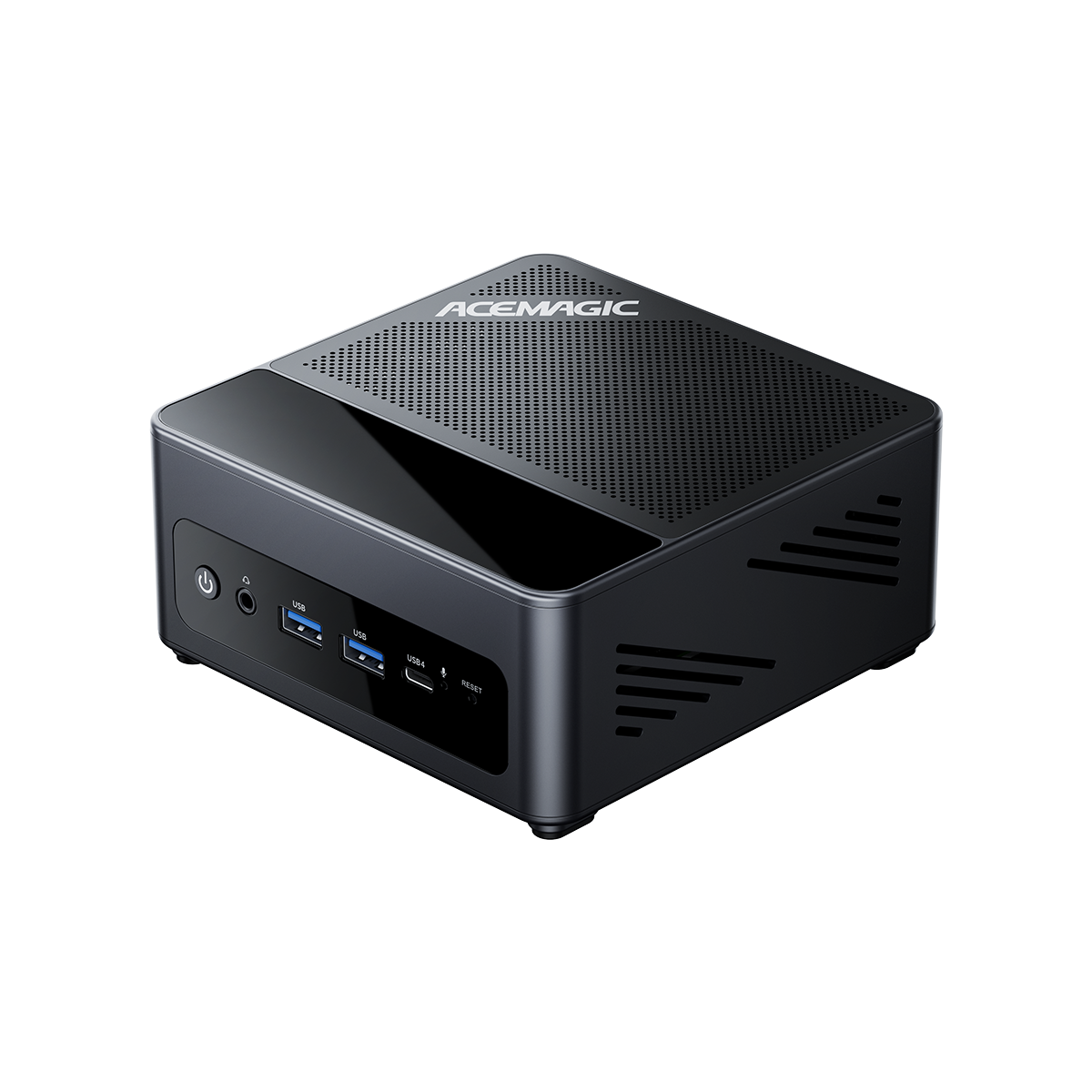
The M1 with 24GB RAM and a 1TB SSD is the example here, at a reference price of USD 509. Its specifications list Radeon 680M graphics and HDMI, DisplayPort, and USB-C video outputs supporting 4K at 60Hz. Its memory is non-expandable.
Compared with the USD 359 K1 7430U, the extra USD 150 includes 8GB more RAM and twice the SSD capacity. Those are tangible benefits for a shared computer with a growing local media collection.
M1 is the capacity upgrade for family use; K1 remains the lower-cost option if 16GB and 512GB are enough. Streaming alone does not create a need for the extra capacity.
For playback, check the whole chain:
- Content and software: your streaming service or local file, player, and supported formats.
- Picture and sound: the PC output, cable, television, receiver, and required HDR or surround-sound support.
- Controls: a keyboard or remote that works from the sofa, plus usable wake behavior.
Leave ventilation around the PC, including when it sits behind a television. Test the picture, audio, and controls together before calling the setup finished.
If you want that extra room for family files and applications, review the M1 24GB and 1TB configuration.

How do you choose a quiet mini PC?
Judge fan noise during the tasks you actually run.
A fan you barely notice at a desk may bother you during a quiet film. When choosing a quiet mini PC, look for measurements during the work you will do: calls, playback, gaming, or a long export. Idle noise tells only part of the story.
When reading noise measurements, look for the workload, performance mode, microphone distance, and background noise. Numbers from different reviewers may use different methods. A cooling diagram or a fan count cannot tell you which system will sound least distracting beside your desk.
If quiet mode is offered, find out whether it still delivers enough performance for your task. Also leave room for airflow: the power adapter, plugs, cable bends, and ventilation space belong in your desk measurements.
Mini PC power consumption changes with the workload. The adapter's wattage is its capacity, not the PC's constant consumption. For running costs, use measured wall power and your local electricity rate rather than the rating printed on the adapter. Always-on roles such as a home lab mini PC make sustained noise and power draw especially worth checking.
What to know before buying a Best mini PC
Choose the computer that fits where you really work.
Mini PC vs laptop: which should you get?
| Computer type | A good fit when | Check before buying |
|---|---|---|
| Mini PC | You have a fixed desk or move between equipped desks | Screen, keyboard, mouse, cables, and upgrade limits |
| Laptop | You need to work without a separate screen or mains power | Battery life, carrying weight, and built-in screen |
| Tower desktop | You want room for a large GPU or more components | Case space, power supply, cooling, and part compatibility |
For a mini PC vs laptop decision, focus on where you work. For a mini PC vs desktop comparison, focus on what you expect to upgrade. If you are weighing Apple silicon against Windows small desktops, the Mac vs Windows comparison is a useful companion read.
- Choose a mini PC when compact size suits an equipped desk.
- Choose a laptop when the screen, keyboard, and battery need to travel with you.
- Choose a tower when component expansion matters more than saving space.
What will you use it for?
Think about a busy Tuesday, not the biggest task you might try once a year. Perhaps that means a meeting, a spreadsheet, browser tabs, and messaging all open together. If you play games, write down their names and your preferred resolution. If you edit video, note the software and a typical project.
Separate requirements from preferences. Enough memory for an essential application comes before case color or a discount.
How do you make a fair mini PC comparison?
Compare the complete setup, not just the sale price.
Keep the exact CPU, installed RAM, SSD, and operating system beside every price. A barebone kit and a complete computer are different purchases. A low starting price may belong to another CPU or exclude parts you need.
| Compare this | Write down | Your reason to rule it out |
|---|---|---|
| CPU and graphics | Exact chips and relevant application tests | Required software or performance is unsupported |
| Memory | Installed capacity and upgrade options | Too little capacity with no workable upgrade |
| Storage and system | Included SSD, available slots, and OS | Missing parts push the full cost beyond budget |
| Displays and accessories | Required outputs, cables, and peripherals | Your existing setup cannot connect properly |
| Price and delivery | Selected configuration, region, and dispatch estimate | The offer or delivery timing does not fit |
How do you calculate the full setup cost?
Add the pieces you still need to buy:
- The selected PC configuration and any required RAM, SSD, or operating system.
- Missing essentials: monitor, keyboard, mouse, webcam, cables, and adapters.
- Delivery and applicable taxes, minus discounts you qualify for.
Existing equipment costs nothing extra to reuse. Keep optional accessories outside the essential total.
This is how to compare the best budget mini PC for your setup. A slightly more expensive computer can be better value if it avoids an adapter or includes capacity you would otherwise buy immediately. If you need a screen, keyboard, webcam, and mouse from scratch, compare the complete total with a laptop or desktop bundle.
Which specs are easy to misread?
Two small listing details can cause a frustrating first setup. USB-C describes the connector shape; check the particular port for video, USB4 speed, and power-input support. Likewise, a 4K output label describes a display mode, not 4K game performance or streaming-service compatibility. Match the PC, cable, display, and intended use. USB-IF explains USB-C terminology.
Upgradeable should identify a part: memory, SSD, or something else. Quiet should identify a workload and operating mode. A benchmark should identify the tested configuration and settings. Those details turn a marketing label into something useful for your decision.
What should you test after delivery?
Try your real work while return options still apply.
The first few days are your chance to find out whether the PC fits your life. Save the selected configuration and order confirmation, then check the reported CPU, RAM, SSD, and operating system on arrival. After that, try your normal day rather than relying only on a benchmark.
| Your use | Try this | Watch for |
|---|---|---|
| Business | Join a meeting with your regular applications and monitors | Responsiveness, audio, video, and sleep or wake behavior |
| Games | Play a target title at your chosen settings | Frame rate behavior, stutter, and fan noise |
| Editing | Preview and export a representative project | Playback, export time, and memory pressure |
| Home theater | Use the real service or file through the TV and audio setup | Picture, sound, controls, and wake behavior |
| Local AI | Run the chosen model with your intended settings | Memory use, response speed, and software behavior |
Keep the packaging and record reproducible problems for support. Check the cable, display mode, driver, and application settings when isolating a fault.
Before ordering, read the seller's current terms. ACEMAGIC's warranty policy lists two-year coverage for official-store purchases.
Its return conditions set 30 days from purchase for undamaged products, require original packaging and accessories, and place non-quality-related shipping costs on the buyer. Confirm the applicable process with support, especially for a pre-sale order; do not assume the clock starts on delivery.
Frequently Asked Questions
Clear up the questions that can hold up a purchase.
Are mini PCs worth it as a first computer?
They can be, especially at a fixed desk with an existing screen and accessories. If you are asking whether mini PCs are any good, compare the work they need to do and the full setup price. A laptop is usually simpler when you need a built-in screen, keyboard, and battery wherever you work.
Can a mini PC replace a desktop?
Yes, a suitable configuration can be your main computer for everyday applications. A tower deserves a closer look when you need frequent processor or graphics upgrades, expansion cards, or demanding GPU performance. Compact size is a useful benefit when the complete setup still fits your workload.
Do mini PCs come with Windows?
Many complete configurations do. A barebone mini PC is a kit that may omit memory, storage, and an operating system. Read the exact option and included license rather than assuming all versions of a model contain the same parts. A complete system is usually easier for a first-time buyer to budget and set up.
Can I use my laptop as a monitor?
Most laptop HDMI ports send a picture out rather than accept one. A direct HDMI cable usually will not turn that screen into a monitor for the mini PC. Remote desktop or a capture device can be alternatives, with setup and latency tradeoffs. For ordinary desk use, a compatible monitor is simpler.
Do mini PCs overheat easily?
Small size alone does not tell you whether a PC will overheat. Cooling design, power settings, workload, and airflow all matter. Keep vents clear and look for sustained-load reviews of the exact configuration. Repeated shutdowns or temperature-related performance problems deserve investigation; fan noise alone is not an overheating diagnosis.
How long do mini PCs last?
There is no dependable lifespan figure for the whole category. Build quality, cooling, maintenance, and your changing software needs affect how long a machine remains useful. Check warranty and replacement-part support, and keep independent backups rather than relying on any expected lifespan.
Can a mini PC run two or three monitors?
Yes, if the exact model supports that many displays at the same time. Confirm its simultaneous-display limit and each output's resolution and refresh rate. Three connectors do not automatically guarantee your preferred three-screen setup. Once connected, use the Windows display settings to extend the desktop; Microsoft explains the setup steps.
Are mini PCs good for streaming?
For watching video, a compatible mini PC can work well. Check your service, browser or app, internet connection, and display chain. For example, Netflix lists specific Windows playback requirements, including extra conditions for 4K. Broadcasting your own gameplay is a different workload: check your streaming software's encoder support and performance while the game is running.
Can you add a dedicated GPU to a mini PC?
Sometimes, through a compatible external GPU setup. Most compact models do not have the space or expansion slot for a desktop graphics card inside. External options can use a supported Thunderbolt, USB4, or OCuLink connection, but confirm the PC, enclosure, graphics card, drivers, and operating system work together. A USB-C connector alone is not enough. Include the dock, card, power supply, and cables in the cost.
Which mini PC for local AI?
Match local models to supported memory and software.
Using AI in a browser? Buy for your everyday applications. A local AI mini PC runs downloaded models on the computer itself. The large-memory options below are for people who want to run larger models that way.
The M1A PRO+ Ryzen AI Max+ 395 configuration includes 128GB unified memory and a 2TB SSD at USD 3,399. ACEMAGIC lists sixteen CPU cores, thirty-two threads, and Radeon 8060S graphics. Unified memory is shared by the system, so its full capacity is not reserved exclusively for an AI model.
For example, do not assume a 120GB model download will fit comfortably on a 128GB system. The operating system, background services, and AI software need memory too. Check the software's memory estimate for your settings; file size alone does not tell you the full requirement.
The F9A Ryzen AI Max+ PRO 495 configuration lists 192GB memory, Radeon 8065S graphics, and a 2TB SSD at USD 6,499. Its larger memory pool is the reason to investigate it when a specific model will not fit your smaller-memory shortlist. A side-by-side look at Ryzen AI Max+ 395 vs PRO 495 helps decide whether the larger memory is worth the jump.
Choose around the model's memory needs: 395 when it fits, 495 when the larger pool is necessary and supported. The USD 3,100 difference is substantial, so confirm that need before paying for it.
Before buying either, identify the model and the software that will run it. Confirm support, required memory, and an acceptable response time. A model that fits in memory may still be too slow for your intended task. A large TOPS figure does not settle those questions.
With your model and software requirements in hand, compare M1A PRO+ with Ryzen AI Max+ 395.
Or view F9A with Ryzen AI Max+ PRO 495.
Which mini PC should you choose?
Choose a useful fit, then check the complete order.

Your daily tasks, existing equipment, and full budget are the best guide to your first mini PC. More memory or extra connections are worth paying for when they solve a need you can name. Here is the shortlist to take away:
- Everyday use and business work: K1 7430U keeps the price lower. AM18 is the business pick when you need replaceable RAM, multi-monitor ports, and USB4.
- Gaming: compare Retro X3 with X5 around your games and capacity needs. X5 adds 32GB RAM and a 1TB SSD; check relevant game results before choosing.
- Video editing: one F2A card covers both CPUs (Intel X7 358H at USD 1,129 or HX 470 at USD 1,299.99); the F5A card is the expansion step when you need the extra M.2 slot and USB4 port.
- Home theater and family use: M1's 24GB RAM and 1TB SSD suit a shared PC that needs more room for applications and local files.
- Local AI: match 395 or 495 to your model's actual memory and software requirements. Browser-based AI does not create the same need for a large-memory workstation.
If two options still look close, that is normal. Return to the difference you will actually use, rather than paying more just to settle the decision.
Before ordering, check the selected CPU, installed RAM, SSD, included system, full cost, and dispatch timing. When those fit, you have a clear reason for your choice.
Ready to narrow it down? Revisit the configuration link in your main-use section, or browse the current ACEMAGIC offers with your checklist beside you. Keep your requirements in view as you compare the deal.