
Stop Renting Cloud Space: A Hardware Guide to Building Your Own NAS

Are You Renting Your Data or Owning It?
The Hidden Traps of Cloud Subscriptions
Cloud storage providers operate on a subscription model. When you reach your data limit on services like Google Drive, you face an annual fee—often around $100 for a standard 2TB plan. As your digital files accumulate over the years, this recurring cost increases. Cloud file access speed depends entirely on your internet service provider. If your local connection drops, your files become temporarily inaccessible.
Taking Back Control with Local Storage
Local hardware bypasses these recurring fees and connectivity limits. A Network Attached Storage (NAS) device is a dedicated computer containing hard drives that connects directly to your router. You purchase the hardware once. As long as your local network is active, you can upload and download files at the maximum speed your router supports. This setup keeps your data physically in your possession and eliminates monthly software subscriptions.

The Shift from Pre-Built Brands to Custom Systems
The Problem with Locked Operating Systems
Purchasing a NAS requires choosing between closed consumer ecosystems and open DIY builds. Many popular consumer NAS brands build their machines using closed software environments. Recently, major manufacturers started restricting which hard drives you can install. Certain models require buyers to purchase brand-approved drives, which typically cost more than standard NAS-rated hard drives from companies like Western Digital or Seagate. This practice limits consumer choice and forces users to pay a premium for identical storage capacity.
Building or Buying a Barebones System
These hardware restrictions drive technical users toward barebones NAS systems. A barebones NAS is a chassis containing a motherboard, processor, power supply, and network ports, but it comes without RAM, storage drives, or an operating system. This method allows you to buy RAM and hard drives at standard market prices. It provides the freedom to install open-source operating systems like TrueNAS, Unraid, or Linux, granting you full administrative control over your machine.
Identifying the Hardware Specifications You Actually Need
Avoiding the Two-Bay Trap
A common mistake when buying a NAS is starting with a two-bay model, which only holds two hard drives. If you buy two 4TB drives and fill them, you have zero empty slots left. To add space, you must purchase larger drives, transfer the data, remove the old drives, and insert the new ones. Starting with a 4-bay NAS or larger provides empty slots. When you run out of space, you insert a single new drive to expand your capacity without replacing existing hardware.

The Necessity of 2.5GbE Networking
Storage capacity matters, but network speed dictates how fast you can transfer files to your computer. A standard 1 Gigabit Ethernet (1GbE) connection transfers data at a maximum rate of 125 Megabytes per second (MB/s). Modern mechanical hard drives can read and write data at speeds close to 200 MB/s, making a 1GbE connection a bottleneck. A NAS with a 2.5 Gigabit Ethernet (2.5GbE) port raises the transfer limit to approximately 312 MB/s, allowing your hard drives to operate at their actual hardware speed.
Matching CPU Power to Your Workload
A NAS also needs processing power. If your goal is strictly to store text documents and photos, a basic processor is sufficient. If you plan to transcode high-resolution video files or run multiple Docker containers simultaneously, a standard processor will struggle. Those tasks require an x86-architecture processor with multiple cores and threads to process the data without causing system freezes.
Configuring Drives for Speed and Redundancy
Combining HDDs with NVMe SSD Caches
Mechanical Hard Disk Drives (HDDs) provide high capacity at a low cost per terabyte, with single drives available up to 30TB. Solid State Drives (SSDs), specifically NVMe M.2 formats, read and write data significantly faster than HDDs but cost more per terabyte. A practical configuration utilizes both. You can group your HDDs into a large pool for long-term archiving and use the NVMe SSDs as a cache—a temporary fast storage area that holds the files you are actively working on.
Understanding RAID and Data Protection
Grouping drives protects your data from physical damage. RAID (Redundant Array of Independent Disks) groups physical drives together to protect against hardware failure.
- RAID 1: Uses two drives and writes the exact same data to both. If one drive fails, the other retains an intact copy. You lose 50% of your total storage capacity to maintain this copy.
- RAID 5: Requires at least three drives. It distributes data and parity information across all drives. If one drive fails, the system calculates the missing data using the remaining drives. You lose the storage capacity equal to one drive.
Practical Applications for a Custom Home Server
Hosting a Private Media Center
A NAS functions as more than a backup drive. You can install applications like Plex or Jellyfin directly on the system. These programs organize your local movie and music files and stream them to smart TVs or phones inside your house. By configuring a virtual private network tool like Tailscale, you can extend this access outside your home network. This allows you to view your media library securely when traveling, providing an alternative to commercial streaming services.
Executing the 3-2-1 Backup Strategy
A NAS serves as the core of a data protection plan. The 3-2-1 backup strategy requires 3 total copies of your data, stored on 2 different types of media, with 1 copy kept in an offsite location. You can configure your computer to back up to the NAS (copy 2), and then set the NAS to back up to an external hard drive (copy 3). Storing that external hard drive at a different physical location fulfills the strategy's requirements.
Running Docker Containers and Home Assistant
A Linux-based operating system allows you to run Docker, which isolates different software applications into separate containers so they run on the same machine without interfering with each other. For example, you can run Home Assistant to control the smart lights and thermostats in your house locally, rather than relying on external servers provided by device manufacturers.
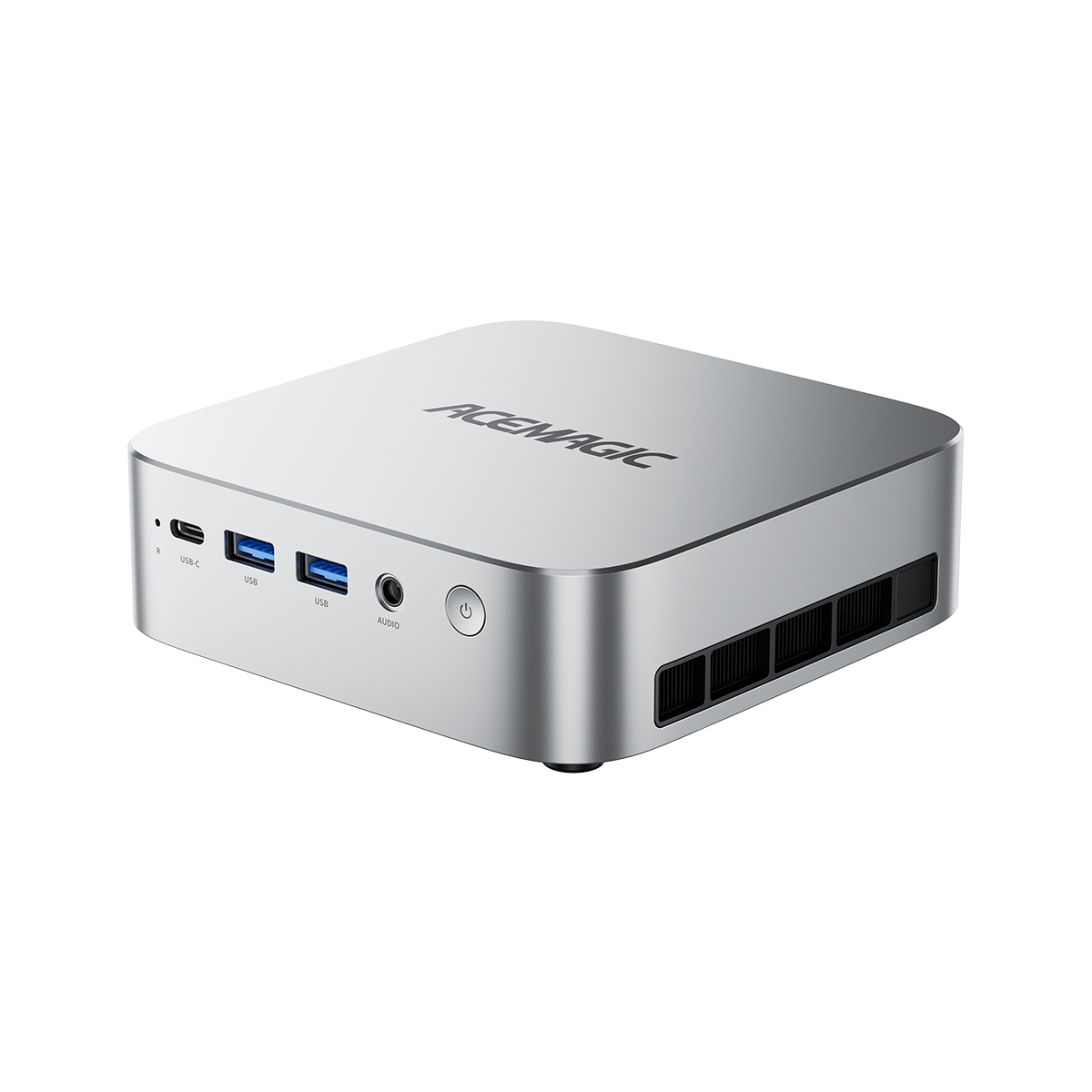
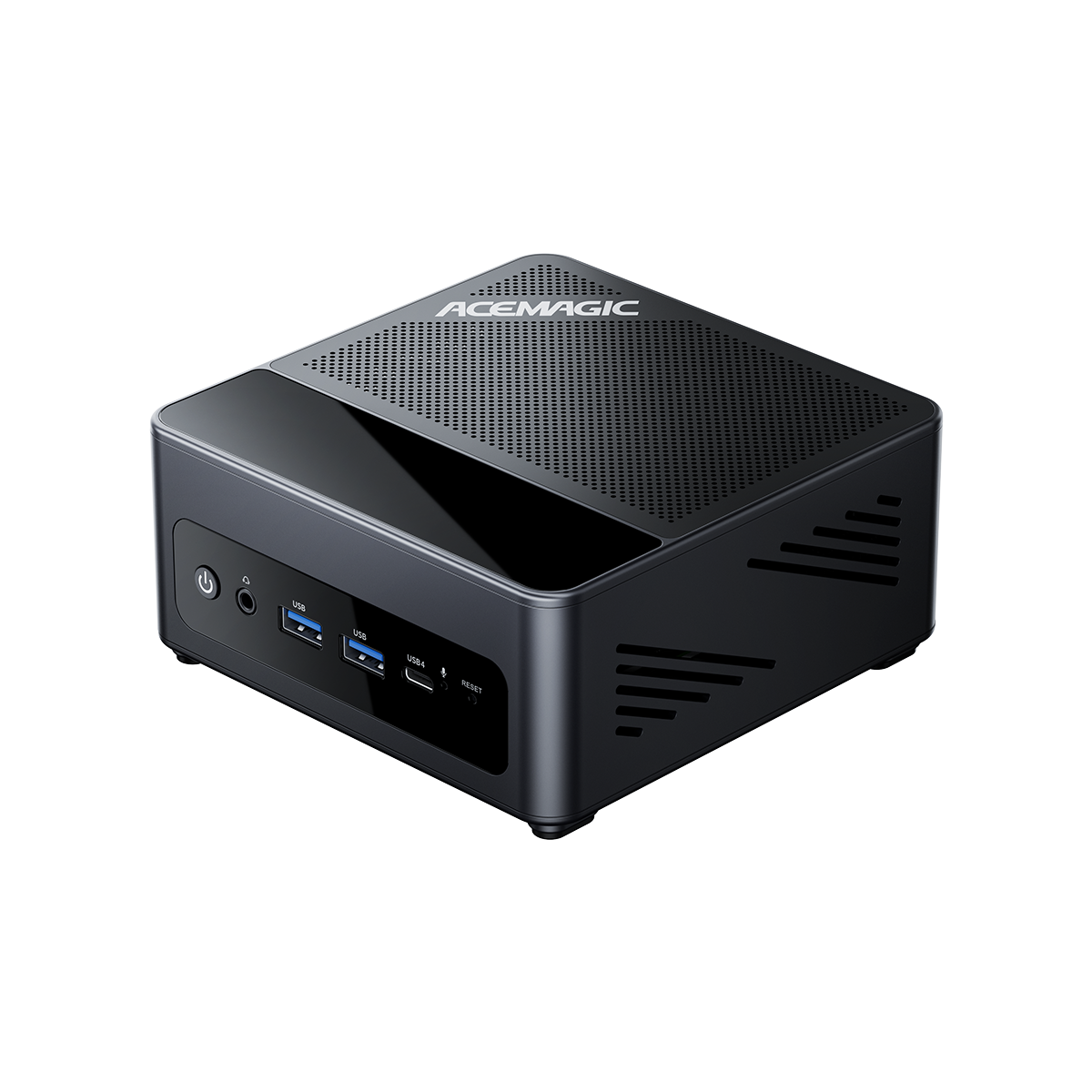
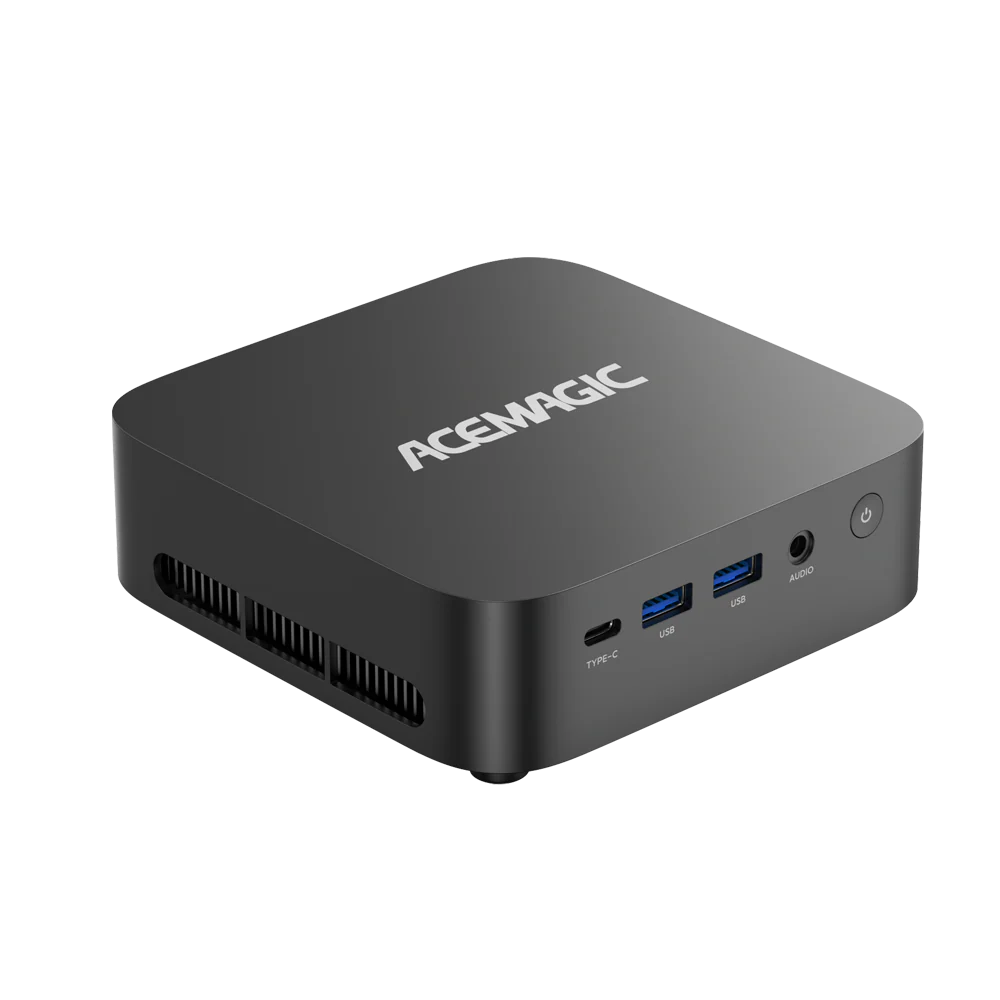
The ACEMAGIC N3A Barebones Mini PC-NAS
Embedded AMD Ryzen Processing
These applications require a hardware foundation supporting high-capacity storage and x86 processing. The ACEMAGIC N3A uses the AMD Ryzen™ Embedded R2544 processor, featuring 4 cores and 8 threads with a base clock frequency of 3.35GHz. Unlike standard desktop processors, embedded processors are manufactured for industrial applications and continuous 24/7 operation. With a Thermal Design Power (TDP) ranging from 15 to 45 Watts, it provides the compute power required to manage storage arrays and media servers without the high electricity consumption of gaming processors.

Storage Capacity and Thermal Design
The N3A chassis supports the hybrid storage configurations discussed earlier. It features four SATA 3.0 bays for 3.5-inch hard drives, supporting up to 30TB per drive. Additionally, it contains two M.2 2280 PCIe 3.0 NVMe slots, supporting up to 8TB per drive. Fully populated, the unit supports a maximum theoretical storage limit of 136TB. To maintain operating temperatures during data transfers, the device uses a dual-cooling system combining a rear exhaust fan with a CPU turbo fan.

Operating System Independence
The N3A is sold as a barebones unit, meaning it does not include pre-installed RAM, storage drives, or a locked operating system. It provides two DDR4 SO-DIMM slots supporting up to 32GB of memory, alongside one 2.5Gbps RJ45 port and one 1Gbps RJ45 port for networking. You supply the components and install the operating system of your choice—whether that is Windows 11 PRO, Linux, TrueNAS, or Unraid—ensuring you retain full administrative control over your hardware.

ACEMAGIC N3A Mini PC NAS
- AMD Ryzen Embedded R2544
- 4 - Bay HDD + Dual M.2 NVMe
- Up to 136TB Storage
- 2.5GbE Port
FAQ
Is it cheaper to build my own NAS or buy one?
Buying a barebones NAS or building your own is more cost-effective for power users. It allows you to purchase standard NAS hard drives and RAM at retail prices, avoiding the markup that consumer NAS brands charge for their proprietary or brand-approved hardware components.
Do I still need cloud storage if I have a NAS?
A NAS replaces the need for cloud storage for large file syncing and media access. However, cloud storage can still be used as the "1 offsite location" in your 3-2-1 backup strategy to hold a final copy of your most critical documents in case of physical damage to your local hardware.
Can a NAS run over Wi-Fi, or does it need Ethernet?
A NAS requires a physical Ethernet connection to your router to function correctly. While your laptops and phones can access the NAS over your home Wi-Fi network, the NAS itself must be wired to ensure stable, high-speed data transmission and constant network availability.
What is the best operating system for a DIY NAS?
TrueNAS is a standard choice for users prioritizing the ZFS file system and strict data integrity. Unraid is preferred by users who want to mix different sizes of hard drives and run Docker containers. Ubuntu or Debian Linux are options for users who want to configure everything manually via the command line.
How much RAM does a NAS actually need?
If you only use the NAS for basic file storage, 4GB to 8GB of RAM is adequate. If you plan to use the ZFS file system (which relies heavily on RAM for caching), or if you run virtual machines and media transcoders, 16GB to 32GB of RAM is recommended to prevent system slowdowns.
What does "Barebones NAS" mean?
A barebones NAS includes the case, motherboard, processor, power supply, and cooling fans. It does not include RAM, storage drives, or an operating system. The buyer must purchase these parts separately and install them.