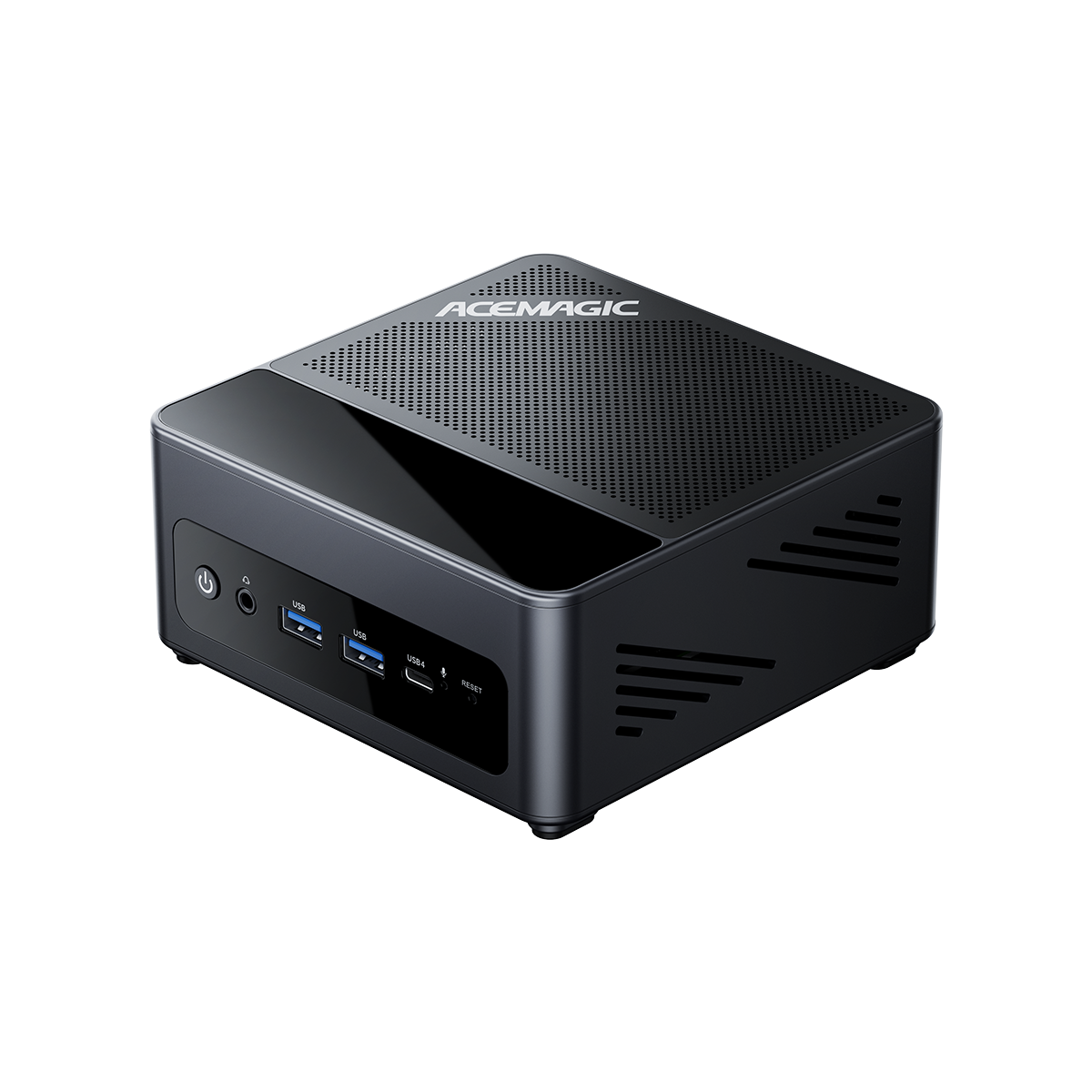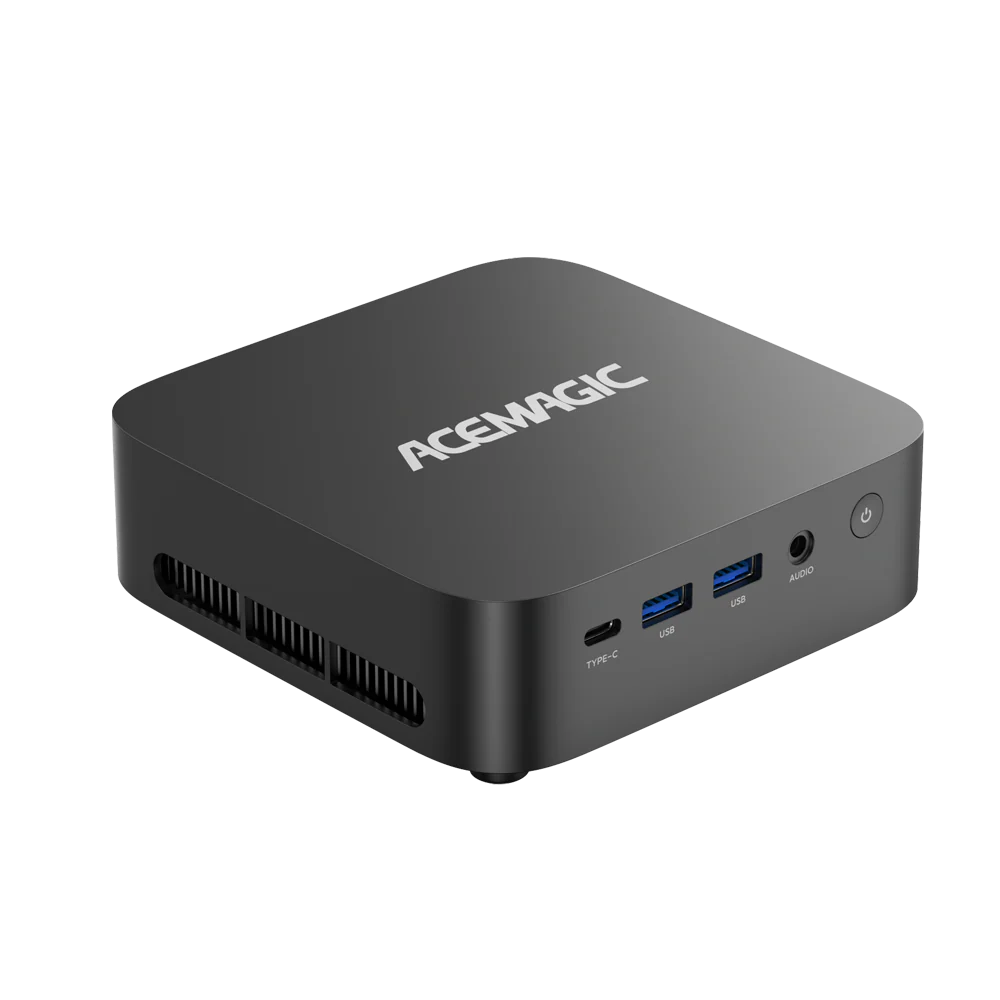

Best Mini PC for HomeLab 2026: Use Cases, Mistakes & 24/7 Guide

Best Mini PC for HomeLab in 2026: What Can You Actually Run?
A Mini PC for HomeLab can serve as a compact host for Docker containers, Home Assistant, Pi-hole, Plex, Jellyfin, Nextcloud, virtual machines, development environments, network services, and local AI workloads.
The hardware requirement changes substantially between these use cases.
A 16GB Mini PC can be enough for Home Assistant, DNS filtering, monitoring, and several lightweight containers. A virtualization-focused Mini PC home server may need 32GB or 64GB of RAM. A media server can depend more on hardware video acceleration than raw CPU core count, while local AI workloads can be limited by GPU memory or unified memory.
The right hardware therefore depends on what the HomeLab actually needs to run.
This guide covers:
- What Is a HomeLab? and Why Choose a Mini PC for Your HomeLab?
- What a Mini PC can run as a HomeLab or home server
- Typical HomeLab applications and hardware requirements
- RAM, CPU, storage, and networking decisions
- Mini PC options for Plex, Jellyfin, Proxmox, and AI
- 24/7 power, temperature, and noise considerations
- Common HomeLab buying mistakes
- Mini PC vs NAS vs old PC
- Single Mini PC vs HomeLab cluster
- Backup and recovery planning
- Four ACEMAGIC configurations for different workloads
What Is a HomeLab?
A HomeLab refers to a personal IT lab set up i n a home environment. It can include one or more computers used to simulate and test various network configurations, servers, virtual machines, and containerized environments. Many IT professionals and tech enthusiasts use HomeLabs to learn new skills, develop projects, or simply experiment. A well-configured HomeLab enables efficient learning and testing without interfering with work or family life.
Why Choose a Mini PC for Your HomeLab?
Mini PCs save space and energy while offering great value for money, making them ideal for HomeLab setups. Compared to traditional servers or desktops, Mini PCs are smaller, quieter, and more energy-efficient, which is crucial for a HomeLab that runs for long hours. Additionally, Mini PCs can deliver sufficient computing power for tasks like virtualization, containerization, and network management.
Factors to Consider When Choosing a Mini PC
When selecting the right Mini PC for your HomeLab, consider the following factors:
- Processor (CPU): A powerful CPU is essential for virtualization and containerization tasks. Look for CPUs with at least 4 cores.
- Memory (RAM): Running multiple virtual machines or containers typically requires at least 16 GB of RAM as a starting point.
- Storage: Opt for Mini PCs with SSDs for faster boot times and read/write speeds. A 512 GB SSD or larger is recommended.
- Expandability: Choose a Mini PC that supports memory, storage, and network upgrades for future scalability.
- Network Interfaces: For enhanced network performance, select a device with multiple network ports or Wi-Fi 6 support.
Best Mini PCs for HomeLab in 2026
The four ACEMAGIC systems below cover different HomeLab requirements rather than serving as a simple performance ranking.

| HomeLab scenario | Main requirement | ACEMAGIC model |
| Lightweight services and expandable entry setup | Upgradeable RAM + multiple SSDs | AM18 |
| Multi-service workloads and compact virtualization | 12-core/24-thread CPU + dual NVMe | F2A Ryzen AI 9 HX 470 |
| GPU-accelerated AI and professional workloads | Discrete GPU + expandable RAM | G3A |
| High-memory virtualization and AI | 128GB memory + 3× M.2 | M1A PRO+ Ryzen AI Max+ 395 |
ACEMAGIC AM18: Upgradeable HomeLab Foundation
From the Comet Series, the AM18 uses an AMD Ryzen 5 7640HS with 6 cores and 12 threads. For HomeLab use, the more important features are its two DDR5 SO-DIMM slots, two M.2 slots, dual 2.5GbE, and OCuLink. The RAM can be expanded to 96GB.
Typical workloads include:
- Home Assistant
- Pi-hole or AdGuard Home
- Uptime Kuma
- WireGuard
- Docker
- lightweight Linux services
- small databases
- basic media serving
- entry-level virtualization

ACEMAGIC AM18 — Expandable HomeLab Foundation
The main advantage is the upgrade path. The base 16GB configuration can be expanded later, and the second M.2 slot allows system and data storage to be separated. ACEMAGIC's own AM18 review specifically recommends 16GB for lightweight Proxmox/LXC use and 32GB for multiple virtual machines.
ACEMAGIC F2A: Compact Multi-Service Platform
A compact office-grade Mini PC, the Ryzen AI 9 HX 470 version of the F2A provides 12 cores and 24 threads, 32GB LPDDR5X onboard memory, two PCIe 4.0 M.2 slots, and dual 2.5GbE. ACEMAGIC also lists Linux/Ubuntu support. The 32GB memory is onboard and cannot be upgraded.
The F2A is suited to:
- multiple Docker containers
- development environments
- databases
- Jellyfin or Plex
- Nextcloud
- Linux virtual machines
- network services
- concurrent application workloads
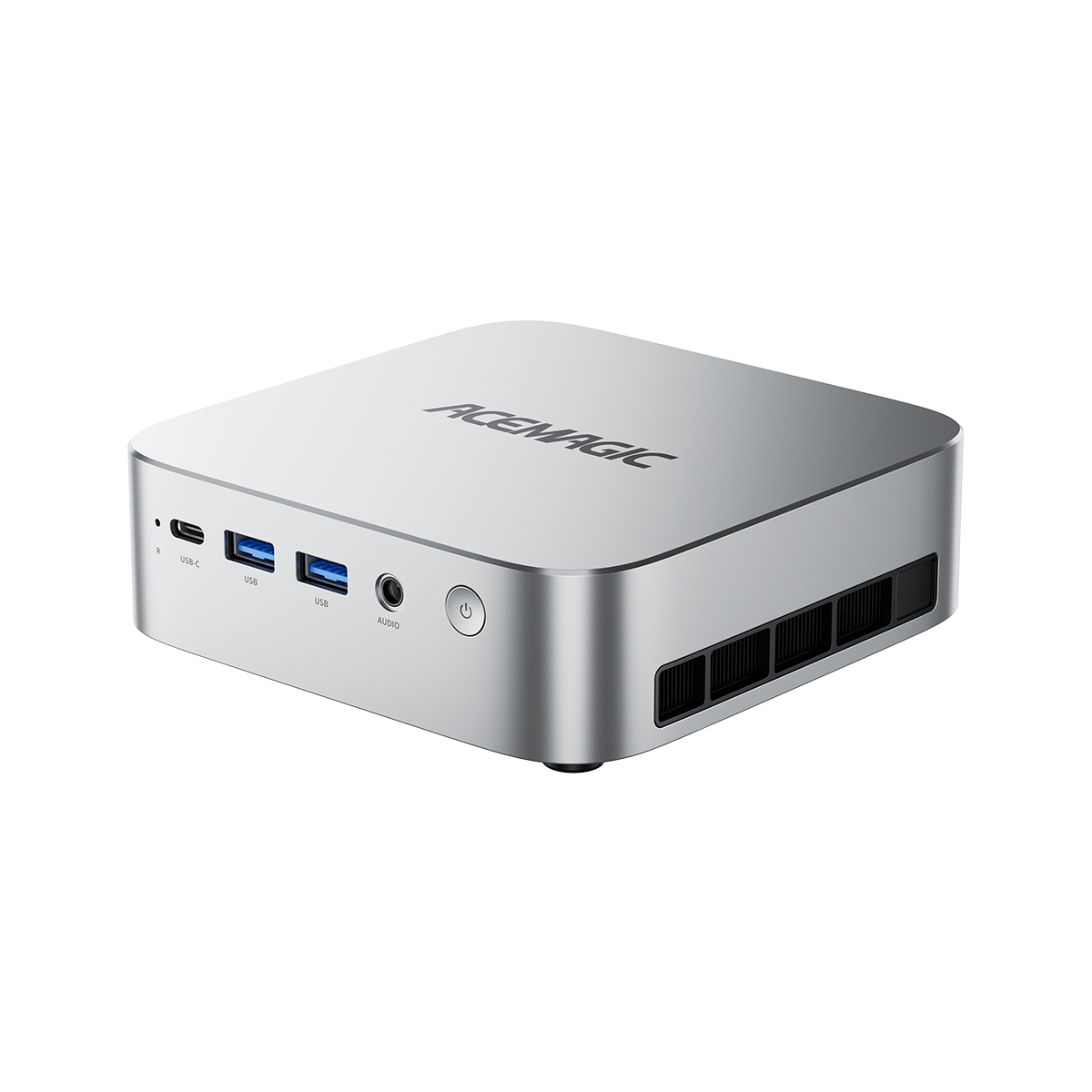
ACEMAGIC F2A HX 470 — Compact Multi-Service Platform
The main buying consideration is memory expansion. A fixed 32GB configuration is practical when the long-term workload can stay within that limit. For an uncertain VM-heavy HomeLab, the lack of a RAM upgrade path needs to be considered before purchase.
ACEMAGIC G3A: GPU-Accelerated HomeLab
Also suited to GPU-accelerated gaming workloads, the G3A combines an Intel Core i9-13900F with an NVIDIA RTX 2000 Ada GPU and 16GB of GDDR6 VRAM. It belongs to ACEMAGIC's Intel CPU Mini PC lineup. It also provides two DDR5 SO-DIMM slots with support for up to 96GB, two M.2 slots, and a 2.5-inch SATA slot.
This puts the G3A in a different HomeLab category, with applications such as:
- local AI
- CUDA workloads
- computer vision
- GPU-accelerated development
- rendering
- professional 3D applications
- GPU-assisted media processing
Networking is also different from the other three systems. The G3A uses one 2.5GbE port and one 1GbE port, rather than dual 2.5GbE. That mixed configuration can still be useful for separating management traffic from storage or application traffic when the secondary network does not require 2.5Gbps throughput.

ACEMAGIC G3A — GPU-Accelerated HomeLab
ACEMAGIC lists a 65W CPU configuration and 70W GPU configuration with a 135W distributed cooling design. These are design specifications, not direct wall-power measurements.
ACEMAGIC M1A PRO+ Ryzen AI Max+ 395: High-Memory HomeLab
Part of the Flagship Mini Series, the M1A PRO+ Ryzen AI Max+ 395 combines 16 CPU cores / 32 threads, 128GB onboard LPDDR5X memory, three M.2 slots, and dual 2.5GbE. ACEMAGIC lists up to 12TB of NVMe storage.
The main reason to select the M1A PRO+ for a HomeLab is memory capacity.
It is suited to:
- multiple virtual machines
- large container environments
- development and testing
- local AI
- large datasets
- memory-intensive applications

ACEMAGIC M1A PRO+ 395 — High-Memory HomeLab
The 128GB memory is onboard and cannot be upgraded, so the initial configuration needs to match the expected long-term workload.
Mini PC HomeLab Comparison at a Glance
The main differences between these four systems are not simply CPU performance.
| Model | RAM | Storage | Networking | Main HomeLab role | Main consideration |
| AM18 | Up to 96GB, SO-DIMM | 2× M.2 | 2× 2.5GbE | Entry / expandable HomeLab | Upgrade path |
| F2A HX 470 | 32GB onboard | 2× M.2 | 2× 2.5GbE | Multi-service / compact VM host | RAM cannot be upgraded |
| G3A | Up to 96GB, SO-DIMM | 2× M.2 + SATA | 2.5GbE + 1GbE | GPU / AI / professional workloads | Discrete GPU is unnecessary for lightweight services |
| M1A PRO+ 395 | 128GB onboard | 3× M.2 | 2× 2.5GbE | High-memory HomeLab | RAM cannot be upgraded |
This comparison is useful because the most important specification changes with the workload.
For example:
- A Docker-focused HomeLab may benefit from RAM expandability.
- A media server may benefit from hardware video acceleration.
- A storage-focused server may benefit more from additional drive slots.
- A local AI system may need GPU resources or large unified memory.

What Can You Run on a Mini PC HomeLab?
A HomeLab can be as simple as a DNS server or as complex as a multi-VM development environment.
The following workloads represent common HomeLab use cases.
Home Assistant and Smart-Home Services
Typical services include:
- Home Assistant
- Pi-hole
- AdGuard Home
- Uptime Kuma
- Zigbee2MQTT
- Mosquitto
- WireGuard
- Tailscale
These services generally have modest CPU requirements.
A 16GB HomeLab Mini PC can be sufficient when the system is primarily running lightweight services and containers.
Typical configuration: AM18 with 16GB RAM.
Docker and Self-Hosted Applications
Docker is one of the most common uses for a Mini PC for HomeLab.
Typical applications include:
- Nextcloud
- Vaultwarden
- Immich
- Nginx Proxy Manager
- MariaDB
- PostgreSQL
- monitoring tools
- web applications
- download services
- media servers
Resource requirements vary significantly by application.
Ten lightweight containers can consume fewer resources than two applications performing continuous image processing or database operations.
For that reason, container count alone should not determine hardware capacity.
A better question is:
Which services run simultaneously, and which services are resource-intensive?
Mini PC for Plex and Jellyfin
A Mini PC for Plex or Mini PC for Jellyfin server can handle local media streaming, but transcoding changes the hardware requirement.
Direct Play
The client supports the original media format.
The server can deliver the file without converting it.
Transcoding
The server converts the media during playback.
CPU resources or hardware media acceleration become more important.
Multiple 4K Transcodes
Several simultaneous high-resolution transcodes can create substantially higher compute and media-engine requirements.
For a Mini PC for media server or Mini PC for home media server, consider:
- video codecs
- resolution
- simultaneous streams
- Direct Play ratio
- transcoding frequency
- hardware encode/decode support
A higher CPU core count does not automatically make a Mini PC a better Plex server.
Home Assistant + Media + Docker
A common HomeLab grows by combining previously separate services.
For example:
Home Assistant + Pi-hole + Docker + Jellyfin
requires more resources than any one of those services alone.
A practical configuration is:
- 16GB: lightweight combination
- 32GB: more room for media, databases, and additional containers
- 64GB: useful when VMs are also added
This is where a general-purpose home server Mini PC becomes more demanding than a simple smart-home host.
Home Server and Personal Cloud
A Mini PC home server can host:
- Nextcloud
- Immich
- file synchronization
- document storage
- photo management
- personal web applications
- automated backups
As data volume increases, storage becomes a larger constraint.
Multiple M.2 slots can be useful when system files, application data, VM images, and large datasets need to be separated.
Virtual Machines and Proxmox
A Mini PC for Proxmox can be used for:
- Linux VMs
- Windows VMs
- development
- network experiments
- isolated testing
- self-hosted services
- CI/CD
- virtualization learning
RAM becomes particularly important because every VM consumes its own allocation.
A useful planning range is:
| VM workload | Suggested RAM |
| 2–3 lightweight VMs | 16–32GB |
| 2–4 general VMs | 32GB |
| Multiple larger VMs | 64GB+ |
| Large VM environment | 64–128GB |
Proxmox does not require ECC memory as a general installation requirement. ECC becomes particularly relevant for ZFS-based storage systems and workloads where memory-level data integrity is a major concern. Proxmox documents ECC in this context rather than making it a universal Proxmox requirement.
NAS and Storage Services
A Mini PC can host:
- OpenMediaVault
- TrueNAS
- Samba
- NFS
- backup services
However, the storage architecture matters.
A Mini PC with several M.2 slots can work well for SSD-based storage, application data, or backup services. It is not equivalent to a NAS with multiple 3.5-inch drive bays.
For:
- large ZFS pools
- many HDDs
- storage redundancy
- large media archives
a dedicated NAS is usually a better hardware format.
Local AI and GPU Workloads
Local AI changes the hardware equation.
The primary constraint can become:
- GPU compute
- VRAM
- unified memory
- memory bandwidth
- model size
- storage capacity
The G3A is designed for GPU-dependent workloads through its RTX 2000 Ada 16GB GPU.
The M1A PRO+ takes a different approach, with 128GB of unified system memory available to workloads.
The appropriate choice depends on the model, framework, memory requirement, and whether the workload benefits from a discrete CUDA GPU.
Development, CI/CD and Kubernetes
A HomeLab can also function as a development platform for:
- GitLab
- GitHub Actions runners
- Jenkins
- Docker CI pipelines
- Kubernetes
- K3s
- test databases
- development VMs
These workloads increase CPU, RAM, storage I/O, and network requirements.
A 32GB configuration is a practical starting point for many development-oriented HomeLabs. Larger Kubernetes or multi-VM environments can justify 64GB or more.
How Much RAM Do You Need for a HomeLab or Home Server?
RAM is one of the most important HomeLab purchasing decisions.
| RAM | Typical workload |
| 16GB | Home Assistant, Pi-hole, AdGuard, monitoring, several lightweight containers |
| 32GB | Larger Docker stack, media server, Nextcloud, databases, several smaller VMs |
| 64GB | Multiple VMs, databases, development, CI/CD, Kubernetes |
| 128GB | Large VM/container environments, local AI, memory-intensive workloads |

16GB HomeLab
Suitable for:
- Home Assistant
- DNS filtering
- monitoring
- Docker
- small Linux services
32GB HomeLab
A practical configuration for:
- multiple Docker services
- Plex/Jellyfin
- Nextcloud
- databases
- several smaller VMs
64GB HomeLab
More appropriate for:
- multiple VMs
- databases
- development
- CI/CD
- Kubernetes
- heavier container stacks
128GB HomeLab
Relevant when memory itself becomes a primary constraint:
- many simultaneous VMs
- large container environments
- local AI
- large datasets
- memory-intensive development
These are planning ranges rather than hard limits. Actual requirements depend on application memory use, VM allocation, and concurrency.
Mini PC HomeLab RAM: Upgradeable vs Onboard
Memory architecture matters almost as much as memory capacity.
| Model | Memory configuration |
| AM18 | 2× DDR5 SO-DIMM, up to 96GB |
| F2A Ryzen AI 9 HX 470 | 32GB LPDDR5X onboard, non-upgradable |
| G3A | 2× DDR5 SO-DIMM, up to 96GB |
| M1A PRO+ 395 | 128GB LPDDR5X onboard |
The difference becomes important when future memory needs are uncertain.
Upgradeable memory: start smaller and expand later.
Fixed memory: select the long-term capacity at purchase.
For a HomeLab expected to expand from a few containers into multiple VMs, socketed RAM can provide more flexibility.
What CPU Do You Need for a HomeLab?
CPU requirements depend on the workload rather than the HomeLab label.
Docker
A balanced CPU with adequate RAM is generally more useful than an extremely high-end CPU.
Multiple VMs
More CPU cores become useful when several VMs run concurrently.
Databases
CPU performance, RAM, storage latency, database size, and workload characteristics all matter.
Media Servers
Hardware video encode/decode support can matter more than raw CPU core count.
Local AI
GPU compute, VRAM, unified memory, and memory bandwidth may become more important than CPU throughput.
The right Mini PC for server workloads therefore depends on the software stack rather than CPU specifications alone.
What Will Bottleneck Your HomeLab First?
Different workloads reach different hardware limits.
| Workload | Main hardware consideration |
| Home Assistant / Pi-hole | RAM + low power |
| Docker | RAM + balanced CPU |
| Multiple VMs | RAM + CPU cores |
| Plex / Jellyfin | Media acceleration + storage |
| NAS workloads | Storage + networking |
| Large backups | Storage + networking |
| Kubernetes | RAM + CPU + networking |
| Local AI | GPU / VRAM / unified memory |
| Development + VMs | CPU + RAM + SSD |
A more powerful CPU does not automatically solve a storage or network bottleneck.
For example, a media server may reach a transcoding or storage limit before CPU utilization becomes the main problem. A virtualization host may instead exhaust RAM while still having unused CPU capacity.
HomeLab Storage: How Much SSD Capacity Do You Need?
Storage should be planned by function.
System Storage
Used for:
- operating system
- hypervisor
- containers
- VM images
- application files
- ISO files
A 512GB SSD can support a lightweight HomeLab.
A 1TB SSD provides additional room for VMs, containers, snapshots, and application data.
Data Storage
Media, photos, Nextcloud files, Immich libraries, databases, and AI datasets can require much more capacity.
Backup Storage
Backup storage should be independent of the primary system whenever practical.
An additional SSD is additional capacity, not automatically a backup.
Why Multiple SSD Slots Matter in a HomeLab
A multi-drive Mini PC can separate workloads more cleanly.
A possible layout is:
SSD 1 → System / Hypervisor
SSD 2 → VM and application data
SSD 3 → Large datasets
The selected ACEMAGIC systems provide different storage architectures:
- AM18: 2× M.2
- F2A Ryzen AI 9 HX 470: 2× PCIe 4.0 M.2
- G3A: 2× M.2 + 2.5-inch SATA
- M1A PRO+ 395: 3× M.2, with ACEMAGIC listing up to 12TB total NVMe storage.
For workloads involving VMs, media, application data, and system files, additional drive slots can be more useful than simply choosing a larger single SSD.
2.5GbE HomeLab Networking: Do You Need It?
1GbE is sufficient for many lightweight services:
- DNS
- Home Assistant
- Pi-hole
- WireGuard
- monitoring
- small Docker applications
2.5GbE becomes more useful for:
- NAS transfers
- large backups
- media libraries
- multiple VMs
- high-throughput application data
- multiple simultaneous clients
Do You Need a Dual 2.5GbE Mini PC?
Dual LAN can be useful when different traffic types need to be separated.
For example:
Management traffic → Interface 1
Storage/Application traffic → Interface 2
The AM18, F2A, and M1A PRO+ provide dual 2.5GbE.
The G3A uses 2.5GbE + 1GbE. The second interface can still be used for management or network separation, but it has less bandwidth than the two 2.5GbE interfaces on the other three systems.
Advanced HomeLab networking can also include:
- VLANs
- firewall appliances
- software routers
- management networks
- storage networks
Dual LAN is an infrastructure option, not a requirement for every HomeLab.
Can a Low-Power Mini PC Run a Home Server 24/7?
A low-power Mini PC for home server use should be evaluated using average power, sustained temperatures, noise, and recovery behavior.
Average Power
A HomeLab may remain powered on most of the year.
Average wall power is therefore more useful than peak adapter wattage when estimating operating cost.
Sustained Temperature
A short benchmark does not show how a system behaves after hours of continuous load.
SSD Temperature
Storage can become a thermal constraint even when CPU temperature remains within an acceptable range.
Noise
A system that is stable under load can still be unsuitable for a bedroom, office, or living space if fan noise remains high.
Power Recovery
Useful features for an unattended home server include:
- automatic startup after power loss
- scheduled startup
- Wake-on-LAN
- BIOS power controls
Before changing BIOS power or boot settings, follow our safe BIOS update guide to avoid bricking the system.
Sustained Stability
A useful standardized test sequence is:
Idle → Typical HomeLab workload → Full load → Sustained load → CPU temperature → SSD temperature → Noise → Power recovery
The same test conditions should be used when comparing different systems.
ACEMAGIC HomeLab Power, Temperature and Noise Data
Publicly available measurements are not standardized across all four systems. The table therefore separates direct third-party measurements from manufacturer design specifications and processor-platform reference data.
| Model | Publicly available power / thermal / noise data |
| AM18 | Reference data: 10–15W idle and 45–65W maximum load; CPU reference temperature 45–55°C idle and 75–90°C under sustained load; approximately 32 dB(A). Power/temp/noise figures are reference data from separate Ryzen 5 7640HS Mini PC reviews, not direct measurements of the AM18 itself. ACEMAGIC also specifies the AM18 at 54W TDP. |
| F2A Ryzen AI 9 HX 470 | Official design data: 25W low-power mode, 54W sustained power, and 65W maximum/design power. A comparable standardized public CPU-temperature or dB(A) dataset is not currently published for this configuration. |
| G3A | Official design data: 65W CPU + 70W GPU with a 135W distributed cooling design. A standardized direct measurement for idle/load wall power, CPU temperature, SSD temperature, and noise is not currently published. |
| M1A PRO+ Ryzen AI Max+ 395 | Third-party direct measurement: 7.8W average idle, 84.2W average load, 192.7W maximum system power; CPU briefly exceeded 90°C and then stabilized around 79°C; 30.8 dB(A) idle and approximately 46.3–50 dB(A) under load. |
The AM18 figures are explicitly reference values from other Ryzen 5 7640HS Mini PCs rather than direct measurements of the AM18. ACEMAGIC notes that actual thermal and acoustic behavior depends on BIOS settings and the specific cooling implementation.
The M1A PRO+ data comes from an independent test of the 128GB configuration. Notebookcheck measured average idle power of 7.8W, average load power of 84.2W, and a maximum of 192.7W. The system measured 30.8 dB(A) at idle and 46.3–50 dB(A) under load. Under high-power stress, the CPU briefly exceeded 90°C before stabilizing around 79°C.
These measurements are useful as reference data, but they are not a standardized ACEMAGIC HomeLab benchmark across all four systems.
For a future first-party comparison, the same test environment should be used across all four machines:
Idle → Typical HomeLab Load → Full Load → Sustained Load → CPU Temperature → SSD Temperature → Noise → Power Recovery
This would make the results directly comparable.
How to Calculate HomeLab Electricity Cost
Annual energy use can be estimated from average power:
Annual kWh = Average Power (W) ÷ 1,000 × 8,760
For example, a system averaging 15W continuously would use approximately 131.4 kWh per year.
This is a simplified annual energy estimate. If the power figure is measured at the wall, power supply conversion losses are already included; if it is a device-side power figure, power supply conversion losses are not included.

Actual annual consumption also varies with:
- workload
- SSD count
- RAM configuration
- USB devices
- network equipment
- power-management settings
For an always-on HomeLab, typical average power is more useful for electricity-cost planning than the maximum adapter rating.
Common HomeLab Buying Mistakes
The highest specification is not automatically the right specification.
Mistake 1: Buying a High-End Mini PC for Lightweight Services
A setup containing:
- Pi-hole
- Home Assistant
- Uptime Kuma
- several Docker containers
does not require a high-end CPU or discrete GPU.
For these workloads, a compact and expandable system such as the AM18 is more relevant than a GPU workstation.
Mistake 2: Choosing Fixed 32GB RAM for an Uncertain VM Workload
A fixed 32GB configuration can work well when the service stack is known.
The problem appears when the workload expands.
For example:
- Current: Docker + 2 Linux VMs
- Later: Docker + 6 VMs + database + development environment
- A fixed 32GB platform can become the limiting component.
This is the main HomeLab consideration for the F2A: its 32GB LPDDR5X memory cannot be upgraded.
For uncertain virtualization requirements, socketed memory provides a different upgrade path.
Mistake 3: Using CPU Performance to Solve a Storage Problem
A HomeLab running:
- Plex
- Immich
- Nextcloud
- backups
- large media libraries
may reach its storage or networking limit before reaching full CPU utilization.
A faster CPU does not provide more storage capacity or network bandwidth.
Mistake 4: Assuming More RAM Automatically Improves Plex
Plex and Jellyfin performance depends heavily on the media workload.
A 64GB system is not automatically better for transcoding than a 32GB system.
The more relevant factors are:
- hardware video decoding
- hardware encoding
- codec compatibility
- transcoding requirements
- simultaneous streams
RAM becomes more important when media serving is combined with VMs, databases, or other server applications.
Mistake 5: Buying a GPU for Applications That Cannot Use It
A discrete GPU is unnecessary for:
- Pi-hole
- Home Assistant
- basic Docker
- simple file sharing
- lightweight Linux services
The G3A becomes relevant when the workload uses:
- CUDA
- local AI
- computer vision
- rendering
- GPU-accelerated applications
The GPU should be justified by the software workload.
Mistake 6: Treating SSD Capacity as a Backup
A second SSD inside the same Mini PC is still physically part of the same system.
If the entire Mini PC fails, both drives can become unavailable.
Important data should have at least one separate recovery copy.
Mistake 7: Keeping Everything on One SSD
A single drive may contain:
- operating system
- VM images
- application data
- media
- backups
As the HomeLab grows, separating these workloads can simplify storage management.
Multiple M.2 slots make it possible to create structures such as:
Drive 1 → System / Hypervisor
Drive 2 → VMs / Applications
Drive 3 → Large datasets
Mistake 8: Buying a Mini PC When a NAS Is the Real Requirement
A Mini PC is not an efficient substitute for hardware designed around:
- many 3.5-inch HDDs
- large storage pools
- storage redundancy
- archival capacity
A NAS or larger server platform may be more suitable.
A Mini PC can instead provide compute services alongside the NAS.
Mistake 9: Assuming 2.5GbE Is Always Necessary
1GbE remains sufficient for:
- DNS
- Home Assistant
- Pi-hole
- WireGuard
- monitoring
2.5GbE becomes useful when large amounts of data move between the HomeLab and other devices.
Mistake 10: Ignoring 24/7 Operating Costs
An always-on HomeLab incurs costs beyond the initial Mini PC purchase.
Consider:
- average power
- SSD count
- network equipment
- UPS
- backup storage
- electricity
A smaller Mini PC operating at low utilization can make more sense for a low-resource server than an oversized workstation.
Mini PC vs NAS vs Old PC for a HomeLab
A Mini PC is not automatically the correct platform for every HomeLab.
| Mini PC | NAS | Old PC | |
| Docker | Good–Excellent | Good | Good |
| Virtualization | Good | Model dependent | Good |
| Multiple HDDs | Limited | Excellent | Good |
| Storage expansion | Limited–Good | Excellent | Good |
| Compact size | Excellent | Good | Usually lower |
| Power efficiency | Usually good | Usually good | Model dependent |
| Best fit | Compute + services | Storage-first workloads | Hardware reuse |
Mini PC
Best suited to:
- Docker
- virtual machines
- media services
- development
- network services
- compact server deployments
NAS
Better suited to:
- multiple HDDs
- large storage pools
- storage redundancy
- file sharing
- storage-first workloads
Old PC
Useful when existing hardware is available, and the goal is experimentation or reuse.
A hybrid setup can combine the strengths of both:
Mini PC → compute
NAS → storage
Separate storage → backup
Can a Mini PC Replace a NAS?
A Mini PC can replace some NAS functions, but not every NAS use case. For a deeper look at using a compact system for storage, see our Mini PC for NAS guide.
A Mini PC is practical for:
- Samba
- NFS
- Docker
- backup services
- media
- application hosting
A dedicated NAS becomes more attractive when the requirements include multiple hard drives, large RAID/ZFS pools, hot-swap bays, or significant storage capacity.
For a small SSD-based storage server, a Mini PC can be sufficient.
For a multi-drive home storage system, the chassis and drive-bay design become more important than CPU performance.
Is an Intel N100 NAS Enough for a HomeLab?
An Intel N100 NAS can be sufficient for:
- file sharing
- backups
- lightweight containers
- simple media serving
- basic storage services
The main limitations depend on:
- available RAM
- drive bays
- network speed
- virtualization support
- number of simultaneous workloads
For a storage-first HomeLab, an N100 NAS can be practical.
For CPU-heavy virtualization, local AI, or GPU workloads, a more capable compute platform is required.
Can a Low-Power Mini PC Be a Small Linux Server?
Yes.
A Mini PC can function as a small Linux server for:
- Ubuntu
- Debian
- Docker
- web applications
- VPN
- monitoring
- databases
- development
A low-power computer server is particularly suitable when the workload is light enough that a larger desktop or server would spend most of its time underutilized.
The main selection criteria are:
- RAM capacity
- SSD capacity
- network connectivity
- Linux support
- power behavior
- long-term maintenance
When Is a Mini PC the Wrong HomeLab Platform?
A Mini PC becomes less suitable when requirements include:
- many 3.5-inch hard drives
- large ZFS storage pools
- extensive PCIe expansion
- multiple high-speed network cards
- ECC memory as a core platform requirement
- several expansion cards
- rack-mounted infrastructure
- enterprise remote-management features
A NAS, SFF workstation, tower server, or used enterprise server may be more appropriate.
The goal is not to maximize Mini PC specifications.
The goal is to match the platform to the workload.
How to Build a HomeLab with a Mini PC
Step 1: Define the Workloads
List the services that need to run simultaneously.
For example:
Home Assistant + Pi-hole + Docker + Jellyfin
requires substantially less hardware than:
Proxmox + several VMs + Kubernetes + databases + local AI
The workload list determines the hardware requirements.
Step 2: Choose RAM
Use the workload rather than the CPU name to determine memory capacity.
16GB: lightweight services
32GB: general-purpose HomeLab
64GB: multiple VMs and heavier application stacks
128GB: high-memory virtualization and AI workloads
Leave some memory available for the host system and future services.
Step 3: Plan Storage
Separate:
- system
- VM/application data
- media
- user data
- backup
Multiple drive slots make this separation easier.
Step 4: Select the Operating System
The operating environment should match the primary workload.
Proxmox
Suitable when virtualization is central to the HomeLab. If you are setting it up for the first time, our Proxmox VE installation guide walks through the process.
Ubuntu / Debian
Suitable for Docker and Linux services.
TrueNAS / OpenMediaVault
Suitable for storage-focused configurations.
Windows
Useful for Windows-specific applications and testing.
A Mini PC HomeLab does not require Proxmox by definition.
Step 5: Configure Networking
At minimum:
- DHCP reservation or static address
- DNS
- management access
- LAN connectivity
More advanced configurations can add:
- VLANs
- firewall rules
- separate management networks
- multiple network interfaces
Step 6: Configure Remote Access
Remote access should not require exposing every HomeLab service directly to the public internet.
A VPN-oriented approach such as Tailscale or WireGuard can provide private remote access.
More advanced deployments may use:
- reverse proxies
- HTTPS
- firewall policies
- VLANs
- access controls
Step 7: Configure Backups
A snapshot is not a complete backup strategy.
Backup coverage should include:
- VM images
- Docker configuration
- databases
- application data
- important files
- recovery credentials
- configuration files
At least one backup copy should be stored separately from the primary Mini PC.
Step 8: Add Monitoring
Useful metrics include:
- CPU utilization
- RAM utilization
- storage capacity
- SSD temperature
- CPU temperature
- network traffic
- container availability
- VM health
Monitoring helps identify resource pressure before it becomes an outage.
What Happens If the HomeLab Mini PC Fails?
A HomeLab should have a recovery plan before it contains important data.
SSD Failure
Can the operating system and application data be restored to another SSD?
Mini PC Failure
Can the services be moved to replacement hardware?
Power Failure
Does the system restart automatically after power returns?
Configuration Failure
Are important configuration files backed up?
Database Failure
Is there a database backup rather than only a filesystem copy?
Accidental Deletion
Can historical data be restored independently of the main system?
A basic recovery document should contain:
- hardware model
- storage layout
- IP addresses
- service list
- backup locations
- recovery credentials
- restoration procedure
One Mini PC or a HomeLab Mini PC Cluster?
A single system is sufficient for many HomeLabs.
One Mini PC
Suitable for:
- Home Assistant
- Docker
- Pi-hole
- media server
- Nextcloud
- small VMs
Two Mini PCs
Useful for:
- production and testing separation
- development experiments
- network experiments
- maintenance without stopping every service
Three or More Nodes
Useful for:
- Kubernetes
- Proxmox cluster experiments
- distributed workloads
- cluster networking
- high-availability testing
A Mini PC cluster adds:
- power consumption
- storage requirements
- networking complexity
- software updates
- monitoring requirements
Multiple systems should therefore solve a specific requirement rather than simply increase hardware capacity.
Do You Really Need a High-End HomeLab Mini PC?
A high-end Mini PC is not necessary for every workload.
Basic service setup
Home Assistant + Pi-hole + several Docker containers
A 16GB system can be sufficient.
General-purpose HomeLab
Docker + media server + Nextcloud + several small VMs
32GB provides more practical headroom.
Virtualization-focused HomeLab
Multiple operating systems + databases + development environments
64GB becomes more useful.
AI and high-memory workloads
Local AI + large VMs + large datasets
64GB–128GB or a GPU-equipped system may be appropriate.
The hardware requirement should follow the actual service stack rather than the highest specification available.
HomeLab Total Cost
The Mini PC is only one component of the total HomeLab budget.
Potential additional costs include:
- Mini PC
- RAM upgrade
- SSD
- Additional storage
- Network switch
- UPS
- Backup storage
- Electricity
A storage-heavy HomeLab may require more budget for drives and backup than for additional CPU performance.
A multi-node cluster also adds the cost of additional systems, storage, networking, and electricity.
For an always-on HomeLab, average power consumption should be included in the long-term operating cost.
HomeLab Buying Checklist
CPU
- Core count
- Sustained power behavior
- Virtualization support
- Hardware media acceleration
RAM
- 16GB / 32GB / 64GB / 128GB
- SO-DIMM or onboard
- Maximum supported capacity
- Future memory requirements
Storage
- Number of M.2 slots
- PCIe generation
- SATA support
- Maximum capacity
- System/data separation
Networking
- 1GbE or 2.5GbE
- Number of LAN ports
- VLAN requirements
- NAS connectivity
24/7 Operation
- Sustained power
- CPU temperature
- SSD temperature
- Cooling
- Noise
- Automatic startup
- Wake-on-LAN
Software
- Linux support
- Virtualization support
- GPU driver support
- BIOS options
Recovery
- Backup location
- SSD replacement
- Configuration backup
- Recovery procedure
FAQ
Can a Mini PC be used as a home server?
Yes. A Mini PC can run Docker, Home Assistant, media servers, file services, databases, network services, and virtual machines. Required hardware depends on the workloads running concurrently.
What is the best Mini PC for a home server?
The appropriate best Mini PC for home server use depends on the workload.
A lightweight home server may prioritize low power and upgradeability. A VM-heavy server may need more RAM and CPU cores. A GPU server needs different hardware again.
The workload should determine the configuration.
How much RAM is needed for Proxmox?
The requirement is determined mainly by the VMs and containers running on the host.
Proxmox VE itself does not require large RAM capacities, although storage architectures using ZFS have additional memory considerations.
Do you need 2.5GbE for a HomeLab?
Not for every configuration.
1GbE is sufficient for many lightweight services, while 2.5GbE becomes more useful for NAS transfers, large backups, media, multiple VMs, and high-throughput application data.
Can a Mini PC run Plex or Jellyfin?
Yes.
The required hardware depends on whether media is mostly Direct Played or transcoded. Multiple simultaneous transcodes increase the importance of hardware video acceleration and available system resources.
Can a Mini PC replace a NAS?
A Mini PC can provide many NAS-related services, but dedicated NAS hardware is generally more suitable for multiple hard drives and storage-focused configurations.
Can a Mini PC run 24/7?
A suitable Mini PC can operate continuously, but sustained power, thermals, SSD temperature, cooling, noise, firmware behavior, and power recovery all matter.
How much storage does a HomeLab need?
512GB can be sufficient for a lightweight service host.
1TB or more provides additional room for VMs, containers, and application data.
Large media libraries and datasets often require separate storage.
Final Thoughts
The right HomeLab Mini PC depends on what the system needs to run, not simply on the highest available CPU score or RAM capacity.
The practical selection process is:
- Workload → RAM → CPU/GPU → Storage → Networking → 24/7 requirements → Upgrade path → Backup and recovery
- The AM18 focuses on expandability, with two SO-DIMM slots, two M.2 slots, dual 2.5GbE, and OCuLink. It fits lightweight services, and HomeLabs are expected to grow over time.
- The F2A Ryzen AI 9 HX 470 focuses on compact multi-service performance, with 12 cores / 24 threads, two PCIe 4.0 M.2 slots, and dual 2.5GbE. Its fixed 32GB memory makes capacity planning particularly important.
- The G3A targets GPU-dependent workloads through its RTX 2000 Ada 16GB, expandable system memory, multiple storage options, and mixed 2.5GbE + 1GbE networking.
- The M1A PRO+ Ryzen AI Max+ 395 targets high-memory workloads with 128GB onboard memory, 16 CPU cores / 32 threads, three M.2 slots, and dual 2.5GbE.
- For a lightweight HomeLab, lower power consumption and upgradeability can matter more than peak performance.
- For virtualization, RAM and CPU cores become more important.
- For media, hardware video acceleration and storage can determine the practical workload limit.
- For local AI, GPU resources, VRAM, or unified memory can become the primary constraint.
The most appropriate Mini PC for HomeLab is therefore the system that matches the workload while leaving enough room for storage, memory, networking, and future expansion.