
How to Play Rise of Kingdoms on PC?

Rise of Kingdoms can be played on PC through Google Play Games. For most players, that is the right place to start. It provides an official Windows install path, keeps setup simple, and avoids the extra layer that comes with starting on an emulator.
A Mini PC can run Rise of Kingdoms well if it meets the Google Play Games baseline. The basic checklist is clear: an SSD, 8GB of RAM, four physical CPU cores, and hardware virtualization enabled. For players who spend long sessions managing cities, alliances, events, and maps, a compact desktop setup often makes more sense than staying on a phone.
Can You Play Rise of Kingdoms on PC?
Yes. Rise of Kingdoms is available on Google Play Games on PC, so there is an official way to install and run it on Windows.
That matters because many older guides still treat emulator use as the default answer for mobile games on a computer. Rise of Kingdoms does not need to start there. Google Play Games gives players a direct PC route, and supported games can sync progress between mobile and PC. If you already play on Android, using the same Google account makes the move easier to manage.
Best Official Way to Play Rise of Kingdoms on PC
For most readers, Google Play Games is the better choice.
It is the official PC route, the install process is direct, and the system requirements are clearly defined. Those points matter more than extra emulator controls in a setup guide like this one.
An emulator can still make sense for players who already use one platform for several mobile games or want more control over how those games run. Even so, it should not be the first recommendation here. If the goal is to install Rise of Kingdoms on a Windows PC, sign in, and keep playing on a larger screen, Google Play Games is the cleaner starting point.
How to Download Rise of Kingdoms on PC
Use the steps below to install Rise of Kingdoms on a Windows PC.
1. Check your system first
Confirm that the PC meets Google Play Games requirements before downloading anything. The main points to check are Windows version, SSD storage, available RAM, and virtualization support.
2. Download Google Play Games on PC
Go to the official Google Play Games page and download the Windows installer. Avoid third-party download pages.
3. Sign in with your Google account
Open Google Play Games and sign in with the Google account you use for your games. If you already play Rise of Kingdoms on Android, use the same account to reduce sync problems later.
4. Search for Rise of Kingdoms
Use the search bar to find the official Rise of Kingdoms listing inside Google Play Games.
5. Install the game
Open the listing and click Install. Wait for the download to finish.
6. Launch the game and check your progress
Open Rise of Kingdoms and confirm that the correct account is connected. If your progress does not appear, sign out and check whether the wrong Google account was used during setup.
Recommended Specs for Rise of Kingdoms on a Mini PC
Rise of Kingdoms is not a demanding desktop graphics game, but the platform still has a hardware baseline.
Google lists these minimum requirements for Google Play Games on PC:
- Windows 10 version 2004 or later
- An SSD with at least 10GB of free storage
- 8GB of RAM
- 4 physical CPU cores
- Graphics comparable to Intel UHD Graphics 630
- A Windows administrator account
- Hardware virtualization enabled
That baseline is enough for many players. Rise of Kingdoms is more about city development, map movement, alliance coordination, and long sessions than about pushing advanced graphics.
For a smoother setup, memory and processor headroom usually matter more than buying extra storage capacity alone. A Mini PC with 16GB of RAM is easier to recommend when the player keeps a browser open, runs Discord, checks guides, or switches between the game and other tasks throughout the day.
Processor headroom also matters more here than it does in a casual mobile game. Not because Rise of Kingdoms is visually heavy, but because long strategy sessions often happen alongside other desktop tasks.
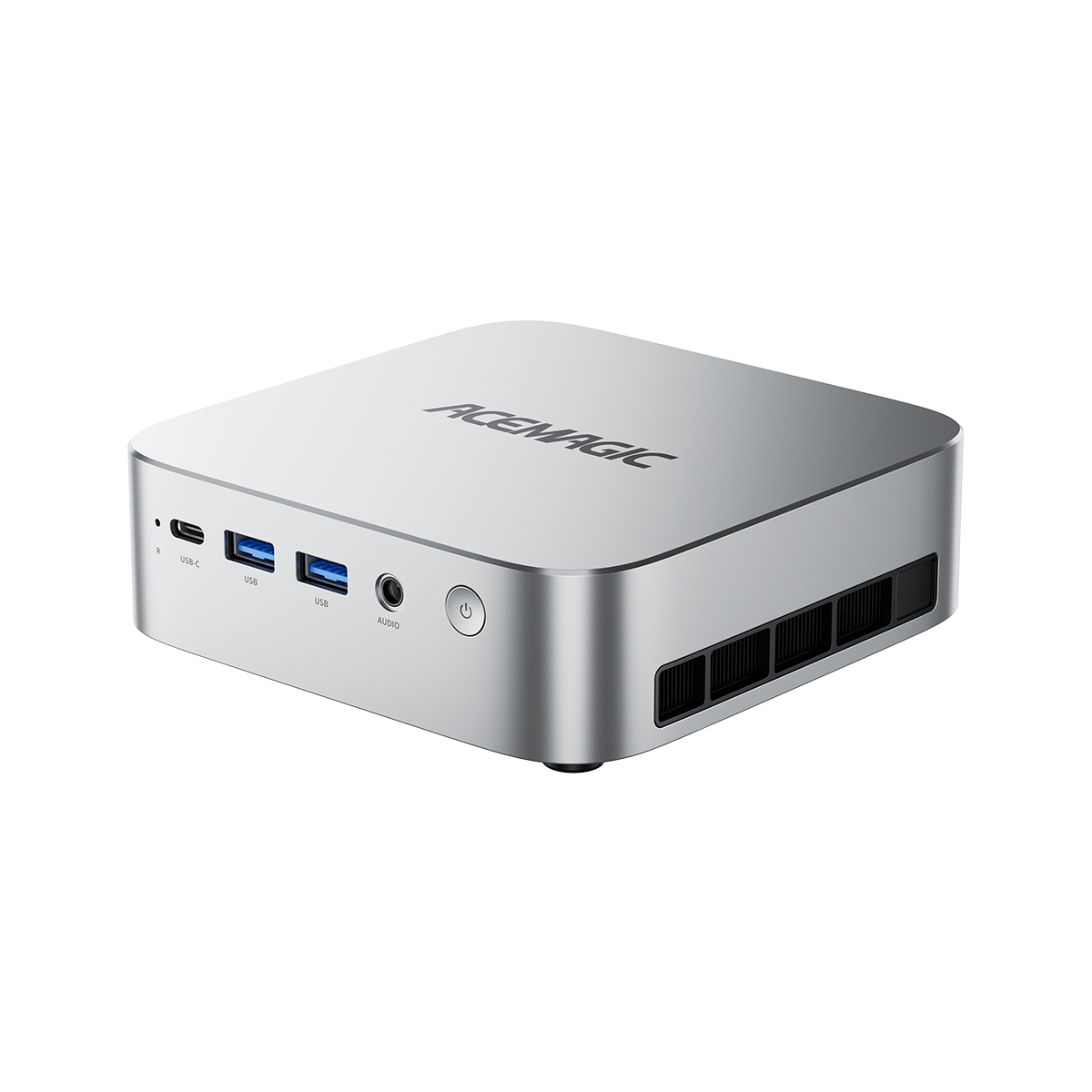
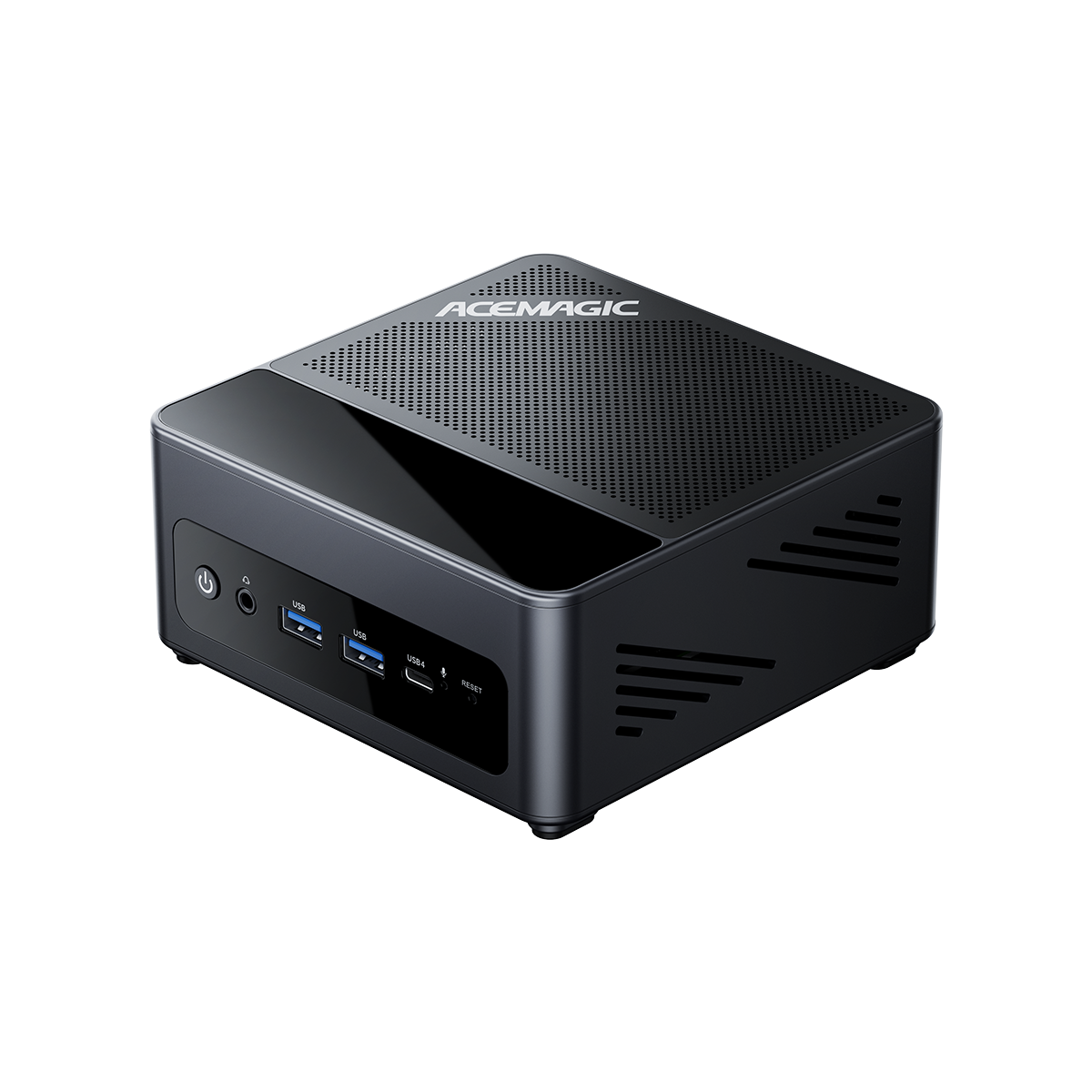
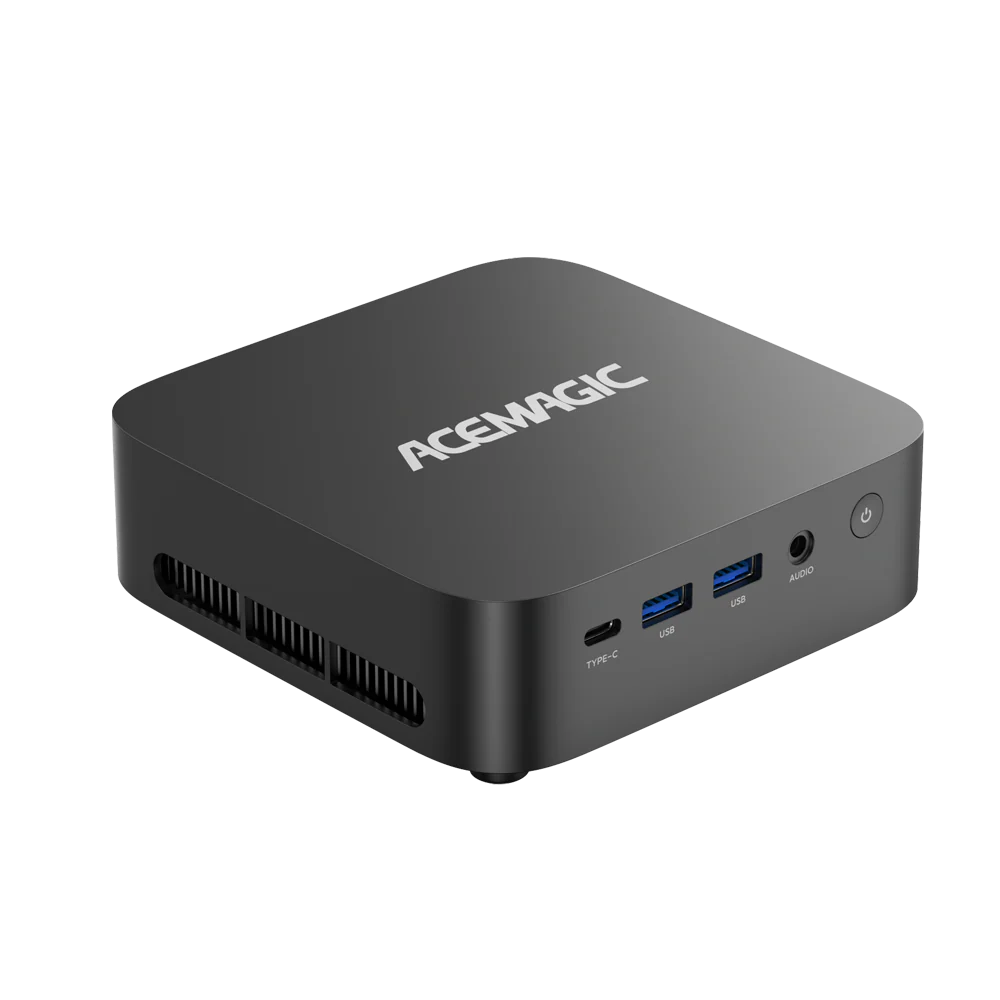
See ACEMAGIC best budget Mini PCs for Rise of Kingdoms

ACEMAGIC AD15 Mini PC
A sleek and powerful mini PC built to handle intensive daily computing and high-definition entertainment with absolute reliability.
- Intel® Core™ i5-12450H Processor
- 16GB RAM+512GB SSD
- Triple 4K@60Hz Display Output
- Space-saving Vertical Tower Design with Efficient Cooling

ACEMAGIC K1 Mini PC
Unlike many "silent" mini PCs that throttle performance when they get hot, the K1 uses a dual-exhaust cooling system. This allows the hardware to maintain higher speeds during longer gaming sessions without overheating.
- Intel® Core™ i5-12600H Processor (12 Cores, 4.5GHz)
- 16GB RAM + 512GB SSD (Expandable to 64GB/4TB)
- Triple 4K@60Hz Display Output (HDMI + DP + Type-C)
- Compact, Space-Saving Design with Advanced Dual-Fan Cooling
Best Controls and Performance Settings
Most problems in this setup come from system conditions, not from Rise of Kingdoms itself.
Turn on hardware virtualization
If virtualization is disabled in BIOS, Google Play Games may fail to install, refuse to launch, or run poorly.
Use SSD storage as the main drive
Google already treats SSD storage as part of the platform requirement. That matters for installation, updates, and general responsiveness.
Keep background apps under control
On an 8GB system, browser tabs, chat apps, and background utilities can use memory quickly. Closing what you do not need before launch helps.
Choose more memory if you multitask often
If the Mini PC is only for Rise of Kingdoms and a few light desktop tasks, 8GB can work. If the player usually keeps several apps open, 16GB is the safer choice.
Keep Windows and graphics drivers updated
Driver or system issues can look like game problems when the real cause is platform compatibility.
How to Fix Lag or Login Problems
Google Play Games will not install
Start with the basic checks: Windows version, free SSD space, administrator access, and virtualization. One missing requirement is enough to stop the installation.
Rise of Kingdoms will not launch
Check whether the PC meets Google Play Games requirements and whether the correct account is signed in. If the game installed but will not open, sign out and sign back in before trying again.
Virtualization is disabled
This is one of the most common setup issues. The fix usually happens in BIOS, not inside Windows.
The game feels slow on an 8GB system
The problem may be memory pressure from the rest of the desktop session rather than from Rise of Kingdoms alone. Close extra apps first. If that does not help and the PC is used for multitasking often, more memory is the more useful upgrade.
Progress is missing or login fails
Check the Google account used during sign-in. Account mismatch is a common reason saved progress does not appear on PC.
FAQ About Rise of Kingdoms on PC
Can you officially play Rise of Kingdoms on PC?
Yes. Rise of Kingdoms has a Google Play Games on PC listing, so players can install it on Windows without starting with an emulator.
Do you need an emulator for Rise of Kingdoms on PC?
No. Google Play Games is the direct PC option for this game.
Is 8GB of RAM enough for Rise of Kingdoms on PC?
Yes. That meets the minimum requirement for Google Play Games on PC. For a system that also keeps several desktop apps open, 16GB is the safer choice.
Can a Mini PC run Rise of Kingdoms smoothly?
Yes, if it meets the platform baseline. Check for an SSD, 8GB of RAM or more, four physical CPU cores, and hardware virtualization support.
Is more memory or a stronger CPU more useful for Rise of Kingdoms?
For many players, memory is the first upgrade to think about after the SSD requirement is already covered. A stronger CPU also helps, especially for players who multitask often, but the system usually feels tight sooner because of memory pressure than because the processor is too weak.