
How to Build a Barebones Mini PC and Save Money?

What Exactly is a Barebones Mini PC?
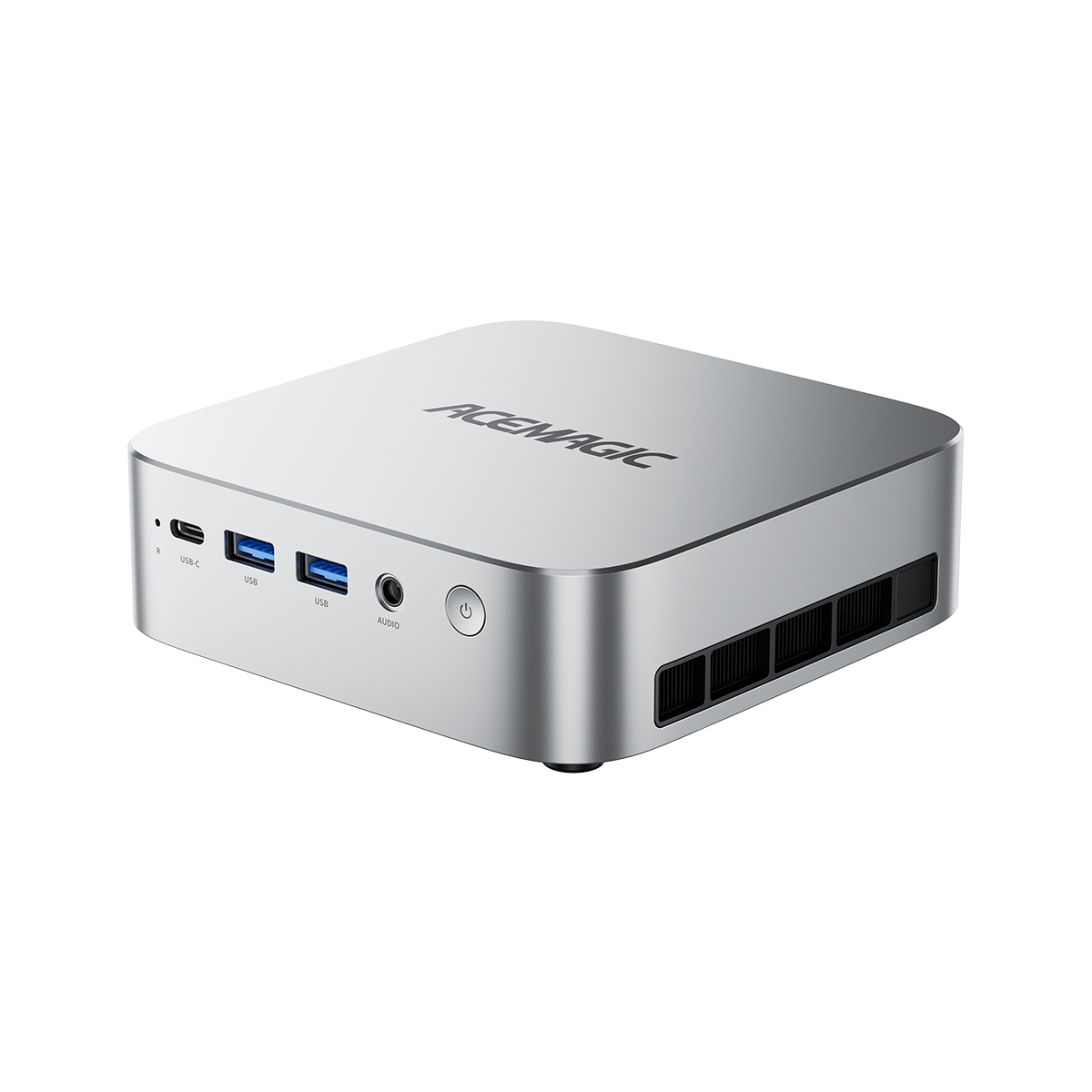
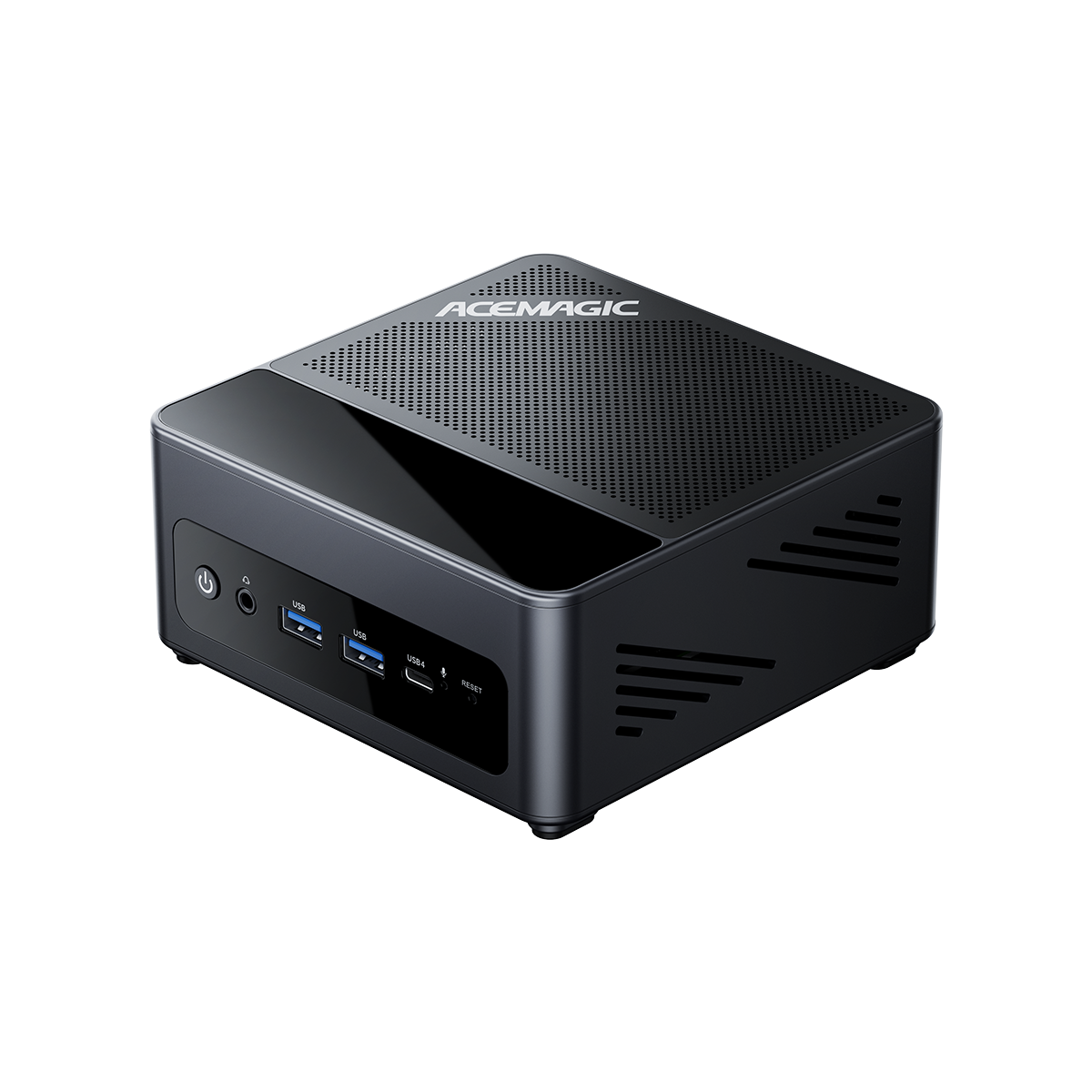
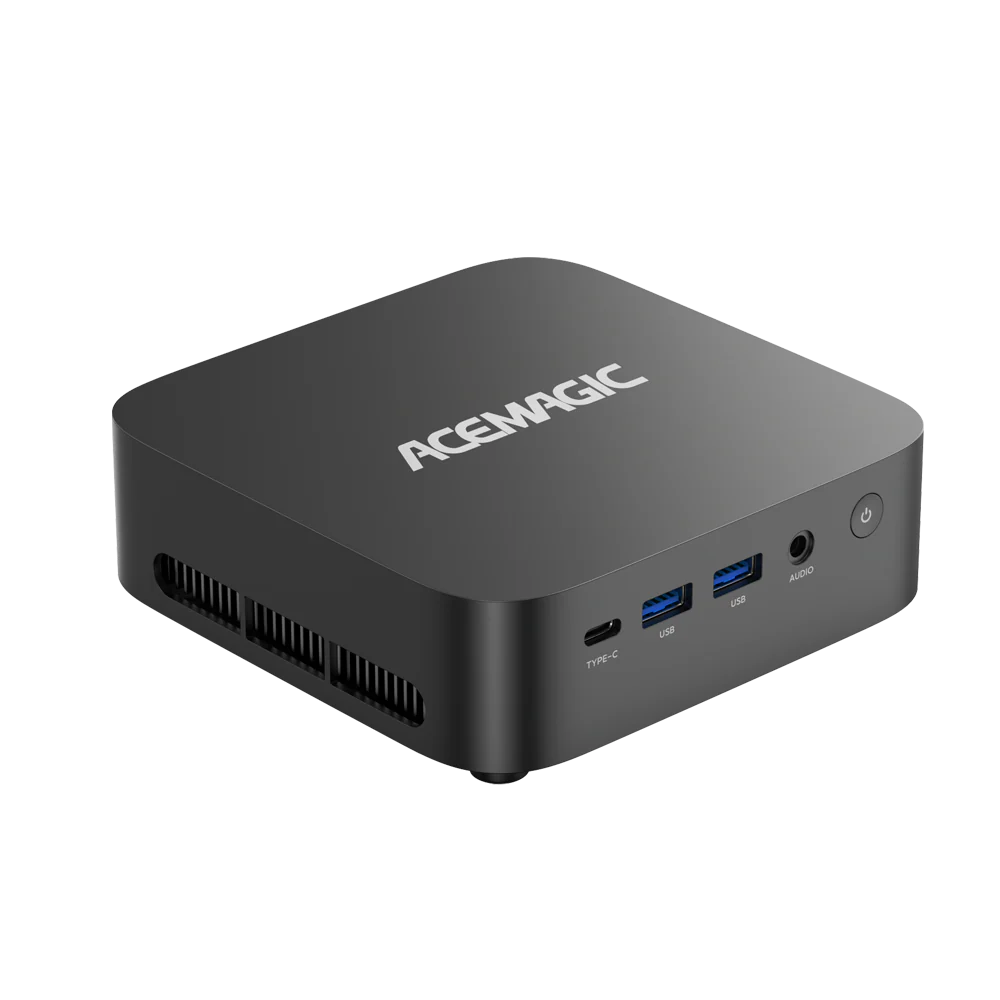
A barebones mini PC is a partially assembled computer. The package includes a computer case, a motherboard, a processor (CPU), a cooling fan system, and an external power supply.
It does not include Random Access Memory (RAM), a Solid State Drive (SSD), or an Operating System (such as Windows or Linux). Retailers and manufacturers often list this hardware state as a "0+0 configuration" (0GB RAM, 0GB Storage). Manufacturers sell these incomplete kits at a lower base price. This configuration requires the buyer to purchase the missing components separately and install them.
Barebones vs. Pre-Built Mini PCs: Cost and Hardware Control
Pre-built mini PCs come ready to use out of the box with RAM, storage, and Windows pre-installed. Barebones units require manual assembly. The choice between the two depends on your budget and specific hardware requirements.
Hardware Quality Control
Pre-built systems often utilize standard or unbranded RAM and SSDs to maintain a lower retail price. A barebones kit allows you to select high-performance components. You can choose a PCIe 4.0 NVMe SSD from Samsung or Western Digital for high read/write speeds, and specific CAS latency DDR5 memory from Crucial or Kingston to maintain system stability under heavy workloads.
Cost Efficiency and Component Reuse
If you own a compatible DDR5 SO-DIMM RAM kit or an M.2 SSD from a decommissioned laptop, you can install them directly into a barebones PC. Reusing existing parts reduces electronic waste. It also lowers your total hardware expenditure by $100 to $200 compared to purchasing a new pre-built unit with equivalent specifications.
Who Should Buy a Barebones Kit?
- Home Server and NAS Administrators: Users running systems like Proxmox or TrueNAS require high-endurance SSDs and specific RAM capacities. Barebones kits allow precise hardware selection for 24/7 server operations.
- External GPU (eGPU) Users: Buyers planning to connect a desktop graphics card via OCuLink or USB4 can allocate their budget toward the CPU and the external GPU dock. They avoid paying for pre-installed RAM or storage they might want to upgrade later.
- Hardware Upgraders: Individuals who possess the basic technical skills to use a screwdriver and install a Windows operating system via a USB drive.
High-Performance Barebones Kit: ACEMAGIC F5A
The ACEMAGIC F5A is a barebones option engineered for users requiring high multi-core compute power, local AI processing, and external graphics support.

Core Specifications
- Processor & AI Performance: It integrates the AMD Ryzen AI 9 HX 370 processor (12 Cores / 24 Threads) with a 65W TDP. The built-in NPU (XDNA2 architecture) delivers up to 50 TOPS of AI compute power, bringing the total system performance to 80 TOPS.
- Graphics and Expansion: The system includes integrated Radeon 890M graphics (RDNA 3.5 architecture, 16 cores). It features a dedicated OCuLink port for a direct PCIe 4.0 x4 connection to external desktop graphics cards. It also includes two USB4 Type-C ports supporting 40Gbps data transfer, PD100W input, and PD15W output.
- Memory and Storage Limits: The F5A motherboard supports up to 128GB of DDR5 5600MHz RAM across two SO-DIMM slots. It contains two M.2 2280 slots supporting NVMe PCIe 4.0 SSDs up to 4TB. It does not support older SATA SSDs.
- Networking and Video Output: The hardware includes dual 2.5Gbps Ethernet RJ45 ports, Wi-Fi 7, and Bluetooth 5.4. It supports multi-monitor setups via HDMI 2.1 (8K@60Hz), DP 2.1 (8K@60Hz), and the dual USB4 ports.
Cost Breakdown
Purchasing the F5A as a barebones kit costs $639. Buying the barebones kit and adding your own 32GB RAM and 1TB SSD results in a lower total cost than buying the manufacturer's pre-configured version. Alternatively, for the same total price as the pre-built model, you can equip the barebones unit with faster, premium-tier RAM and storage components.
A Step-by-Step Guide to Completing Your Barebones Mini PC
Completing a barebones setup requires three physical components and one software installation.
Step 1: Obtain the Correct Hardware
You must purchase SO-DIMM memory. Standard desktop DIMM RAM is too long and will not fit the motherboard slots. The F5A requires DDR5 RAM (up to 5600MHz). You must also acquire an M.2 NVMe SSD (form factor 2280).
Step 2: Physical Assembly
- Disconnect the power supply from the wall and the PC.
- Remove the screws securing the bottom panel of the mini PC chassis.
- Insert the RAM sticks into the motherboard slots at a 45-degree angle. Press down gently until the metal side clips lock the sticks into a flat position.
- Insert the M.2 SSD into the M.2 slot and secure the opposite end with the designated screw.
- Reattach the bottom panel and secure the exterior screws.
Step 3: Operating System Installation
Use a separate, working computer to download the Windows Media Creation Tool or a Linux ISO (such as Ubuntu). Create a bootable installation USB drive. Insert the USB drive into the newly assembled barebones PC, connect a monitor and keyboard, and power the system on. Follow the on-screen prompts to format the SSD and install the OS. Download the specific Wi-Fi and Bluetooth drivers from the manufacturer's support page to establish network connectivity.
Frequently Asked Questions
Will opening the case to install RAM and SSD void my warranty?
No. Barebones mini PCs are specifically designed to be opened by the user. Manufacturers do not void the warranty for installing RAM or storage. The warranty is only voided if you physically damage the motherboard or internal components during the installation process.
What tools do I need to build a barebones mini PC?
You need a small Phillips-head screwdriver (usually size #0 or #1) to open the chassis and secure the M.2 SSD. You also need a USB flash drive (minimum 8GB capacity) to create the operating system installation media.
Can I use desktop RAM in a barebones mini PC?
No. Mini PCs require SO-DIMM RAM. This RAM format is physically shorter and designed specifically for laptops and compact computing systems.
Does a barebones PC include a Windows license?
No. Because a barebones PC lacks a storage drive out of the box, it does not come with a pre-installed operating system. You must purchase a Windows license key separately or install a free operating system like Linux.