
RX 9060 XT vs RTX 5060: VRAM Headroom, Value & Mini PC Options
Choosing between the RX 9060 XT and the RTX 5060 is not simple — there are two RX 9060 XT variants (8GB/16GB) that change everything. Your final call depends on what you play and the system you need. Which Radeon version are you considering? Which games and features matter to you? Are you upgrading a desktop or buying a complete PC?
For demanding games, start with the RX 9060 XT 16GB if it costs about the same as the RTX 5060. It combines more graphics memory with strong published game results. The RTX 5060 is worth considering if you use DLSS or CUDA-compatible software, or find a complete PC that fits your budget.
The RX 9060 XT 8GB is a separate decision. It matches the RTX 5060's 8GB memory limit, so judge it by its price and performance in your games. Do not apply the 16GB model's memory advantage to the cheaper Radeon.

Quick buying verdict
Start with the Radeon memory capacity, then match the card to your games and software. The 16GB model is the stronger starting point for demanding gaming at similar prices. NVIDIA features can favor the GeForce. If you need a whole computer, compare complete system costs before choosing a GPU.
- Choose the RX 9060 XT 16GB when high-detail 1440p gaming, texture packs, or demanding games are priorities and the extra cost is reasonable.
- Choose the RTX 5060 if you need NVIDIA features or application support and are happy with its performance at settings that fit within 8 GB of memory.
- Choose the RX 9060 XT 8GB when it offers a meaningful saving, and you are comfortable adjusting memory-heavy settings.
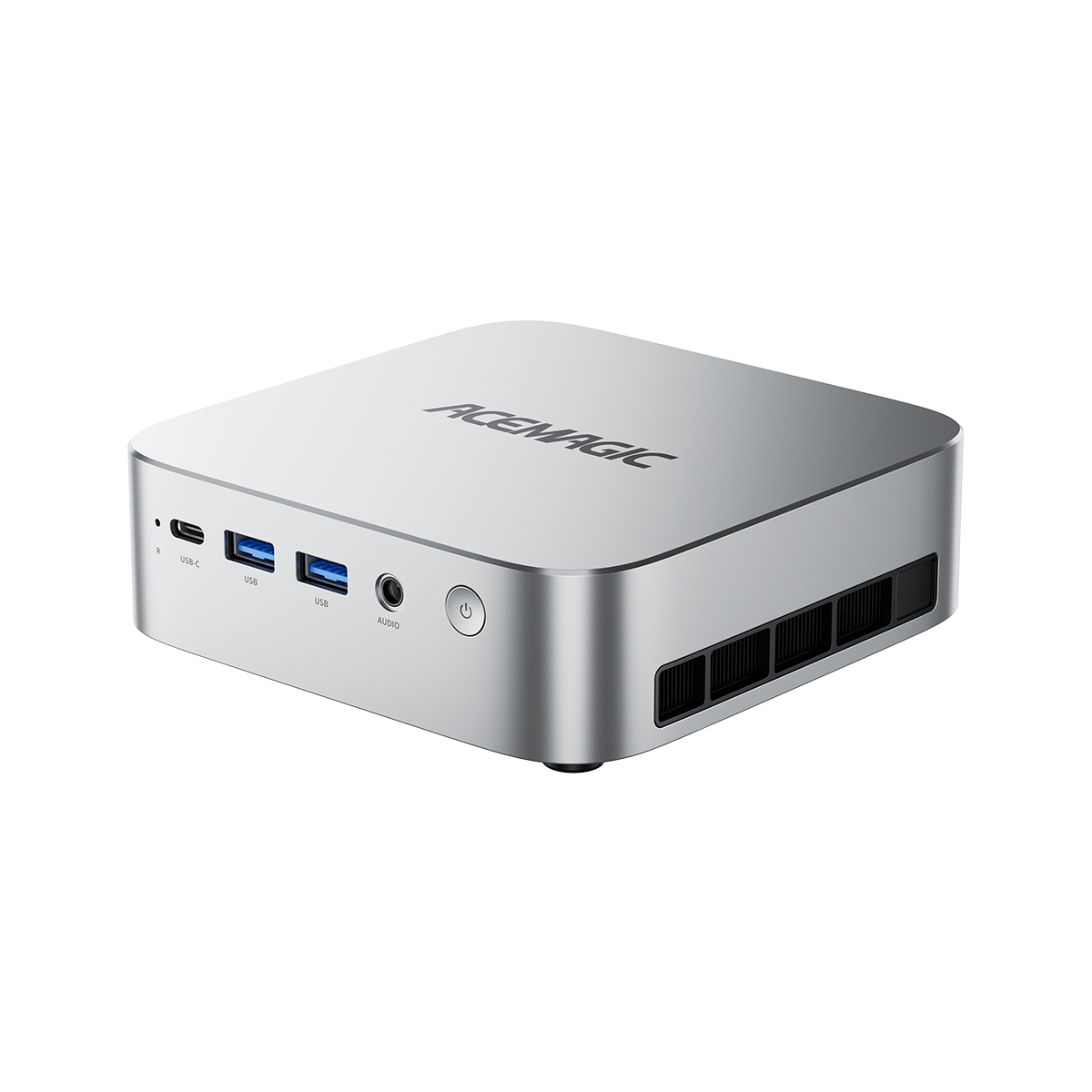
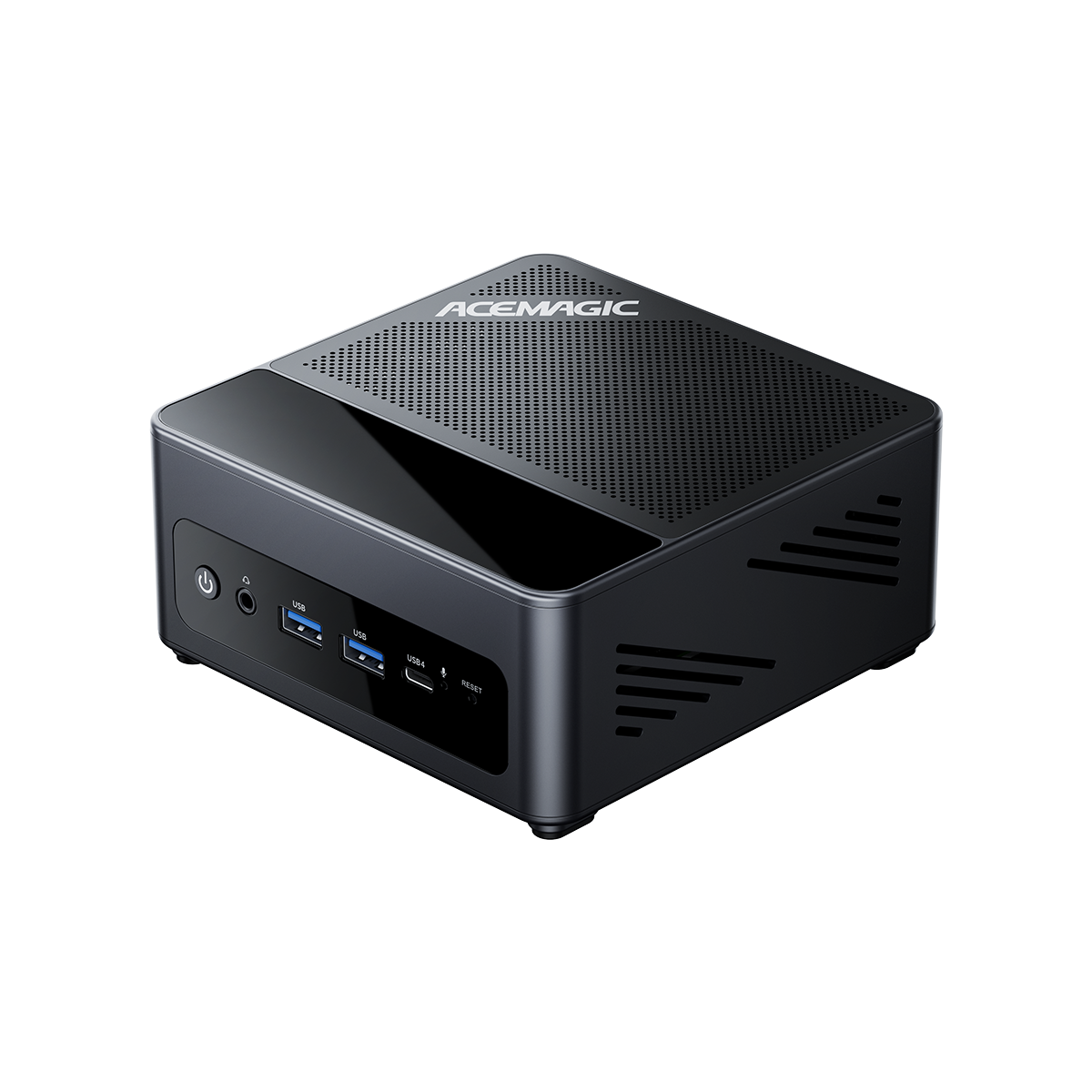
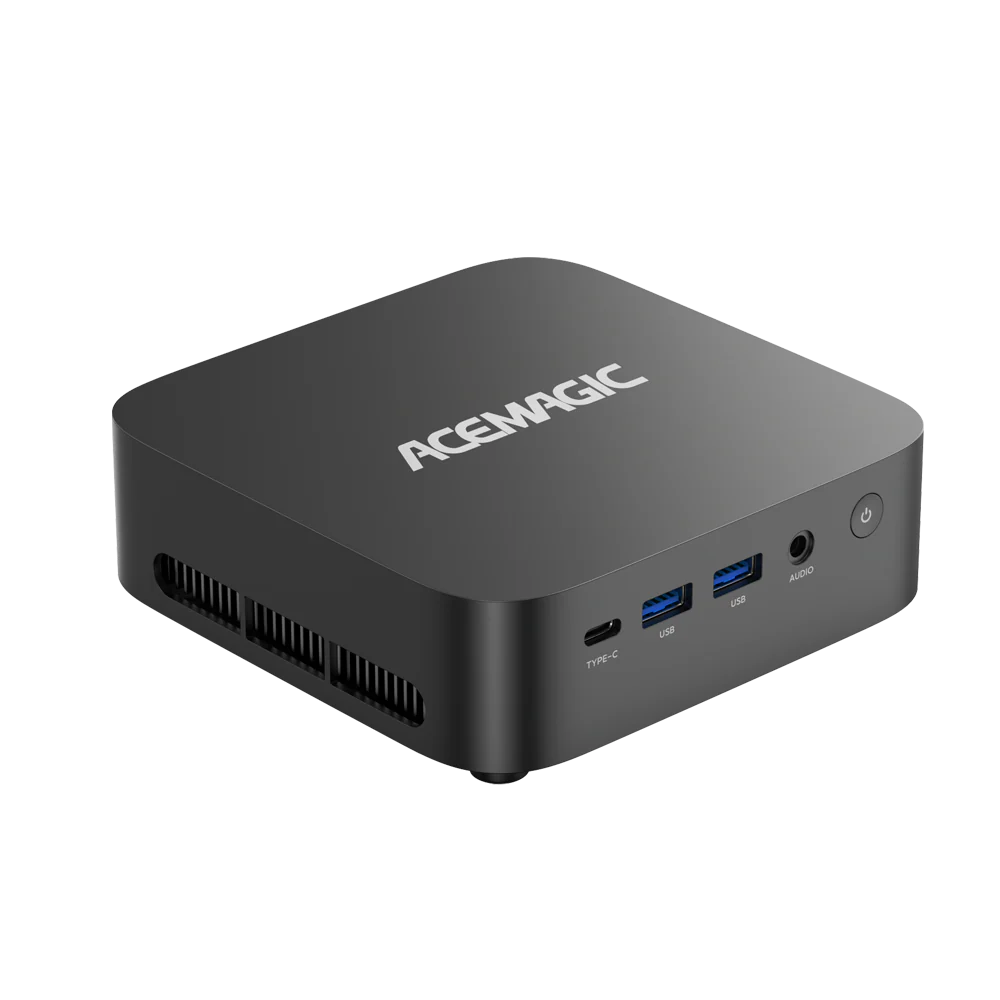
Want a compact RTX system without assembling a PC? The ACEMAGIC M1A PRO is one complete option. If you already have a suitable desktop, buying a graphics card is a different and potentially less expensive route.
This guide combines official specifications, independent desktop GPU reviews, and identified manufacturer data. This is not a controlled same-system benchmark comparison across all three GPUs. Benchmark suites have different game mixes, so rankings shift.
Specifications and the versions that matter
There are three cards to compare, not two: one GeForce with 8GB and two Radeon versions with different memory capacities. The table separates their specifications and historical launch prices. Memory speed, capacity, and rated graphics power describe different things; none of them alone tells you how a game will run.

| Specification | RTX 5060 desktop | RX 9060 XT 8GB | RX 9060 XT 16GB |
|---|---|---|---|
| Architecture | Blackwell | RDNA 4 | RDNA 4 |
| Dedicated VRAM | 8GB GDDR7 | 8GB GDDR6 | 16GB GDDR6 |
| Memory interface | 128-bit | 128-bit | 128-bit |
| Reference graphics power | 145W TGP | 150W typical board power | 160W typical board power |
| Main feature ecosystem | NVIDIA DLSS | AMD FSR | AMD FSR |
| US launch price in 2025 | USD 299 | USD 299 | USD 349 |
Data source: NVIDIA RTX 5060 family page, AMD RX 9060 XT 8GB, AMD RX 9060 XT 16GB, NVIDIA 5060 guide, and AMD newsroom release. nvidia.com; amd.com. Launch prices are historical reference points, not current offers.
The RTX 5060's GDDR7 provides higher memory bandwidth than the Radeons' GDDR6 configuration. Bandwidth helps move data quickly. Capacity determines how much can remain in graphics memory. Faster memory does not compensate for a workload that needs more space than the card has.
These desktop specifications also need context when buying a mini PC. Confirm the exact GPU implementation and power setting. A shared product name alone does not establish identical performance.
RTX 5060 vs RX 9060 XT 8GB
Both carry 8GB of VRAM, so capacity alone cannot settle this comparison. Start with a shortlist of games you play or plan to buy. Look for matching resolution, settings and rendering modes, then weigh the results against current prices and the software features you will use beyond gaming.
Evaluate average FPS, 1% lows and image quality. Then check the ray-tracing effects and upscaling options you plan to use, along with support for your other applications.
At a similar price, the RTX 5060 is attractive if your games support the DLSS features you want, or your other applications use CUDA. The 8GB Radeon is worth considering if it costs less or performs better in your main games. If the 16GB Radeon costs only a little more, include it before choosing either 8GB model.
ComputerBase's May 2026 tests provide a useful example of that game-specific choice. Both rows below compare the 8GB cards at a 1080p output resolution with DLSS or FSR Quality and ray tracing off.
| Game and rendering condition | RX 9060 XT 8GB average | RTX 5060 8GB average |
|---|---|---|
| ARC Raiders at 1080p with Quality upscaling and RT off | 120.7 FPS | 134.1 FPS |
| Assassin's Creed Shadows at 1080p with Quality upscaling and RT off | 75.3 FPS | 66.2 FPS |
The winner changes between these two games. These are upscaled results, not native 1080p measurements. Matching the Quality label also does not guarantee identical image quality between upscalers. Use the individual game's chart and inspect the image before choosing.
What published gaming tests show
Published reviews give the 16GB Radeon a strong gaming case, but the size of its lead depends on the test. The examples below keep the resolution, settings, and GPU version attached to each result. Use them to guide a purchase, rather than to predict exact performance in a different PC.
TechSpot's June 2025 review described nearly 30% better performance than the RTX 5060 in its comparison. Its separate native 1440p summary reported a 70 FPS average across 18 games for the Radeon. Those figures describe that review's launch-era suite and desktop test platform, not a guaranteed margin in every game.
At 1080p
The RTX 5060 can be a practical 1080p choice, but resolution alone does not decide the winner. In PCGamesN's June 2025 testing, the RX 9060 XT 16GB led the RTX 5060 in F1 24 at the Ultra High preset. In Doom: The Dark Ages at native 1080p Ultra Nightmare, the Radeon averaged 74 FPS and sat between the RTX 5060 and RTX 5060 Ti.

At 1440p
More pixels increase rendering demand. Some settings also increase the memory requirement. Here is a second example from the same PCGamesN review, alongside its 1080p result.
| Game and settings | RX 9060 XT 16GB average | RTX 5060 average |
|---|---|---|
| F1 24 at 1080p Ultra High with ray tracing and no upscaling | 87 FPS | 72 FPS |
| Doom Eternal at 1440p with ray tracing | 192 FPS | 131 FPS |
For the Doom Eternal row, 1% lows were 130 FPS on the Radeon and 71 FPS on the RTX 5060. PCGamesN used a Ryzen 7 7800X3D desktop with 32GB DDR5 memory and repeated each benchmark three times. These are selected results, not an overall average or M1A PRO tests.
The practical conclusion is to give the RX 9060 XT 16GB serious consideration for demanding 1440p gaming. NVIDIA features can still influence the purchase, but they should be weighed against measured rendering performance and memory needs.
Why GPU comparison scores disagree
PassMark is a synthetic benchmark database. It aggregates results submitted by users running its PerformanceTest software. A controlled game review tests a chosen set of games at specified settings. That means the two systems can rank the same GPUs differently.
Neither a composite graphics score nor an AI rating predicts every application.
- For gaming, look for tests that match your games and settings.
- For local AI, check the model and the software used to run it, including GPU support.
- Do not average unrelated scores into a new overall winner.
See the VideoCardBenchmark comparison for an example of how composite scores can differ from game reviews.
RX 9060 XT 8GB vs 16GB
The larger Radeon VRAM capacity matters most when a game's settings exceed what the 8GB card can comfortably hold. That can affect texture quality and frame pacing as well as average FPS. If your games fit within 8GB, however, doubling capacity does not automatically produce a meaningful performance gain.

TechSpot's separate 8GB-versus-16GB test shows why the setting matters. At native 1440p Extreme in Forza Horizon 5, the 16GB Radeon averaged 131 FPS, 22% ahead of the 8GB version. In Marvel's Spider-Man 2 at 1440p Very High with Quality upscaling, the 16GB card was nearly 70% faster, with substantially stronger 1% lows. These are two Radeon variants, not RTX comparisons.
That does not mean every game gains the same amount. If a workload fits comfortably within 8GB, extra capacity alone may change little. Nor is every stutter proof of a VRAM problem: shader compilation, CPU limits, and storage behavior can also affect smoothness.
Is 8GB VRAM enough for 1440p?
Yes, provided your games and settings fit within 8GB. You will have less flexibility if you want maximum texture quality, extensive mods, and ray tracing in demanding games.
If memory pressure appears, lower texture quality and repeat the same scene. Check whether texture loading and frame times improve. Upscaling can reduce some rendering demands, but it does not add physical VRAM.
Open-world games also vary by location and settings. Compare a representative demanding area rather than assuming a short scene describes the whole game. A busy scene alone does not prove that VRAM is the limiting factor.
Inspect textures as well as the FPS counter. A short benchmark can miss texture-loading problems that appear during longer play. Check image detail and frame times after moving through several areas, then repeat with lower textures. TechSpot's PCIe investigation documents why brief runs and modern test platforms can hide some 8GB limitations.
Upgrading an older PC or using an external GPU
Check the connection as well as VRAM. TechSpot tested the RX 9060 XT at different PCIe generations on the same Ryzen 7 9800X3D platform to isolate link bandwidth. Its results show that a slower link can make performance worse when an 8GB card needs to move data to and from system memory. The impact depends on the game's memory demands and settings; PCIe 3.0 does not cause the same slowdown in every game. These tests do not measure M1A PRO performance.
For a desktop upgrade, verify the slot's supported generation and active lane configuration. For an external GPU, check how the host connects to the enclosure. Desktop slot results cannot tell you the performance loss over OCuLink or USB4. More detail is in the same TechSpot PCIe benchmark deep dive.
DLSS vs FSR and ray tracing
Compare the rendering features you will actually use, not just the labels on the box. Ray tracing performance varies by game. Upscaling changes how the image is reconstructed, while frame generation adds intermediate frames. Check image quality and input response alongside displayed FPS before deciding which feature set suits you.
NVIDIA's DLSS suite includes Super Resolution, Ray Reconstruction and Multi Frame Generation. DLSS 4.5 adds Dynamic Multi Frame Generation, which adjusts the multiplier. Availability depends on the GPU, game, and software version, as described in the NVIDIA DLSS developer documentation.

On AMD, FSR 3 Frame Generation and FSR 4 upscaling describe different functions: the first generates intermediate frames, while the second reconstructs a higher-resolution image. Current FSR Redstone also includes machine-learning frame generation for supported RDNA 4 configurations. Check the implementation in each game via GPUOpen FSR Frame Generation.
| Mode | What to compare |
|---|---|
| Native rendering | Average FPS, 1% lows and frame pacing |
| Upscaling | Motion detail, fine edges and the chosen quality mode |
| Frame generation | Visible smoothness, artifacts and input response |
Start with satisfactory base performance, then enable frame generation. A displayed 120 FPS with generated frames should not be treated as identical to native 120 FPS. For competitive play, prioritize input response over the highest displayed FPS.
Price and which premium is worth paying
Current prices matter more than launch recommendations. The 16GB Radeon launched at a USD 50 premium over either 8GB card, but today's gap can be much larger. Compare the exact models available to you, then decide whether the extra memory, game performance, or software support justifies the difference in cost.
| Model | Retailer snapshot | Listed price |
|---|---|---|
| ASUS Dual RTX 5060 O8G | Newegg | USD 469.99 |
| ASUS Dual RX 9060 XT 16GB | Newegg | USD 789.99 |
This is just one retailer snapshot; many other third-party RX 9060 XT 16GB models sit much closer to RTX 5060 pricing. These are examples from specific listings. They are not necessarily the lowest prices available, and availability can change. A different retailer or promotion can change the decision.
Retail example: ASUS Dual RTX5060 O8G and ASUS Dual RX9060XT 16G. newegg.com.
That example puts the Radeon premium at USD 320, about 68%. A recommendation based on a USD 50 launch-price premium should not be carried over unchanged. Shop other models and tiers before paying that much extra.
Use these guidelines when comparing prices:
- At similar prices, favor the 16GB Radeon for demanding gaming unless a specific NVIDIA feature or application changes the choice.
- With a modest premium, ask whether it buys texture quality or smoother performance in games you play.
- With a large premium, compare the next GPU tier and the effect on your entire budget. Do not sacrifice an adequate power supply or necessary storage just to reach 16GB.
For a rough value check, compare the percentage price premium with the FPS gain in a matching test. Hypothetically, paying 20% more for 30% more FPS improves cost per frame; paying 60% more for that gain does not. Extra features and memory can still justify paying more if you will use them.
What changes inside a mini PC
Buying a complete gaming mini PC changes the budget calculation. A standalone card may be the cheaper upgrade if you already have a suitable desktop. A new system also includes the processor, memory, storage and other essentials. An external GPU adds its own connection requirements and costs to the comparison.

| Buying route | Compare the complete cost |
|---|---|
| Existing desktop upgrade | GPU plus any PSU, case or cooling changes |
| New complete PC | CPU, GPU, RAM, SSD, operating system and warranty |
| Existing mini PC with an external GPU | Compatible host, GPU, dock or enclosure, PSU and cables |
For compact systems, check sustained cooling, fan noise, display outputs and upgrade options. A small chassis can suit a desk or living room, but compact does not guarantee quiet operation during gaming.
An external GPU can make sense if you already own a compatible machine. Our guide breaks down the two connection standards: OCuLink vs USB4. Verify the host's ports before purchasing a dock; a USB-C connector alone is not enough.
Side-by-Side Mini PC Comparison: M1A PRO vs AtomMan G1 Pro-89A6
These two complete systems show how the GPU decision changes when you also need the computer. Both configurations include 32GB of RAM and a 1TB SSD. Their processors, graphics memory, display connections, and power supplies differ. Compare those details with the total price and the space available on your desk.
| Published specification | ACEMAGIC M1A PRO | MINISFORUM AtomMan G1 Pro-89A6 |
|---|---|---|
| Listed US price | USD 1,499 | USD 1,759 |
| Processor | Intel Core i9-13900HK | AMD Ryzen 9 8945HX |
| Graphics | GeForce RTX 5060 with 8GB VRAM | Radeon RX 9060 XT with 16GB VRAM |
| Included system RAM and SSD | 32GB and 1TB | 32GB and 1TB |
| Published GPU power | 145W in ACEMAGIC's mode table | 140W in the manufacturer's specification |
| Chassis dimensions | 166.7 x 166.9 x 160.9 mm | 215 x 57 x 315 mm |
| Published display connections | HDMI 2.0, DP 2.0 and USB4 | HDMI 2.1 and DisplayPort outputs |
| Power supply format | External DC adapter | Built-in 350W PSU |
| Listed operating system | Windows 11 Pro | Windows 11 Pro |
| Listed warranty | 2 years | 2-year seller warranty |
Sources: ACEMAGIC M1A PRO product page, ACEMAGIC's supplied mode table, and MINISFORUM AtomMan G1 Pro-89A6. These are manufacturer specifications and dated prices, not matched performance or acoustic measurements.
The G1 Pro costs USD 260 more, a premium of about 17%. The USD 260 price gap between G1 Pro and M1A PRO covers CPU, chassis, power supply, display outputs and VRAM — do not treat this as a pure USD 260 upgrade from RTX 5060 to RX 9060 XT 16GB. You get twice the dedicated VRAM, a different processor, and different display connections. These are two different systems, so the price gap cannot be attributed to the GPU alone.
For high-detail 1440p gaming, weigh the extra VRAM against that premium. If DLSS or CUDA-compatible software matters more, the M1A PRO offers those features at the lower listed price.
Check the fit on your desk, too. The G1 Pro has a thin chassis; the M1A PRO is closer to a cube. Leave room for ventilation, a stand where needed, and the M1A PRO's external power adapter.
For a 4K 120Hz TV, check the G1 Pro's HDMI 2.1 output specifications. The M1A PRO lists HDMI 2.0 at up to 4K 60Hz. Your display's input and cable must also support the intended mode. For 4K 120Hz, use a certified Ultra High Speed HDMI cable. Check HDR and VRR support separately via HDMI.org cable resources.
These specifications help narrow the choice. Testing the complete PCs is still necessary to compare gaming performance and noise.
Where the ACEMAGIC M1A PRO fits
The ACEMAGIC M1A PRO offers RTX 5060 features in a complete compact PC that includes a Core i9-13900HK, 32GB RAM, and a 1TB SSD for USD 1,499. Consider it if you want DLSS or CUDA-compatible software without assembling a desktop; check the display connections before buying.
It suits buyers who value a small footprint and one complete system. If you already own a capable tower, compare the cost of adding a card instead. Its Silent mode is a tuning profile, not a guarantee of quiet operation during gaming.

M1A PRO Power, Temperature and Noise Profiles
| Mode | CPU power | CPU core temperature | GPU power | Noise at 30 cm |
|---|---|---|---|---|
| Silent | 25W | 58 C | 145W | 39.1 dB |
| Balanced | 35W | 65 C | 145W | 39.1 dB |
| Performance | 45W | 73 C | 145W | 40 dB |
Source: ACEMAGIC product-page mode table. The listed CPU power changes between modes; GPU power stays at 145W. GPU power covers the graphics subsystem, not total system draw including the CPU, RAM, and SSD. These figures do not establish equal FPS across modes or a noise advantage over another PC.
For controller navigation and a living-room setup, see our guide: Steam Machine Alternatives.
Which GPU should you choose for your setup?
Your main use should guide the purchase. A budget gamer upgrading a tower faces a different decision from someone buying a complete living-room PC. Use the scenarios below to narrow your options, then check your games, display, and software. The M1A PRO fits buyers who want a complete compact RTX system.
| Your setup | How to choose | What to check before buying |
|---|---|---|
| Budget 1080p gamer with a suitable desktop | Compare both 8GB cards at current prices. Buying a card may cost less than replacing the whole PC. | Results in your main games, PSU capacity, case clearance, and any extra upgrade costs |
| High-detail 1440p gamer or texture-mod user | Give the 16GB Radeon more weight if the price is reasonable. Choose an 8GB option only if you are comfortable adjusting memory-heavy settings. | Texture quality, 1% lows and sustained performance in demanding areas |
| Competitive player with a high-refresh monitor | Favor strong base FPS and consistent frame times in your actual games. Generated frames should not decide the purchase. | CPU performance, input response and support for your monitor's resolution and refresh rate |
| Buyer who wants a compact PC without assembling one | Consider the M1A PRO if you want RTX features with RAM, storage and the rest of the system included. | Exact configuration, total price, display outputs and warranty |
| Living-room gamer using a TV | The M1A PRO is worth considering if its listed HDMI output of up to 4K 60Hz suits your display plan. Output capability does not guarantee games run at that resolution and frame rate. | TV input, cable, controller setup, and noise during gaming; check the output path separately for 4K 120Hz |
| Local AI hobbyist using CUDA-compatible tools | The RTX 5060 offers a CUDA option for workloads that fit within 8GB. A larger-memory GPU may be necessary for larger models or contexts. | Model size, quantization, context length, software support, and dedicated VRAM; 32GB of system RAM does not turn the card into a 32GB GPU |
If you need a complete PC and your priorities point to RTX features, check the M1A PRO configuration above. Its value is the complete package for your setup; the GPU name alone cannot establish how it will perform in every game or application.
Frequently Asked Questions
The remaining questions concern what specifications can and cannot tell you. Extra system RAM does not add dedicated VRAM, and DLSS does not remove memory limits. Desktop benchmarks also cannot guarantee mini PC performance. For local AI, the model's memory needs and the software's GPU support both matter when choosing.
Is the RX 9060 XT always faster than the RTX 5060?
No. Specify the Radeon memory capacity and compare the same game, settings, and rendering mode. The 16GB model has a strong published gaming case, but one average does not predict every title or mini PC.
Does DLSS solve the RTX 5060 VRAM limit?
No. It can reduce some rendering demands, but it does not increase physical VRAM. Textures and other resources still need space, and frame-generation features also use resources.
Is RTX 5060 good for AI local inference?
It can be useful for smaller quantized models and CUDA-compatible tools, provided the model and working memory fit. For illustration, 8 billion parameters at 4 bits require roughly 4GB for weights alone before format overhead, context cache, and runtime buffers. That is not a guarantee that every 8B model fits in 8GB. The benefit is access to NVIDIA's CUDA path in tools that support it. The limit is capacity: larger models or longer contexts may need more VRAM or partial CPU offload. AMD ROCm support continues to improve, though it remains less mature than CUDA for consumer GPUs on Windows. AMD can also run local inference through supported backends; a 16GB Radeon may hold a larger workload, but check the exact GPU, operating system, and runtime. See the llama.cpp build guide.
Can desktop benchmarks predict M1A PRO performance?
They provide context, not a direct forecast. The actual GPU implementation, power settings, CPU, and cooling matter. Use testing of the complete machine when you need a specific FPS expectation.
Does more system RAM increase dedicated VRAM?
No. A system with 32GB RAM and an 8GB graphics card still has 8GB of dedicated VRAM. System memory can support offloading in some applications, with different performance characteristics.
Final verdict: RX 9060 XT vs RTX 5060
For demanding gaming, start with the 16GB Radeon when its price is close to the GeForce. It offers strong published game results and more room for memory-heavy settings. Choose NVIDIA when its features or application support matter more. For a complete PC, weigh those benefits against the full system price.
RTX 5060 makes sense when you will use DLSS, need CUDA-compatible software, or find an attractive complete system. Its 8GB capacity calls for attention to settings, but it does not make every 1440p game unsuitable. Against the RX 9060 XT 8GB, compare game-specific results and actual prices; neither card holds a memory-capacity advantage.
For a ready-to-use RTX mini PC, the M1A PRO brings together a Core i9-13900HK, RTX 5060, 32GB RAM and a 1TB SSD for USD 1,499 at the checked price. It is a practical choice if you want DLSS and CUDA-compatible software in a compact system without assembling a desktop. Match its 8GB VRAM and display outputs to your games and monitor before ordering.
Which GPU wins for your priorities
| Category | Winner or preferred choice | What decides the recommendation |
|---|---|---|
| 1080p gaming | RX 9060 XT 16GB overall in the cited gaming suite | Individual games can favor the RTX 5060; the 8GB Radeon needs its own comparison |
| High-detail 1440p gaming | RX 9060 XT 16GB | Strong published game results and more room for memory-heavy settings |
| VRAM headroom | RX 9060 XT 16GB | Twice the capacity of either 8GB card; not a guarantee of future game performance |
| Ray tracing | Game-dependent | The Radeon wins some cited RT tests; check the exact game and effects |
| DLSS and Multi Frame Generation | RTX 5060 | The choice when these NVIDIA features are priorities and supported in your games |
| Power efficiency | No established overall winner here | Lower rated GPU power alone does not establish FPS per watt or complete-system efficiency |
| Gaming value | RX 9060 XT 16GB when prices are close | A large current price premium can change the recommendation |
| Budget 1080p build | Compare both 8GB cards at current prices | Favor the better result in your games within the total build budget |
| CUDA-dependent software | RTX 5060 | Confirm application support and that the workload fits within 8GB |
This summary follows the specifications and tests discussed above. It is a buying guide, not a new benchmark ranking of the two complete mini PCs.
Ready for a compact RTX setup? Check out the ACEMAGIC M1A PRO and verify the latest configuration, price, and availability.
References and Data Sources
- NVIDIA. “GeForce RTX 5060 Family.” nvidia.com; “Ultimate Guide to GeForce RTX 5060.” nvidia.com; “DLSS developer documentation.” developer.nvidia.com.
- AMD. “Radeon RX 9060 XT 8GB.” amd.com; “Radeon RX 9060 XT 16GB.” amd.com; “AMD introduces new Radeon graphics cards and Ryzen.” newsroom.amd.com.
- GPUOpen. “AMD FSR Frame Generation.” gpuopen.com.
- ComputerBase. “RTX 5060 / RX 9060 XT GPU test (page 3).” computerbase.de.
- TechSpot. “AMD Radeon RX 9060 XT review.” techspot.com; “AMD Radeon RX 9060 XT 8GB review.” techspot.com; “AMD Radeon RX 9060 XT PCIe benchmark deep dive.” techspot.com.
- PCGamesN. “Radeon RX 9060 XT 16GB review.” pcgamesn.com.
- VideoCardBenchmark. “Radeon RX 9060 XT 16GB vs GeForce RTX 5060.” videocardbenchmark.net.
- Newegg. “ASUS Dual RTX5060 O8G listing.” newegg.com; “ASUS Dual RX9060XT 16G listing.” newegg.com.
- HDMI.org. “Cable resources.” hdmi.org.
- llama.cpp. “Build guide.” github.com.